
Skip to Content
EFixPro
  • ERP modules
    • Commerce
    • POS Retail Retail POS
    • CRM CRM
    • sales Sales
    • Subscriptions Subscriptions
    • View all
    • Supply chain
    • Inventory Inventory
    • Purchasing Purchases
    • Manufacturing Manufacturing
    • Products Products
    • Repairs Repairs
    • View all
    • Finance
    • Accounting Accounting
    • Electronic Payroll Electronic payroll
    • electronic invoicing Electronic invoicing
    • Expenses Expenses
    • Documents Documents
    • View all
    • HR
    • Calendar Calendar
    • Employees Employees
    • Projects Projects
    • Helpdesk Helpdesk
    • Contacts Contacts
    • View all
    • Marketing
    • Website Websites
    • Email Marketing Email marketing
    • Events Events
    • Live Chat Live chat
    • Blog Builder Blog builder
    • View all
    • Industries
    • Restaurants and cafés
    • Retail and specialty stores
    • Technical services
    • Construction and maintenance
    • Hospitality and tourism
    • Bakeries and pastry shops
    • View all
    Commerce
    • restaurant-pos Restaurant POS
    • POS Retail Retail POS
    • CRM CRM
    • sales Sales
    • Subscriptions Subscriptions
    • View all
    Supply chain
    • Inventory Inventory
    • Purchasing Purchases
    • Manufacturing Manufacturing
    • Products Products
    • Repairs Repairs
    • View all
    Finance
    • Accounting Accounting
    • Electronic Payroll Electronic payroll
    • electronic invoicing Electronic invoicing
    • Expenses Expenses
    • Documents Documents
    • View all
    HR
    • Calendar Calendar
    • Employees Employees
    • Projects Projects
    • Helpdesk Helpdesk
    • Contacts Contacts
    • View all
    Marketing
    • Website Websites
    • Email Marketing Email marketing
    • Events Events
    • Live Chat Live chat
    • Blog Builder Blog builder
    • View all
    Industries
    • Restaurants and cafés
    • Retail and specialty stores
    • Technical services
    • Construction and maintenance
    • Hospitality and tourism
    • Bakeries and pastry shops
    • View all

    • Contact us
    • ​ Book a sales consultation
    • Live chat
  • EDUCATION
  • Industries
    • Restaurants and cafés
    • Retail and distribution
    • Technical services
  • ABOUT US
    • OUR COMPANY
    • SUCCESS STORIES
  • CONTACT US
    • Support

    • Service appointments
    • Group training (level 1)
    • Personalized session (non-accounting)
    • Accounting consultation
  • 0
  • 0
  • English (US) Español (CO)
  • Sign in
  • Book a sales consultation
EFixPro
  • 0
  • 0
    • ERP modules
    • EDUCATION
    • Industries
      • Restaurants and cafés
      • Retail and distribution
      • Technical services
    • ABOUT US
      • OUR COMPANY
      • SUCCESS STORIES
    • CONTACT US
      • Support
      • Service appointments
      • Group training (level 1)
      • Personalized session (non-accounting)
      • Accounting consultation
  • Book a sales consultation
  • English (US) Español (CO)
  • Sign in

How to confirm and receive products from a purchase order

Learn to confirm and receive products from a purchase order in Odoo 17 with our step-by-step guide. Manage procurement efficiently and ensure products are received correctly into inventory.
  • All Blogs
  • V17 tutorials
  • How to confirm and receive products from a purchase order
  • September 24, 2024 by
    How to confirm and receive products from a purchase order
    TORRES PARRA DAVID FERNANDO

    In this tutorial, we will learn to confirm and receive products from a purchase order in Odoo 17. This process is crucial for ensuring purchased products are received and recorded correctly. We will use office equipment, such as "ergonomic chairs" and "adjustable desks", as an example. 

    Tutorial: How to confirm and receive products from a purchase order

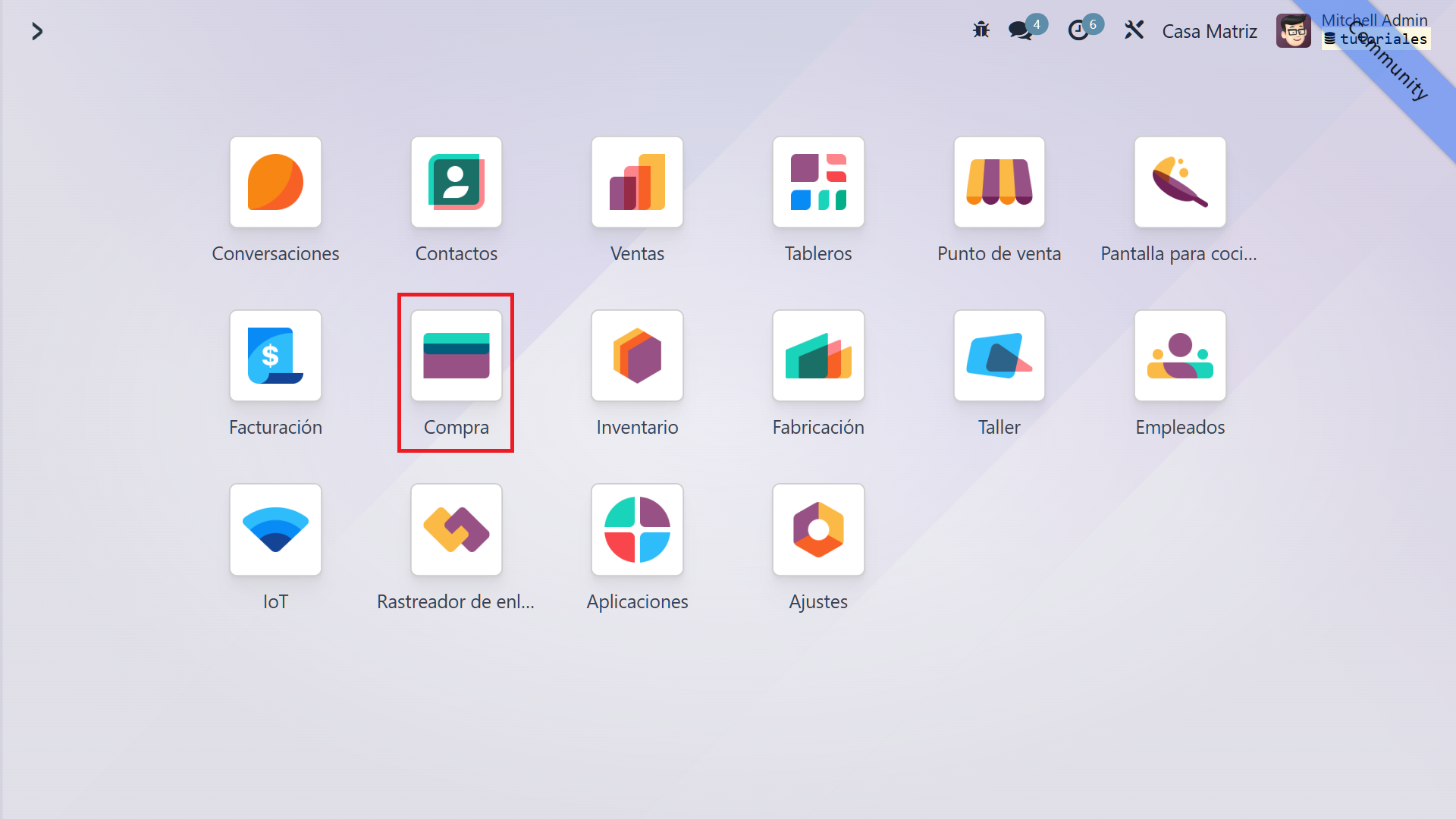
    1. Open the Purchase module from the main menu

    To begin, go to the Odoo main menu and select "Purchase". This module lets you manage all activities involved in purchasing goods and services for your company.
    2. Create a new quotation or select an existing one

    In the Purchase module, create a new quotation by clicking "New". Alternatively, select a previously created quotation from the available list. 
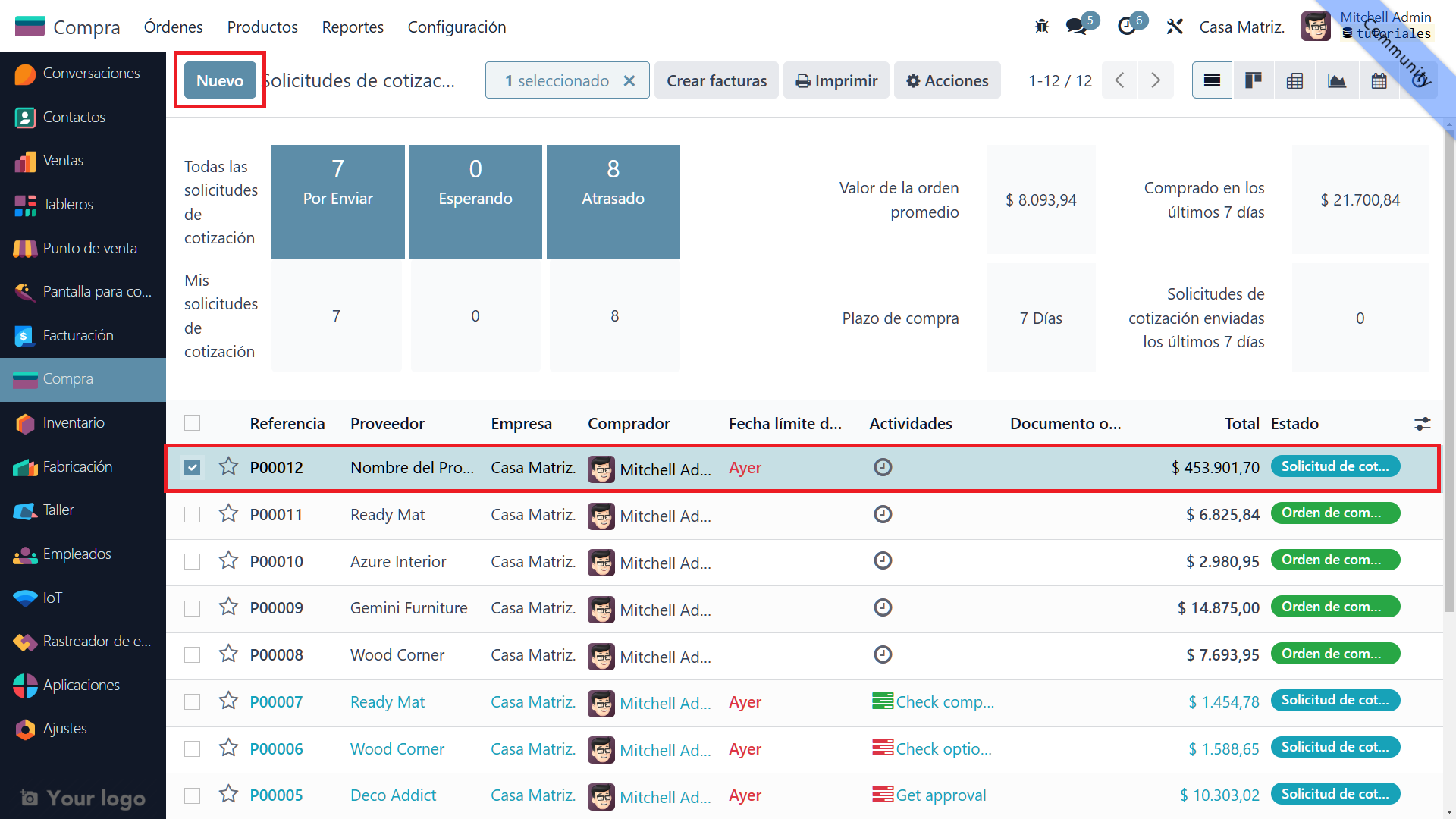
    3. Open and review the quotation

    When you open the selected quotation:  

    • Check products: Review all products listed in the quotation to confirm that information such as quantities and descriptions is correct.
    • Confirm order: Click "Confirm Order" to turn the quotation into an active purchase order. This step is essential before receiving the products.
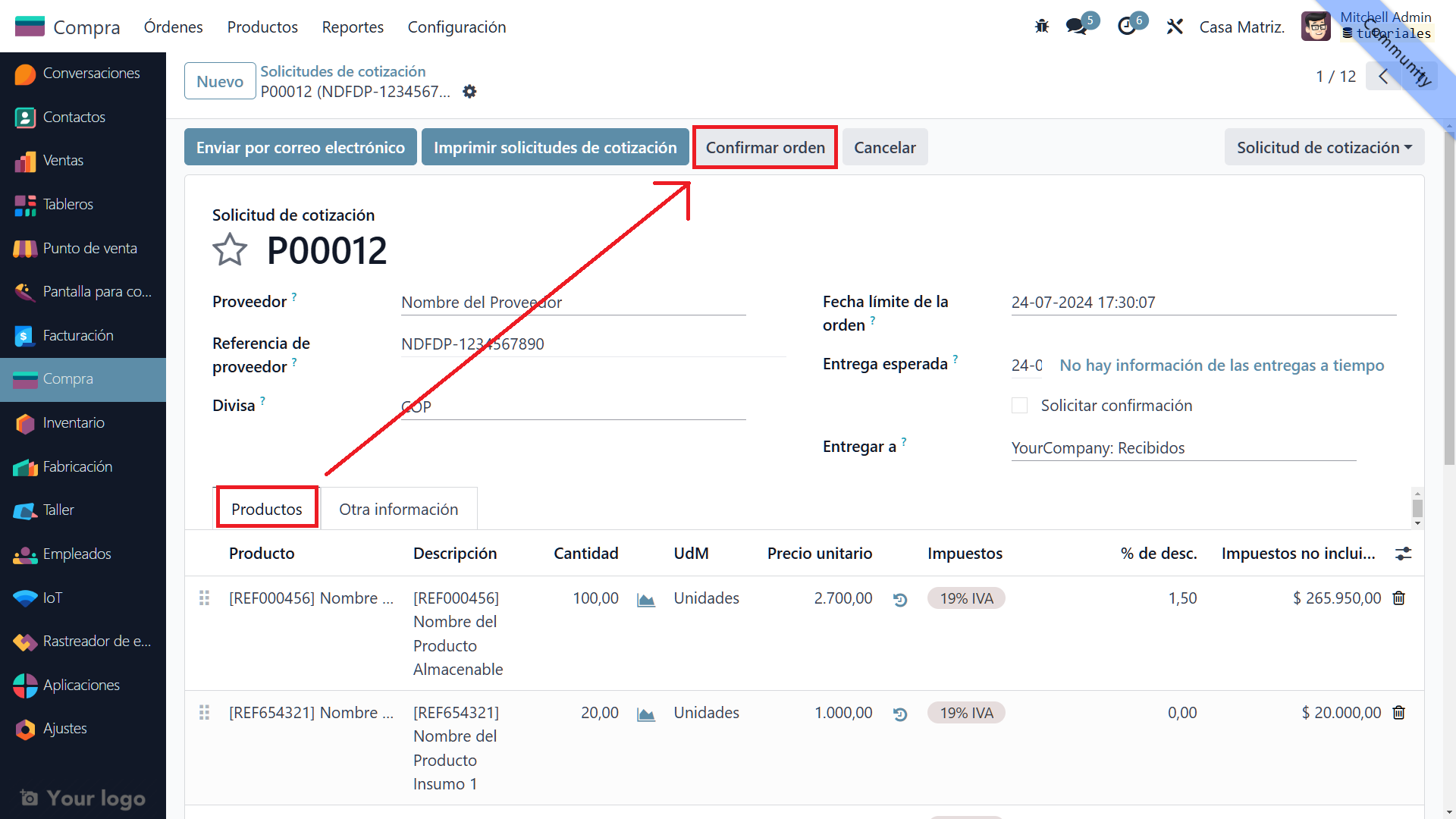
    4. New options after confirmation

    Once the purchase order is confirmed, several new options become available:

    • Receive products: This button starts the process of receiving purchased products.
    • Send the purchase order by email: Email the purchase order to the vendor directly from Odoo.
    • Confirm the receipt date: Set and confirm the expected product receipt date.
    • Create bill: Generate a bill based on the confirmed purchase order.
    • Cancel: If necessary, cancel the purchase order at any point in the process.
    • Lock: Prevent further changes to the purchase order.
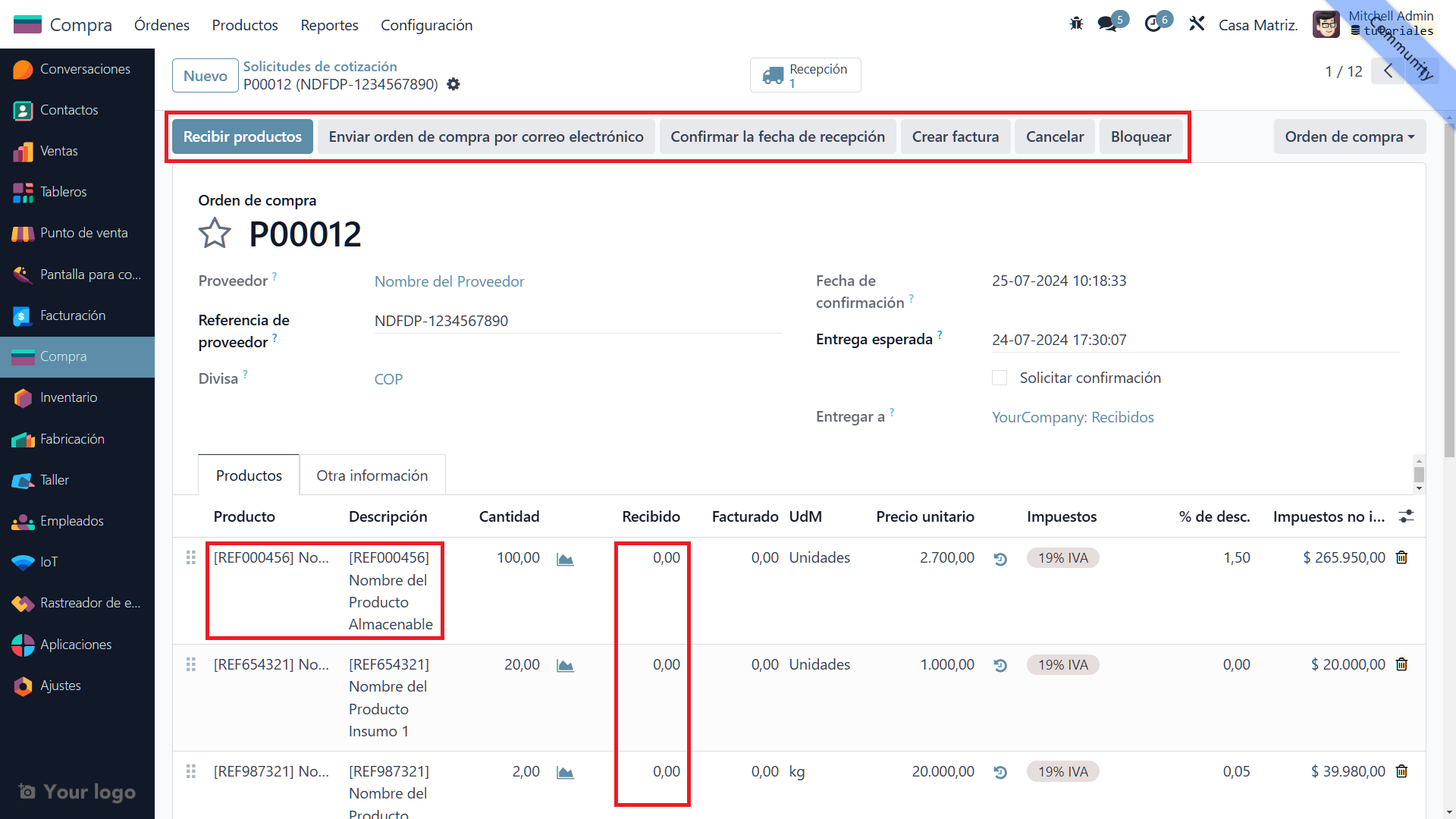
    You can also see quantities already received if they were previously validated.


    5. Check current quantities before validating the receipt

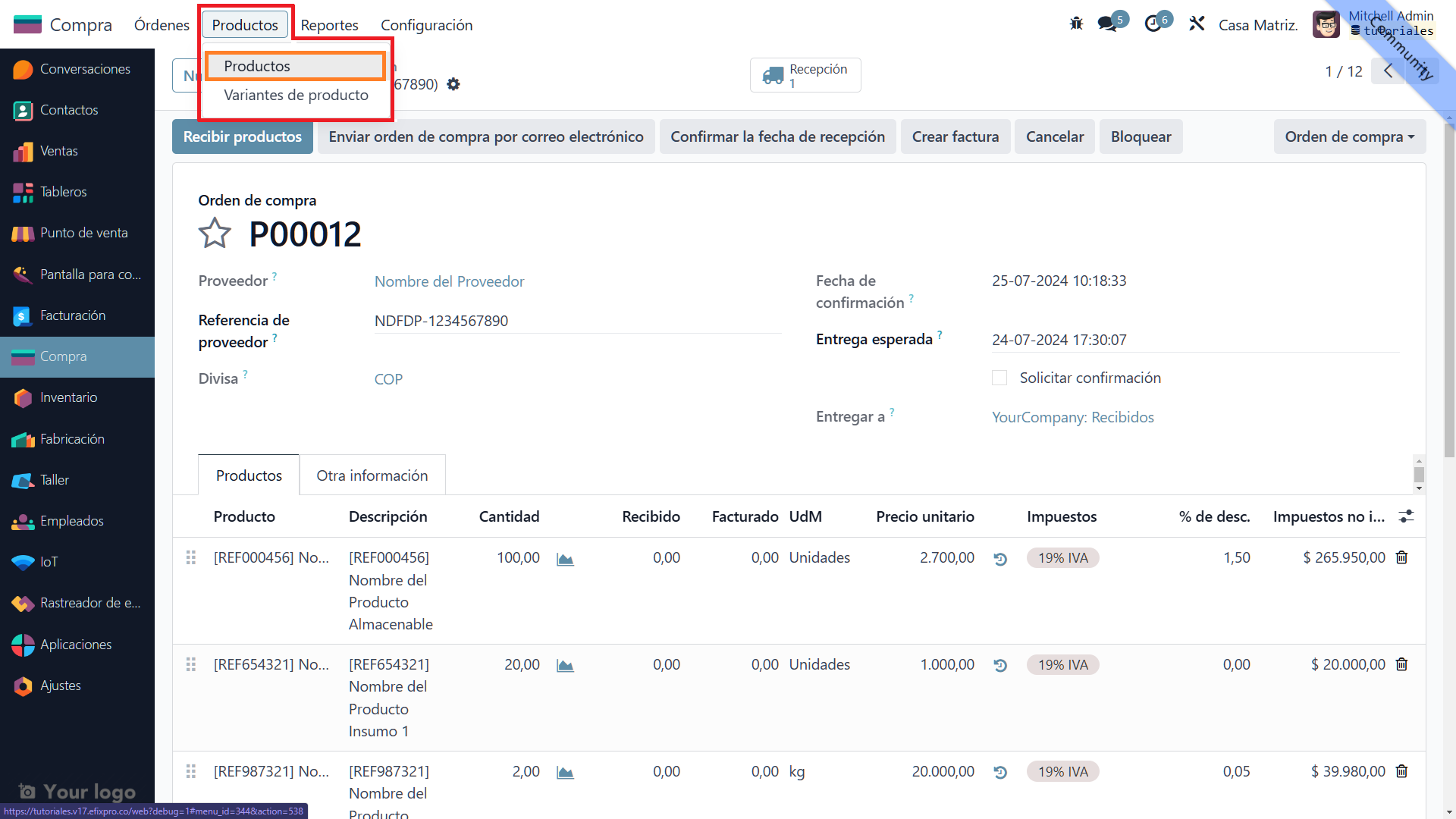
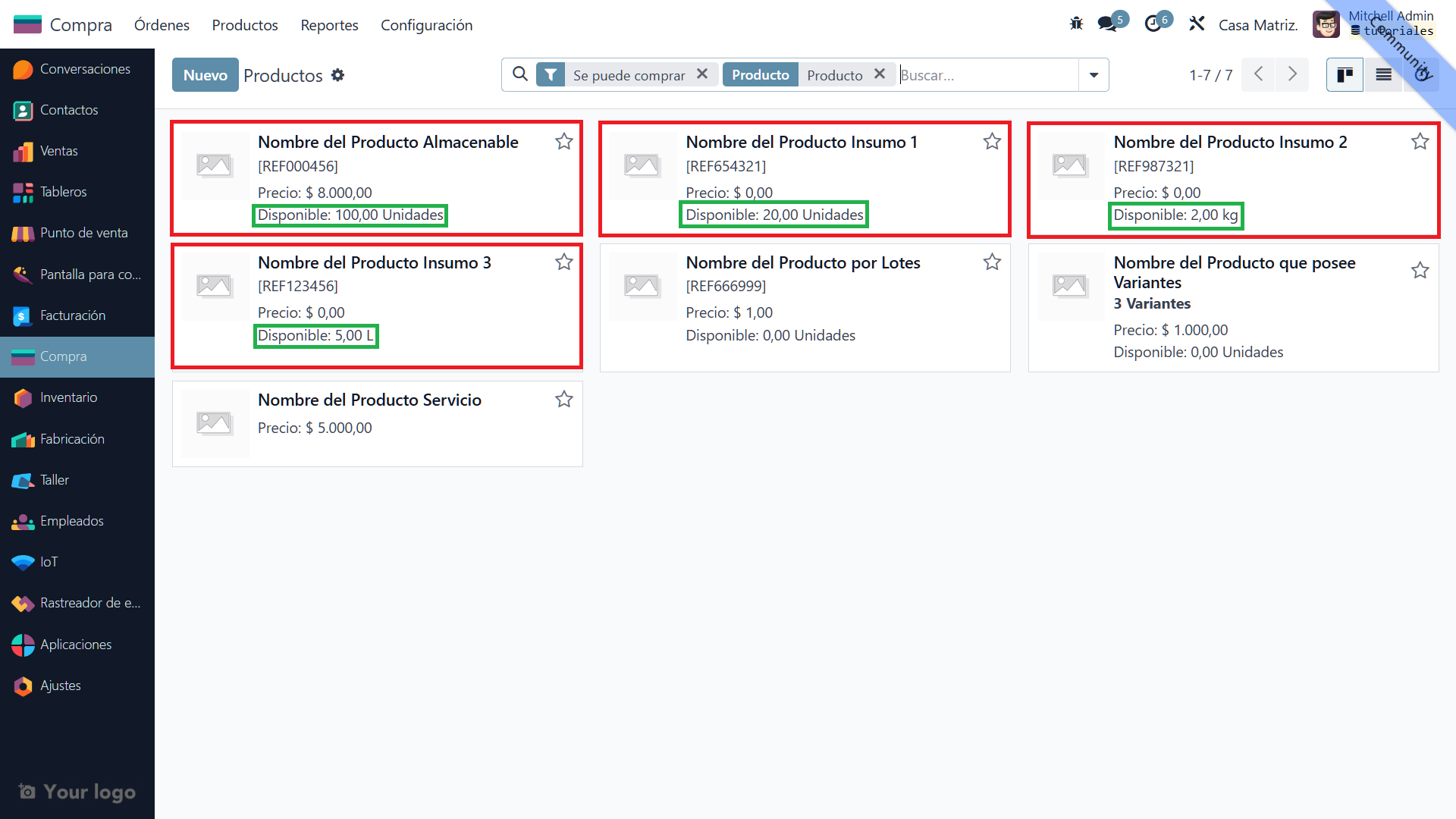
    Before validating product receipt, check the current inventory quantities. In the top menu, select "Products", then "Products". This helps you confirm that the listed products have not yet been received.
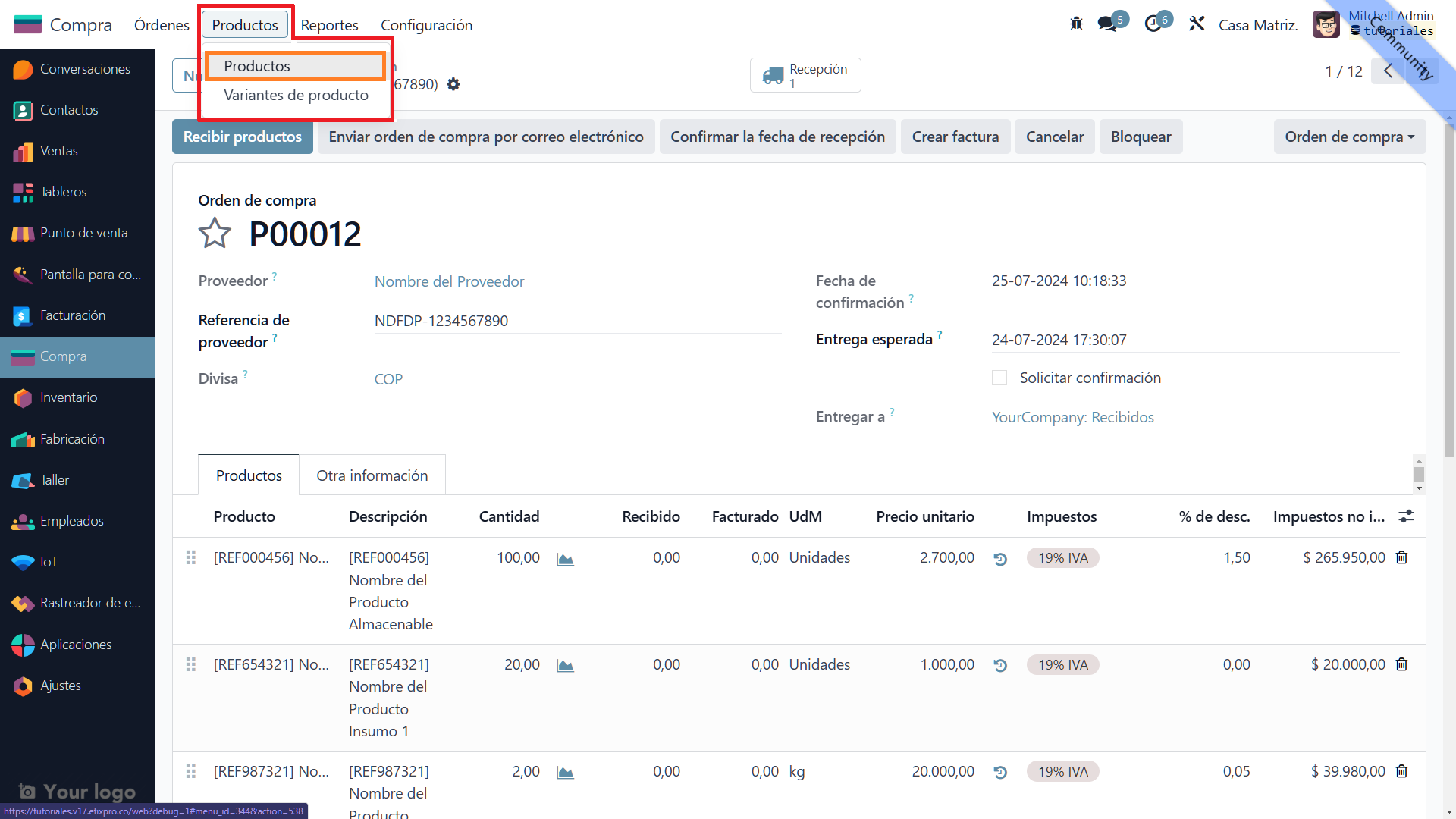


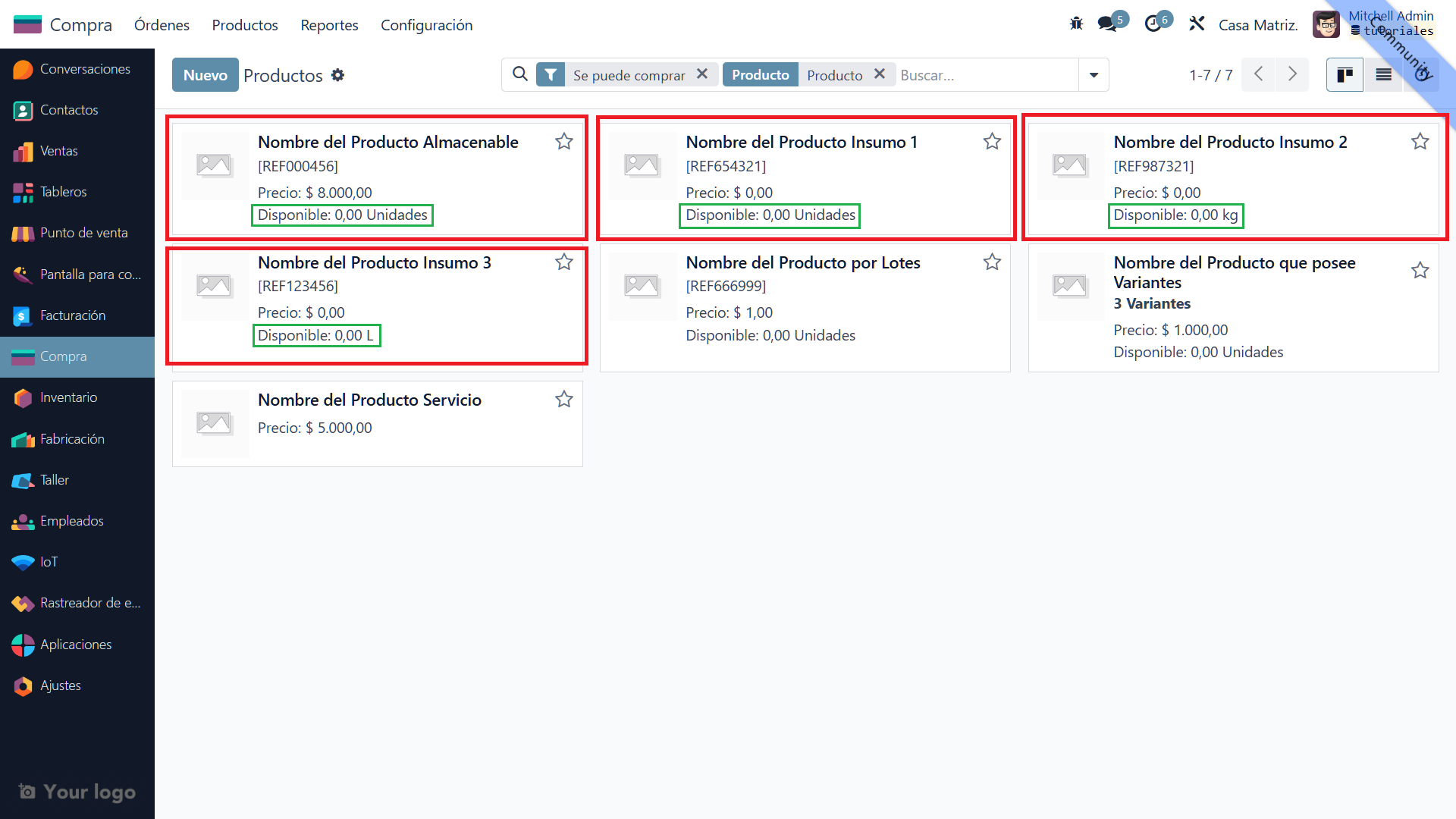
    6. Confirm that the products have not yet been received

    At this stage, the product quantities in inventory will be unchanged, indicating that the products have not yet been officially received.


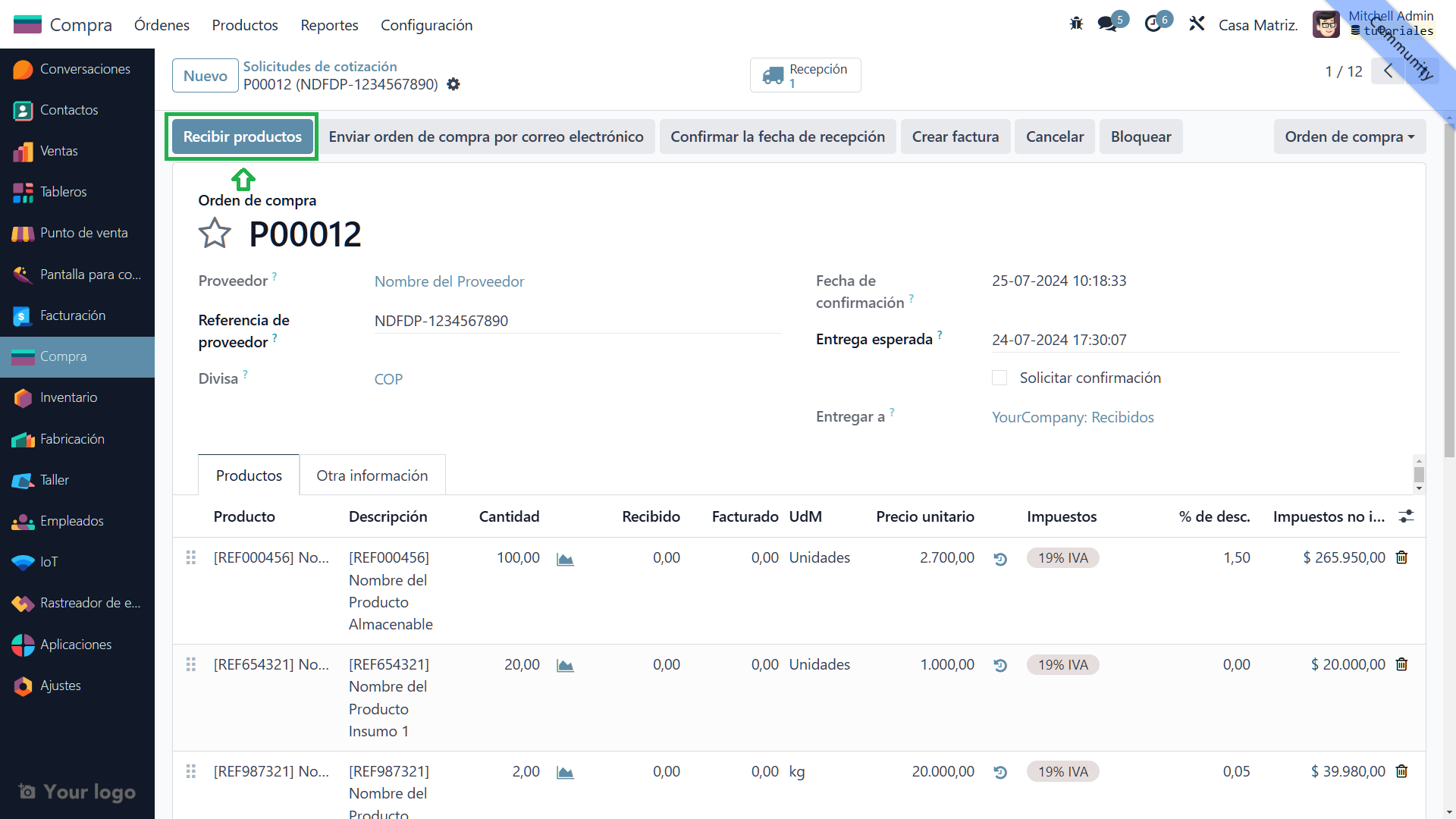
    7. Proceed to receive the products from the purchase order  

    Return to the purchase order and click "Receive Products" to start receiving the purchased goods.  
    8. Adjust the received quantities if necessary

    If the products received do not match the requested quantities, adjust the values in the "Demand" column. For example, if you ordered 10 chairs but only 8 arrived, change the received quantity. Odoo lets you create a "Backorder" for products not received, so the incomplete order is handled appropriately.
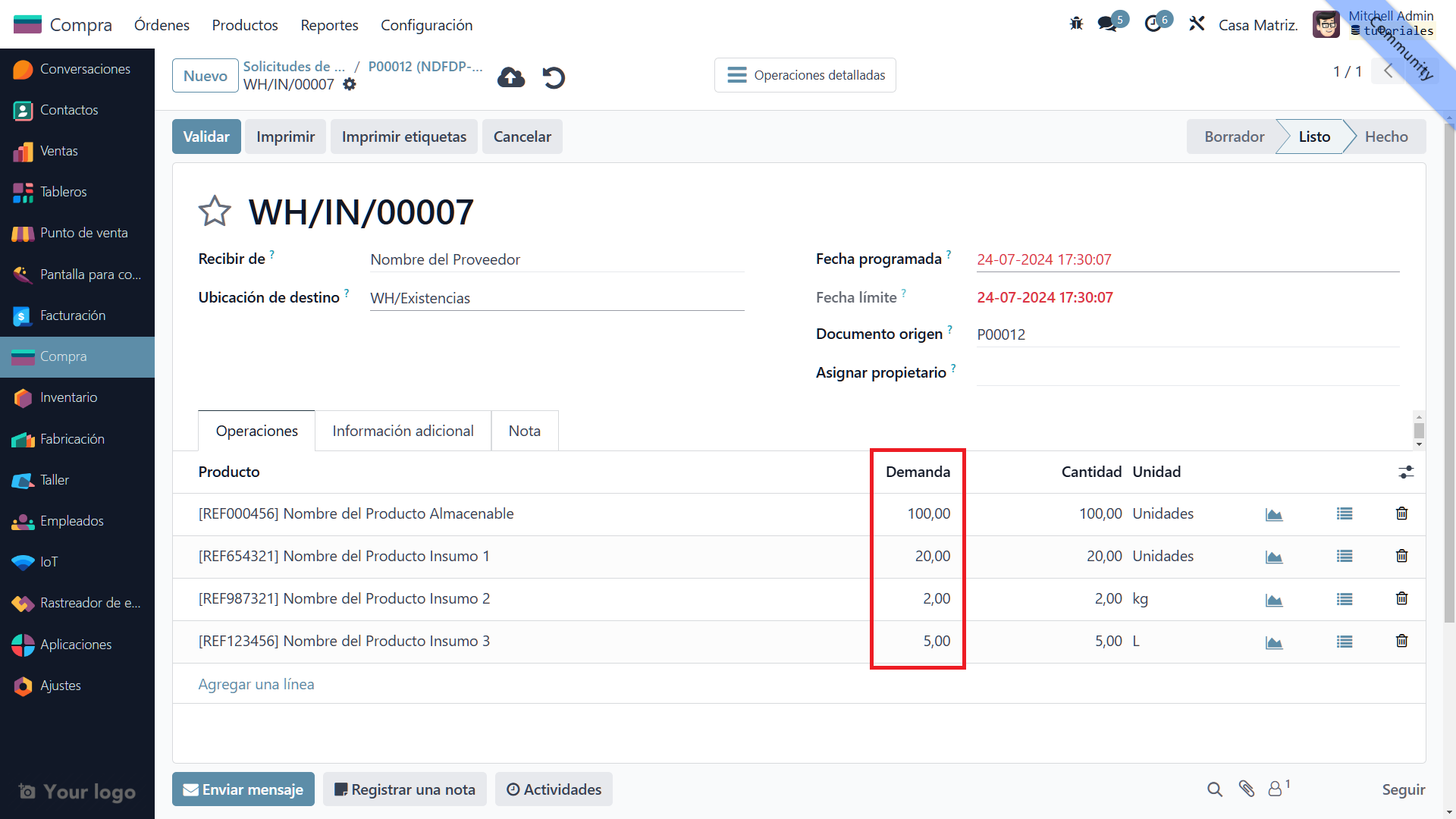
    9. Validate the quantities and receipt date

    Review and validate the quantities received and the receipt date. This step is essential for accurate inventory updates.
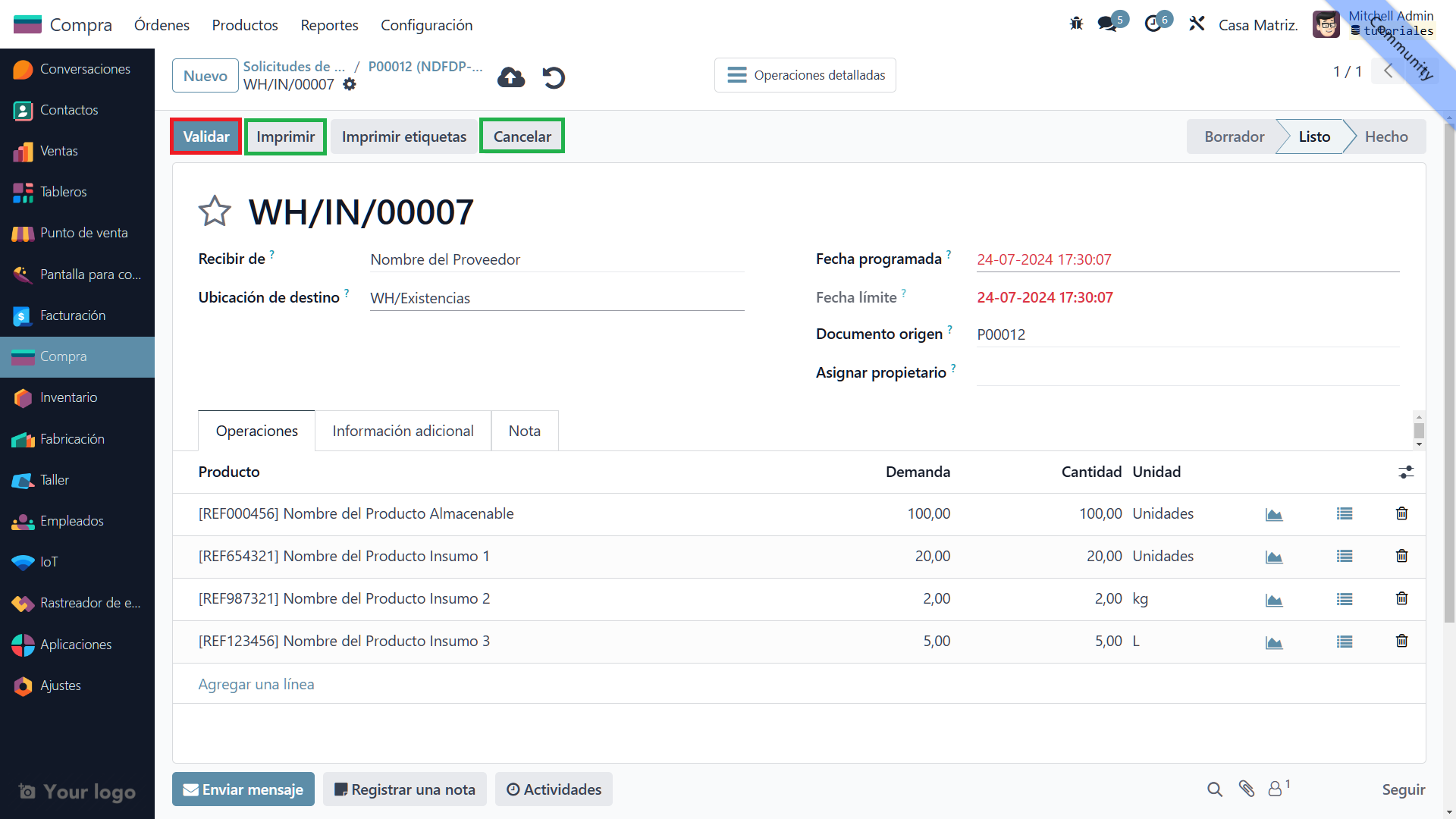
    10. Return to the previous view using the breadcrumb 

    Use the breadcrumb navigation to return to the previous purchase order view.
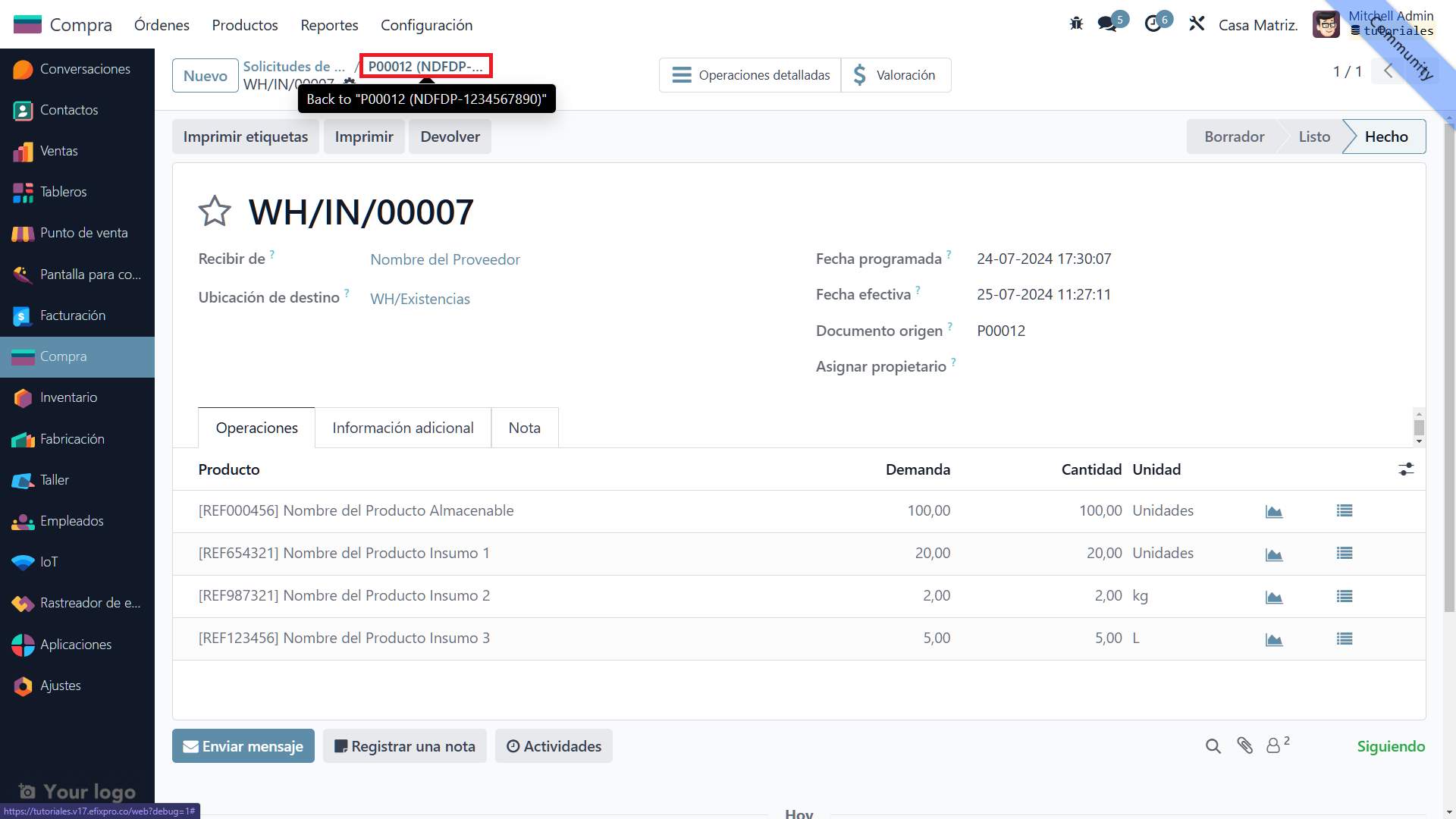
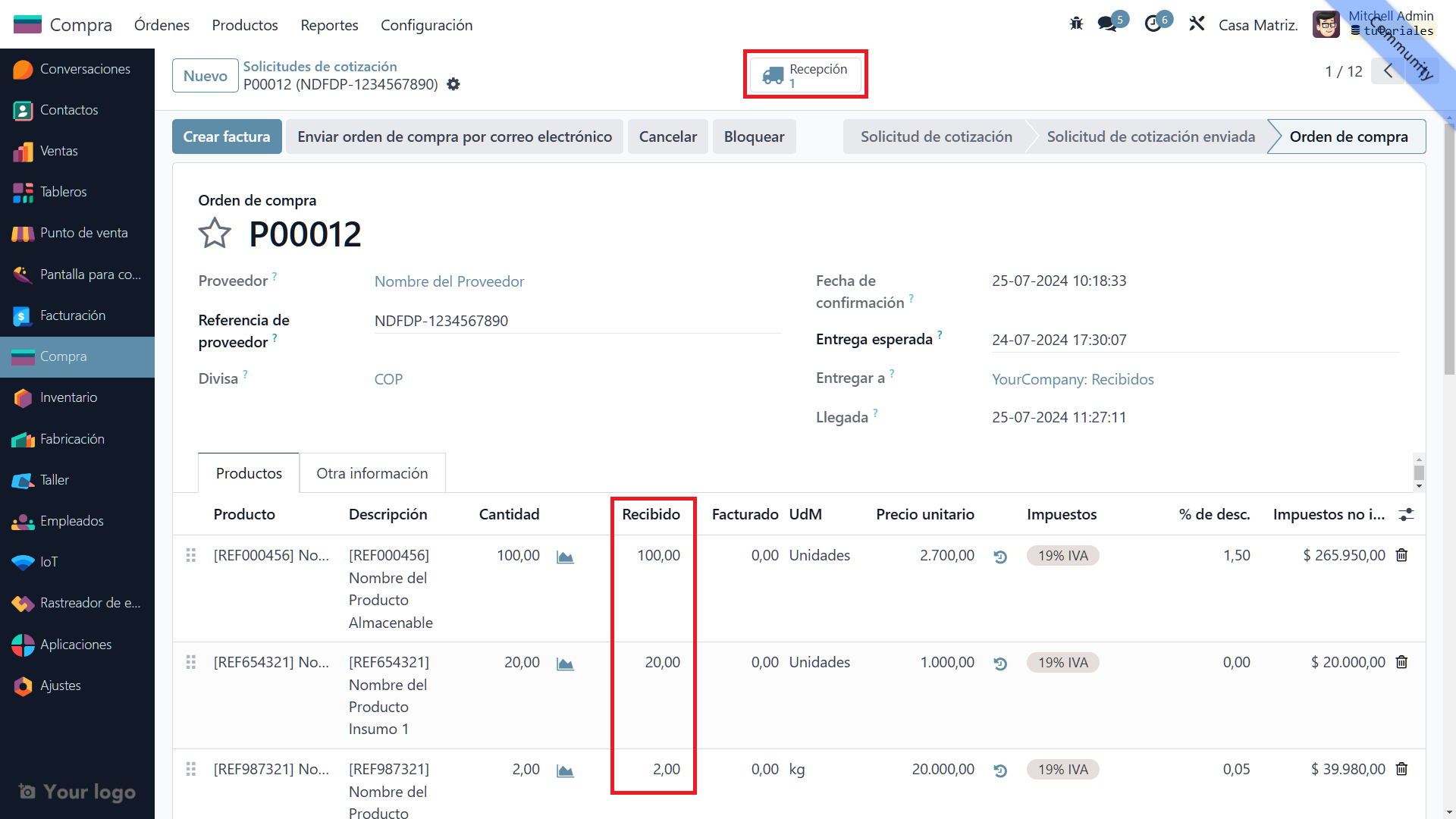
    11. Received quantity update and receipt order creation 

    After validation, the received quantity column updates and a receipt order appears at the top of the screen. This confirms that the products have been officially received and recorded.

    12. Check product quantities in inventory again 

    Go to the top menu again, select "Products", then "Products", and verify that the inventory quantities have been updated correctly.
    13. Confirm the updated inventory quantities 

    Confirm that the quantities of products such as chairs and desks have been adjusted correctly in inventory to reflect the products received.

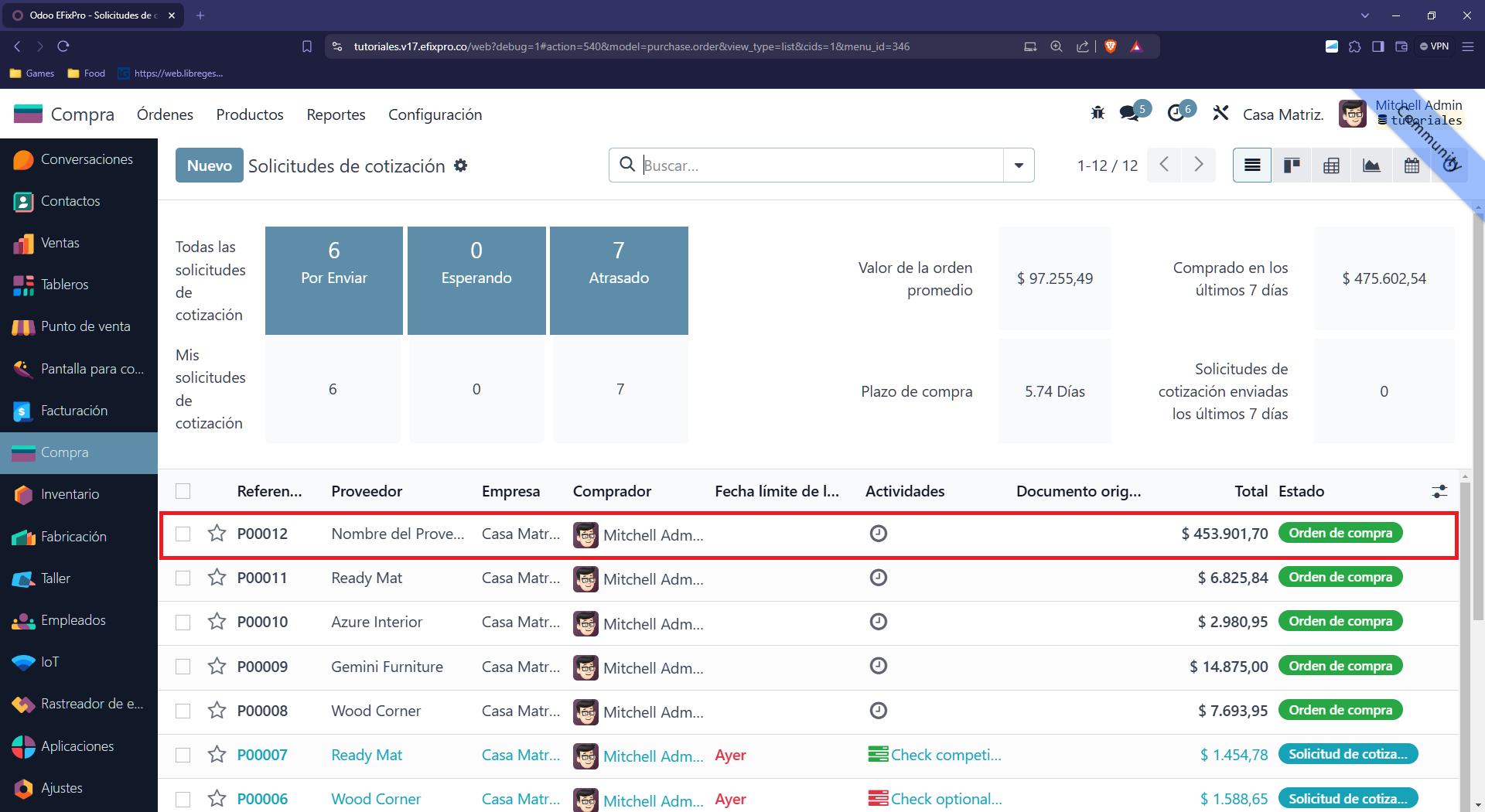
    14. View the purchase order in the quotations list 

    The purchase order appears in the quotations list with its new status. If the "Purchase Order" is not confirmed, it appears in the purchase orders table as a light-blue quotation displaying the basic details.
    Purchase order statuses in Odoo

    Purchase orders in Odoo can have several statuses, each reflecting a different procurement stage:

    1. Request for quotation: The initial stage, when vendors are asked for a quotation.
    2. Confirmed quotation: Once accepted, it becomes a purchase order.
    3. Purchase order: The active order after confirmation.
    4. Partial receipt: Only part of the order has been received.
    5. Full receipt: All products in the order have been received.
    6. Bill received: The bill corresponding to the purchase order has been received and recorded.
    7. Cancelled order: The purchase order was cancelled at some point in the process.


    in V17 tutorials
    How to confirm and receive products from a purchase order
    TORRES PARRA DAVID FERNANDO September 24, 2024
    Share this post
    Tags
    Our blogs
    • Tutorials
    • V15 tutorials
    • News
    • Success stories
    • V17 tutorials
    Archive
    How to create a basic product
    Learn to create a basic storable product in Odoo 17 with our step-by-step guide. Optimize inventory and manage products efficiently in Odoo.

    Odoo V15

    At eFixPro, we are pleased to offer a series of detailed Odoo v15 tutorials designed to help you get the most out of this powerful business management tool. Our blog is packed with useful resources covering a wide range of topics, from initial setup to advanced features.

    View tutorials

    Odoo V17

    We are excited to introduce our blog dedicated to Odoo v17 tutorials, the latest version of this outstanding business management platform. At eFixPro, we have created resources designed to help you discover and master the new features and improvements in Odoo v17.

    View tutorials
    EFixPro

    We transform businesses with Odoo ERP.

    Services
    • View all
    • Sales
    • Accounting
    • Inventory
    Company
    • About us
    • Success stories
    • Contact us
    Contact

    Calle 49 #49-11

    +57 604 2010998

    [email protected]

    Mon - Fri: 8:00 to 18:00

    © 2026 EFixPro S.A.S. — All rights reserved.
    Terms and conditions Privacy policy
    Powered by Odoo — The best open source eCommerce.