
Skip to Content
EFixPro
  • ERP modules
    • Commerce
    • POS Retail Retail POS
    • CRM CRM
    • sales Sales
    • Subscriptions Subscriptions
    • View all
    • Supply chain
    • Inventory Inventory
    • Purchasing Purchases
    • Manufacturing Manufacturing
    • Products Products
    • Repairs Repairs
    • View all
    • Finance
    • Accounting Accounting
    • Electronic Payroll Electronic payroll
    • electronic invoicing Electronic invoicing
    • Expenses Expenses
    • Documents Documents
    • View all
    • HR
    • Calendar Calendar
    • Employees Employees
    • Projects Projects
    • Helpdesk Helpdesk
    • Contacts Contacts
    • View all
    • Marketing
    • Website Websites
    • Email Marketing Email marketing
    • Events Events
    • Live Chat Live chat
    • Blog Builder Blog builder
    • View all
    • Industries
    • Restaurants and cafés
    • Retail and specialty stores
    • Technical services
    • Construction and maintenance
    • Hospitality and tourism
    • Bakeries and pastry shops
    • View all
    Commerce
    • restaurant-pos Restaurant POS
    • POS Retail Retail POS
    • CRM CRM
    • sales Sales
    • Subscriptions Subscriptions
    • View all
    Supply chain
    • Inventory Inventory
    • Purchasing Purchases
    • Manufacturing Manufacturing
    • Products Products
    • Repairs Repairs
    • View all
    Finance
    • Accounting Accounting
    • Electronic Payroll Electronic payroll
    • electronic invoicing Electronic invoicing
    • Expenses Expenses
    • Documents Documents
    • View all
    HR
    • Calendar Calendar
    • Employees Employees
    • Projects Projects
    • Helpdesk Helpdesk
    • Contacts Contacts
    • View all
    Marketing
    • Website Websites
    • Email Marketing Email marketing
    • Events Events
    • Live Chat Live chat
    • Blog Builder Blog builder
    • View all
    Industries
    • Restaurants and cafés
    • Retail and specialty stores
    • Technical services
    • Construction and maintenance
    • Hospitality and tourism
    • Bakeries and pastry shops
    • View all

    • Contact us
    • ​ Book a sales consultation
    • Live chat
  • EDUCATION
  • Industries
    • Restaurants and cafés
    • Retail and distribution
    • Technical services
  • ABOUT US
    • OUR COMPANY
    • SUCCESS STORIES
  • CONTACT US
    • Support

    • Service appointments
    • Group training (level 1)
    • Personalized session (non-accounting)
    • Accounting consultation
  • 0
  • 0
  • English (US) Español (CO)
  • Sign in
  • Book a sales consultation
EFixPro
  • 0
  • 0
    • ERP modules
    • EDUCATION
    • Industries
      • Restaurants and cafés
      • Retail and distribution
      • Technical services
    • ABOUT US
      • OUR COMPANY
      • SUCCESS STORIES
    • CONTACT US
      • Support
      • Service appointments
      • Group training (level 1)
      • Personalized session (non-accounting)
      • Accounting consultation
  • Book a sales consultation
  • English (US) Español (CO)
  • Sign in

How to Configure Barcodes for Scales

Learn how to configure scale barcodes in Odoo 15 and improve the management of products sold by weight. Follow this practical tutorial.
  • All Blogs
  • V15 tutorials
  • How to Configure Barcodes for Scales
  • September 24, 2024 by
    How to Configure Barcodes for Scales
    TORRES PARRA DAVID FERNANDO

    Configuring scale barcodes in Odoo 15 is essential for businesses that sell by weight, such as butcher shops, fruit shops and bulk food stores. If you sell fruit by the kilo, for example, each weighed product needs an automatically generated barcode containing its price or quantity. This speeds up sales and avoids calculation errors. This article explains how to configure barcode scales in Odoo 15 for more accurate and faster sales of products by weight.

    Open Point of Sale and go to settings. 
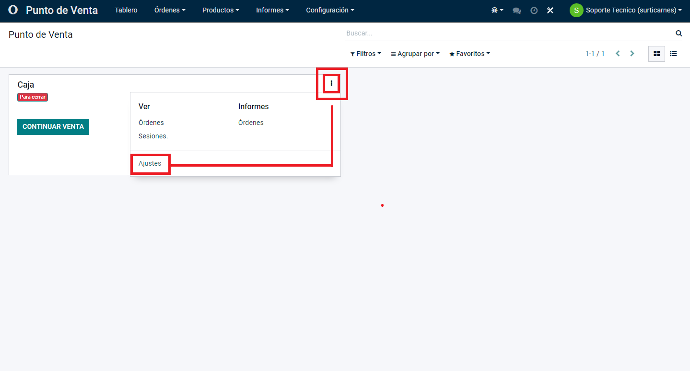


    Go to "Connected Devices" and click the arrow for "Barcode Nomenclature".
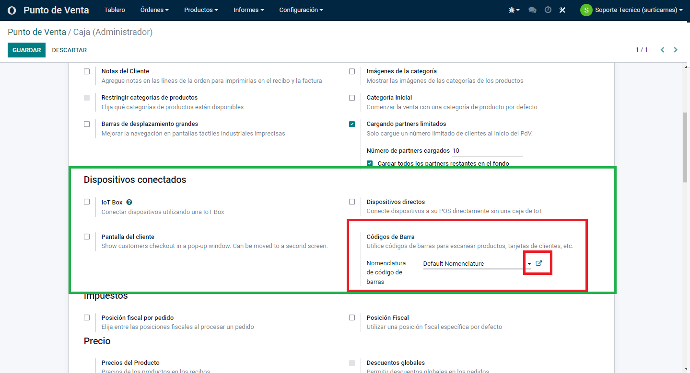


    First, check that "UPC/EAN Conversion" is set to "Always". Then click the weighted product item.
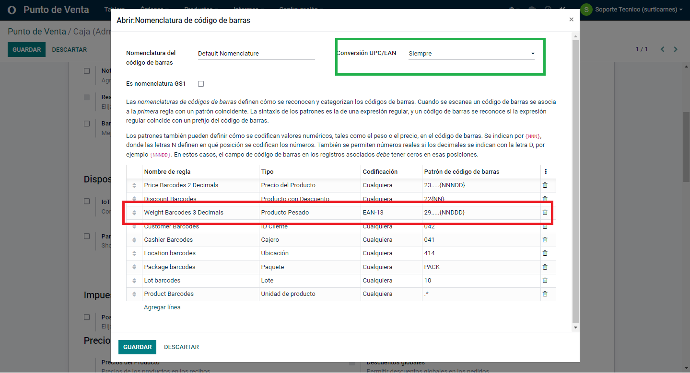


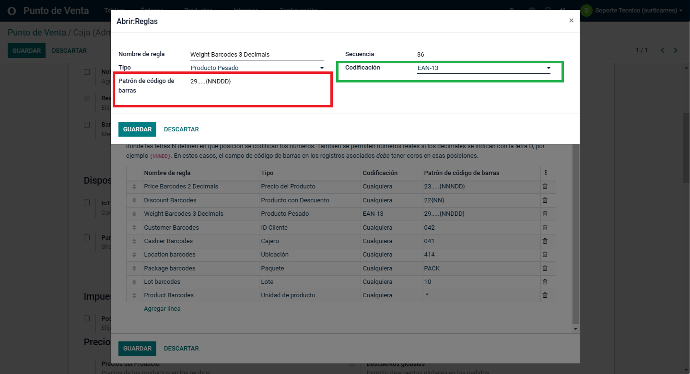
    Following the software's instructions, change the first two digits of the weighted product barcode using the nomenclature generated by the label printer.


    The nomenclature uses the {NNN} structure, where N indicates a position encoding a number. Real numbers are also allowed when decimal positions are indicated with D, for example {NNNDD}. Enter zeros in those positions in the barcode field of the associated records.


    Using the weighted product barcode in the example (2900012012507), "29" is the prefix and the other 5 digits (01250) represent the whole number and the product's three decimal places:


    Applying the nomenclature with the {NNN} structure gives the new barcode: {290}0012012507.


    Follow the software's specific instructions and enter the required zeros in the barcode field of the associated records.


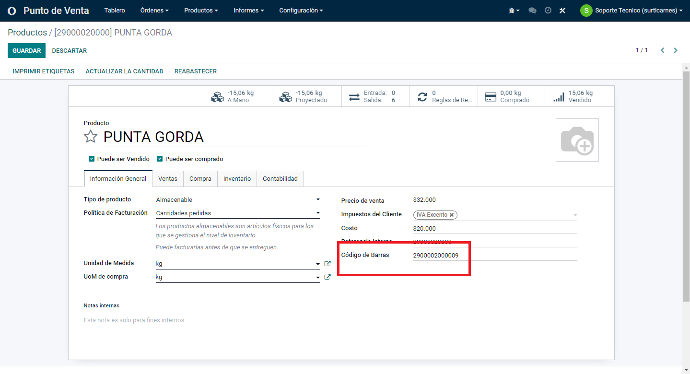
    After configuring barcode nomenclature and generation, return to the product and assign its barcode. In the example (2900002000009), "29" is the code generated by the scale, "00002" is the product code, "00000" is reserved for the weight and "9" is the check digit:


    The complete barcode is: 2900002000009.


    Enter this barcode correctly on the product, keeping "00000" in the space reserved for weight and including the check digit "9".


    Each system or application may have its own specific rules and settings. Follow the instructions for the software you use to generate and assign barcodes correctly.


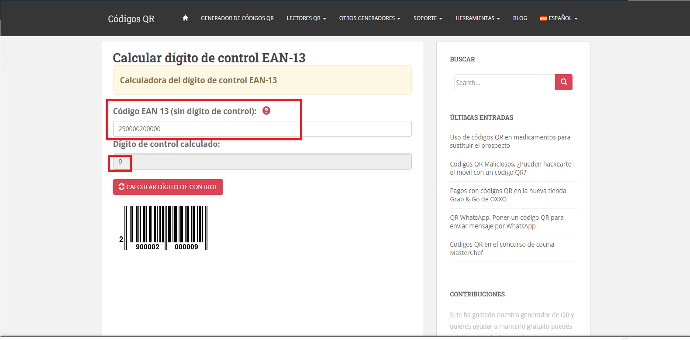
    To calculate the check digit for an EAN-13 or GTIN-13 barcode, you can use a page such as "https://www.codigos-qr.com/calcular-digito-de-control-ean13-gtin13/". Enter the code's 12 digits there to obtain the check digit that completes the barcode.


    Using the example code (290000200000), enter those 12 digits on the page mentioned above to obtain the check digit needed to complete the barcode.


    Once you have the check digit, add it to the original code. For example, if the check digit is "5", the full barcode is: 2900002000005.


    Always check the calculations and use reliable tools to ensure the check digit is accurate.


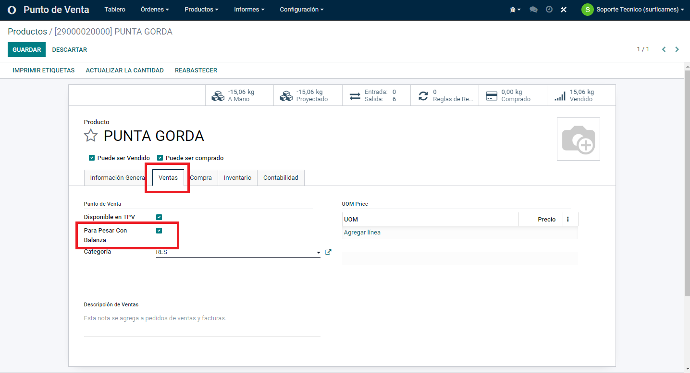
    Go to the "Sales" tab and find the option to enable the "To Weigh With Scale" button. Once you have found it, click the button to enable it.


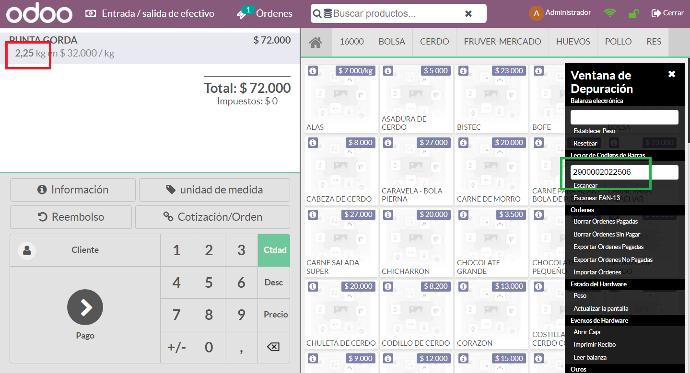
    In Point of Sale, simply scan the barcode generated by the scale. Using the example mentioned earlier (barcode: 2900002022506), "29" is the scale code, "00002" is the product code, "02250" represents the weight (2.25 kg) with two decimal places, and "6" is the check digit:


    When the barcode is scanned, Point of Sale automatically recognizes the data and uses the weight (2.25 kg) as product information. This lets you record and process the item's sale with the correct weight.


    Make sure the scanner is configured correctly and in barcode reading mode.


    Configuring scale barcodes in Odoo 15 is crucial for businesses handling bulk products or products sold by weight. For example, if you run a butcher shop, you can automatically generate barcodes reflecting the exact weight of the meat sold, making transactions easier and reducing register errors. This configuration helps improve your workflow and ensure prices are always correct. Implementing this system improves your customers' experience and makes sales more efficient and accurate. Improve your business with Odoo 15 and scale barcode integration!

    in V15 tutorials
    How to Configure Barcodes for Scales
    TORRES PARRA DAVID FERNANDO September 24, 2024
    Share this post
    Tags
    Our blogs
    • Tutorials
    • V15 tutorials
    • News
    • Success stories
    • V17 tutorials
    Archive
    How to Apply Units of Measure to a Product
    Discover how to apply units of measure to a product in Odoo 15 to improve inventory and sales management. A simple, practical tutorial for all kinds of business.

    Odoo V15

    At eFixPro, we are pleased to offer a series of detailed Odoo v15 tutorials designed to help you get the most out of this powerful business management tool. Our blog is packed with useful resources covering a wide range of topics, from initial setup to advanced features.

    View tutorials

    Odoo V17

    We are excited to introduce our blog dedicated to Odoo v17 tutorials, the latest version of this outstanding business management platform. At eFixPro, we have created resources designed to help you discover and master the new features and improvements in Odoo v17.

    View tutorials
    EFixPro

    We transform businesses with Odoo ERP.

    Services
    • View all
    • Sales
    • Accounting
    • Inventory
    Company
    • About us
    • Success stories
    • Contact us
    Contact

    Calle 49 #49-11

    +57 604 2010998

    [email protected]

    Mon - Fri: 8:00 to 18:00

    © 2026 EFixPro S.A.S. — All rights reserved.
    Terms and conditions Privacy policy
    Powered by Odoo — The best open source eCommerce.