
In this tutorial, we will learn to create a service product in Odoo 17. Services differ from physical products because they are not stored or managed through inventory. This product type is ideal for companies offering consulting, maintenance or any activity that does not involve delivering tangible goods.
Tutorial: How to create a service product
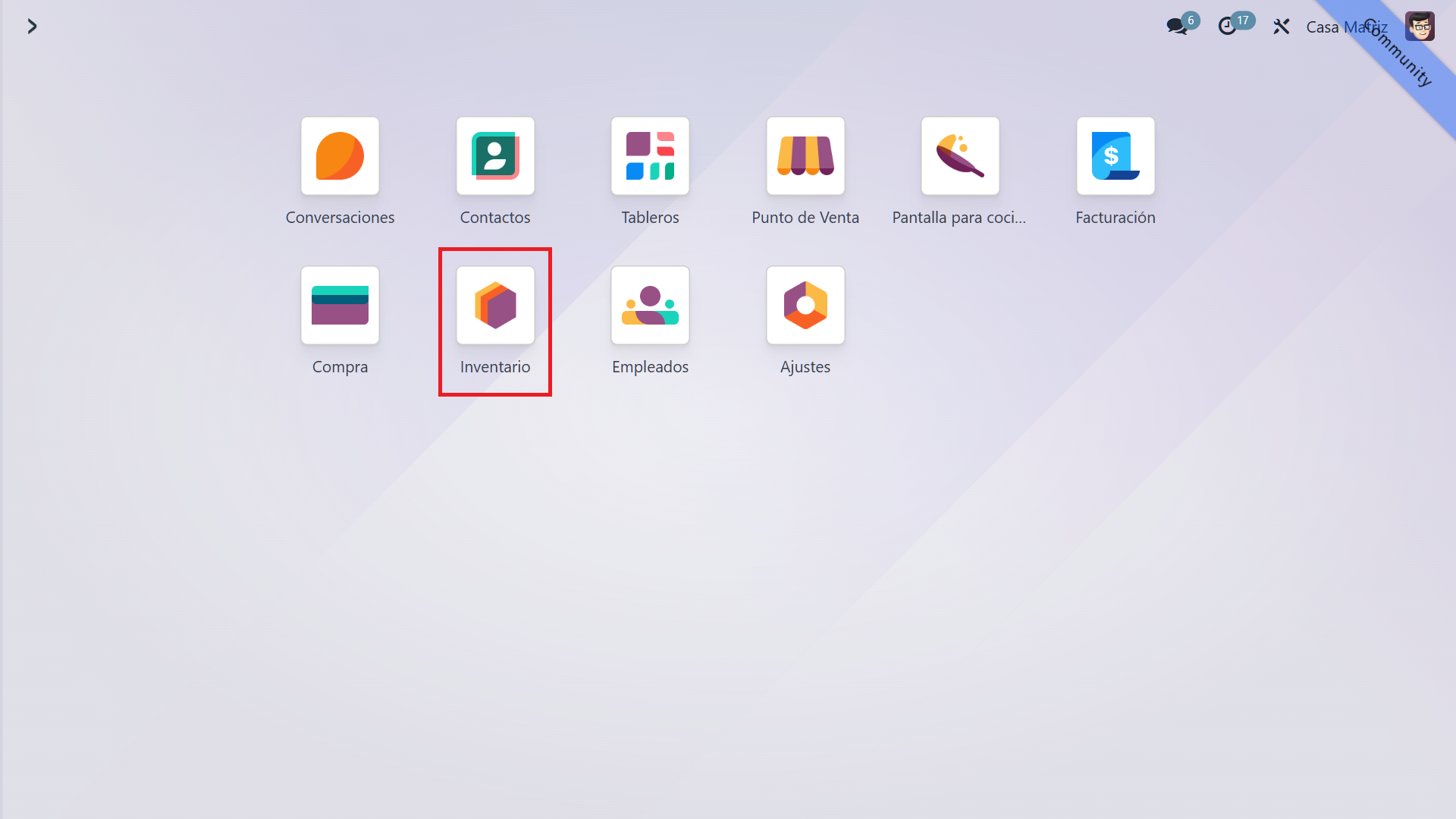
1. Inventory in the main menu
In the Odoo main menu, select "Inventory".
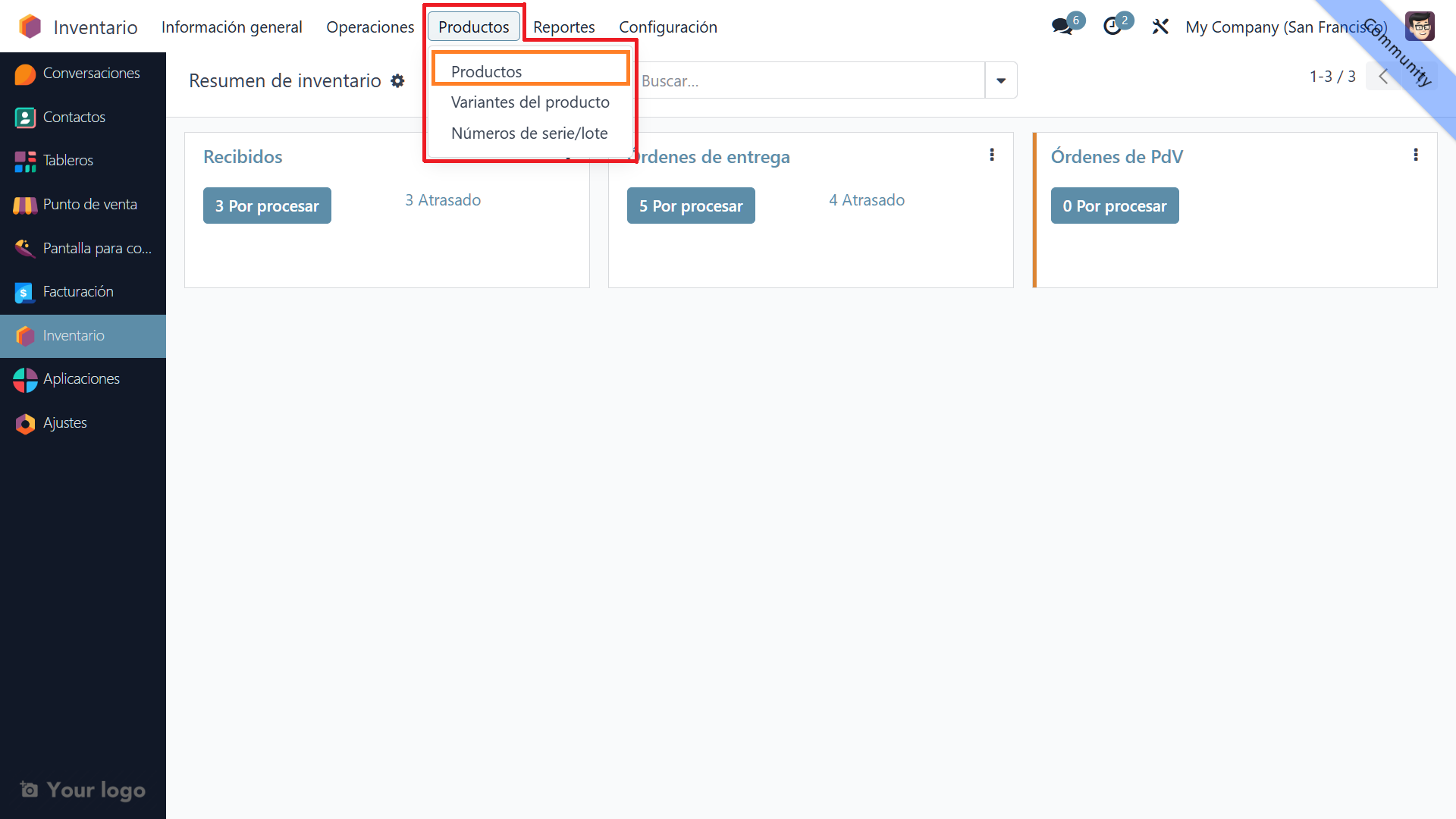
2. Products in the top menu, then Products
At the top of the Inventory module, click "Products", then select "Products". You will see a list of all existing products.
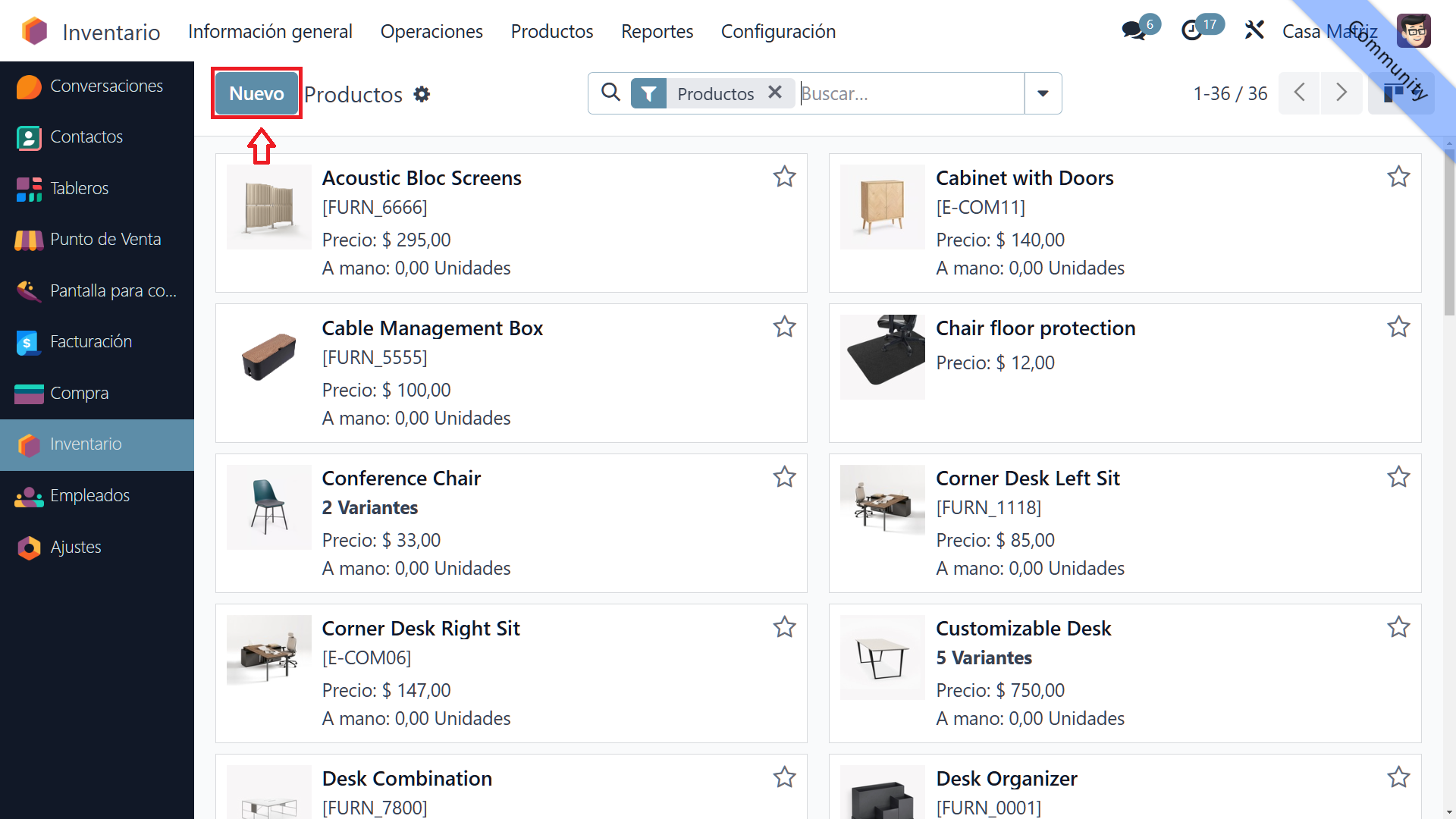
3. The "New" button
To create a product, click "New" at the top of the screen. A form opens where you can enter the new product details.
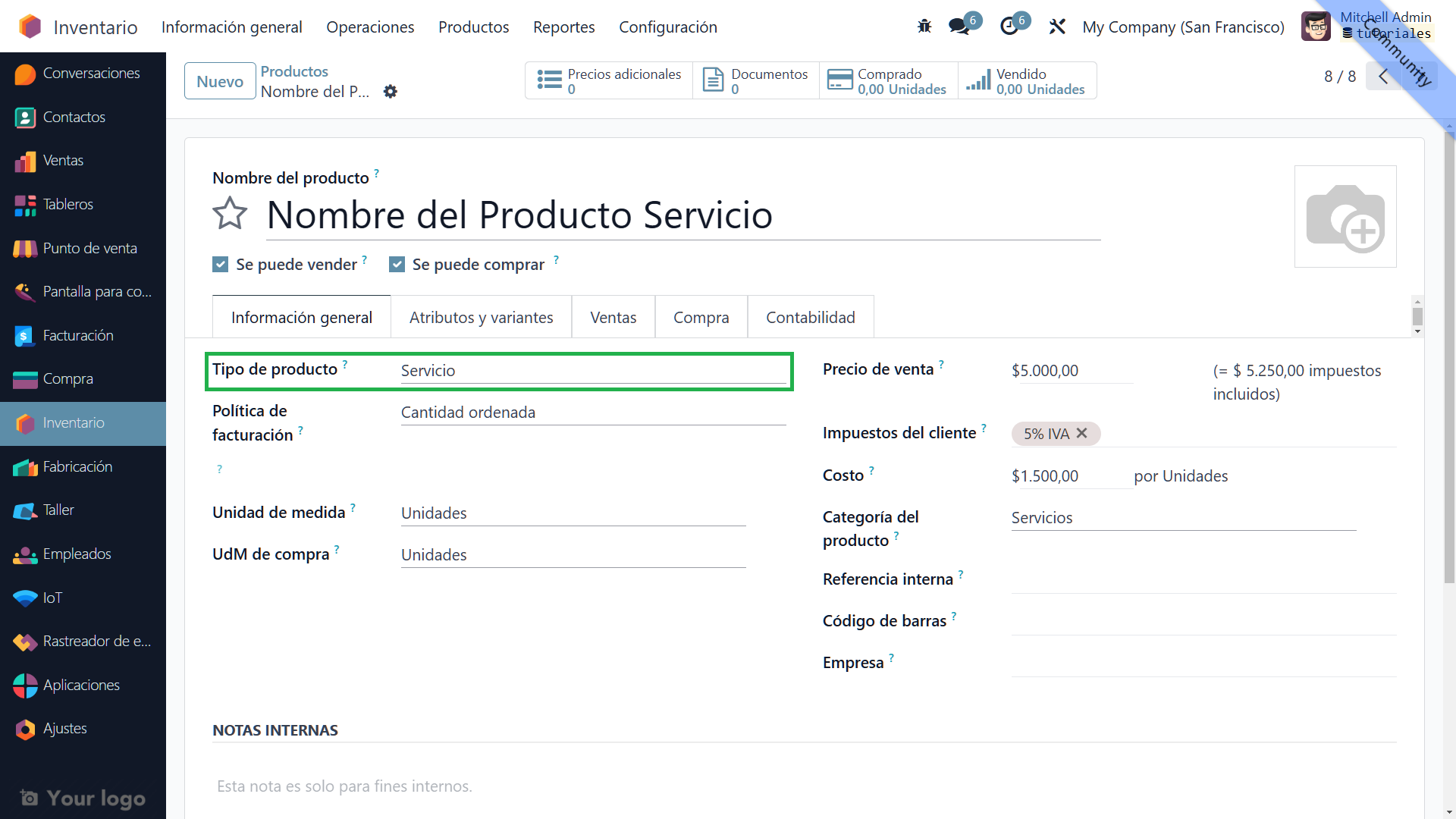
4. The "Service" product type
In the product creation form, select "Service" as the product type. Then enter the details needed to configure the service. An example might be "IT consulting".
Additional information
Although creating a service product is very similar to creating a physical product, keep these important differences in mind:
- Display in the product list: Service products are not managed through inventory, so they will not appear under the default storable products filter. Adjust the product view filters to include services.
- Point of Sale (POS) availability: To make the service available in Point of Sale, select the corresponding option in the product settings. Even when available in POS, it is not managed as physical inventory.
- Invoicing and tracking: Services are invoiced differently from physical products. Configure the invoicing rules and the tracking of time or service units correctly.
You have successfully created a service product in Odoo 17!