
Skip to Content
EFixPro
  • ERP modules
    • Commerce
    • POS Retail Retail POS
    • CRM CRM
    • sales Sales
    • Subscriptions Subscriptions
    • View all
    • Supply chain
    • Inventory Inventory
    • Purchasing Purchases
    • Manufacturing Manufacturing
    • Products Products
    • Repairs Repairs
    • View all
    • Finance
    • Accounting Accounting
    • Electronic Payroll Electronic payroll
    • electronic invoicing Electronic invoicing
    • Expenses Expenses
    • Documents Documents
    • View all
    • HR
    • Calendar Calendar
    • Employees Employees
    • Projects Projects
    • Helpdesk Helpdesk
    • Contacts Contacts
    • View all
    • Marketing
    • Website Websites
    • Email Marketing Email marketing
    • Events Events
    • Live Chat Live chat
    • Blog Builder Blog builder
    • View all
    • Industries
    • Restaurants and cafés
    • Retail and specialty stores
    • Technical services
    • Construction and maintenance
    • Hospitality and tourism
    • Bakeries and pastry shops
    • View all
    Commerce
    • restaurant-pos Restaurant POS
    • POS Retail Retail POS
    • CRM CRM
    • sales Sales
    • Subscriptions Subscriptions
    • View all
    Supply chain
    • Inventory Inventory
    • Purchasing Purchases
    • Manufacturing Manufacturing
    • Products Products
    • Repairs Repairs
    • View all
    Finance
    • Accounting Accounting
    • Electronic Payroll Electronic payroll
    • electronic invoicing Electronic invoicing
    • Expenses Expenses
    • Documents Documents
    • View all
    HR
    • Calendar Calendar
    • Employees Employees
    • Projects Projects
    • Helpdesk Helpdesk
    • Contacts Contacts
    • View all
    Marketing
    • Website Websites
    • Email Marketing Email marketing
    • Events Events
    • Live Chat Live chat
    • Blog Builder Blog builder
    • View all
    Industries
    • Restaurants and cafés
    • Retail and specialty stores
    • Technical services
    • Construction and maintenance
    • Hospitality and tourism
    • Bakeries and pastry shops
    • View all

    • Contact us
    • ​ Book a sales consultation
    • Live chat
  • EDUCATION
  • Industries
    • Restaurants and cafés
    • Retail and distribution
    • Technical services
  • ABOUT US
    • OUR COMPANY
    • SUCCESS STORIES
  • CONTACT US
    • Support

    • Service appointments
    • Group training (level 1)
    • Personalized session (non-accounting)
    • Accounting consultation
  • 0
  • 0
  • English (US) Español (CO)
  • Sign in
  • Book a sales consultation
EFixPro
  • 0
  • 0
    • ERP modules
    • EDUCATION
    • Industries
      • Restaurants and cafés
      • Retail and distribution
      • Technical services
    • ABOUT US
      • OUR COMPANY
      • SUCCESS STORIES
    • CONTACT US
      • Support
      • Service appointments
      • Group training (level 1)
      • Personalized session (non-accounting)
      • Accounting consultation
  • Book a sales consultation
  • English (US) Español (CO)
  • Sign in

How to create a purchase quotation

Learn to create a purchase quotation in Odoo 17 with our step-by-step guide. Manage procurement efficiently and keep documentation clear and easy to follow.
  • All Blogs
  • V17 tutorials
  • How to create a purchase quotation
  • September 24, 2024 by
    How to create a purchase quotation
    TORRES PARRA DAVID FERNANDO

    In this tutorial, we will learn to create a purchase quotation in Odoo 17. This process is essential for efficiently managing your company's procurement, with purchase requests that are well documented and easy to follow. We will use office supplies, such as "printing paper" and "printer toner", as an example. 

    Tutorial: How to create a purchase quotation 

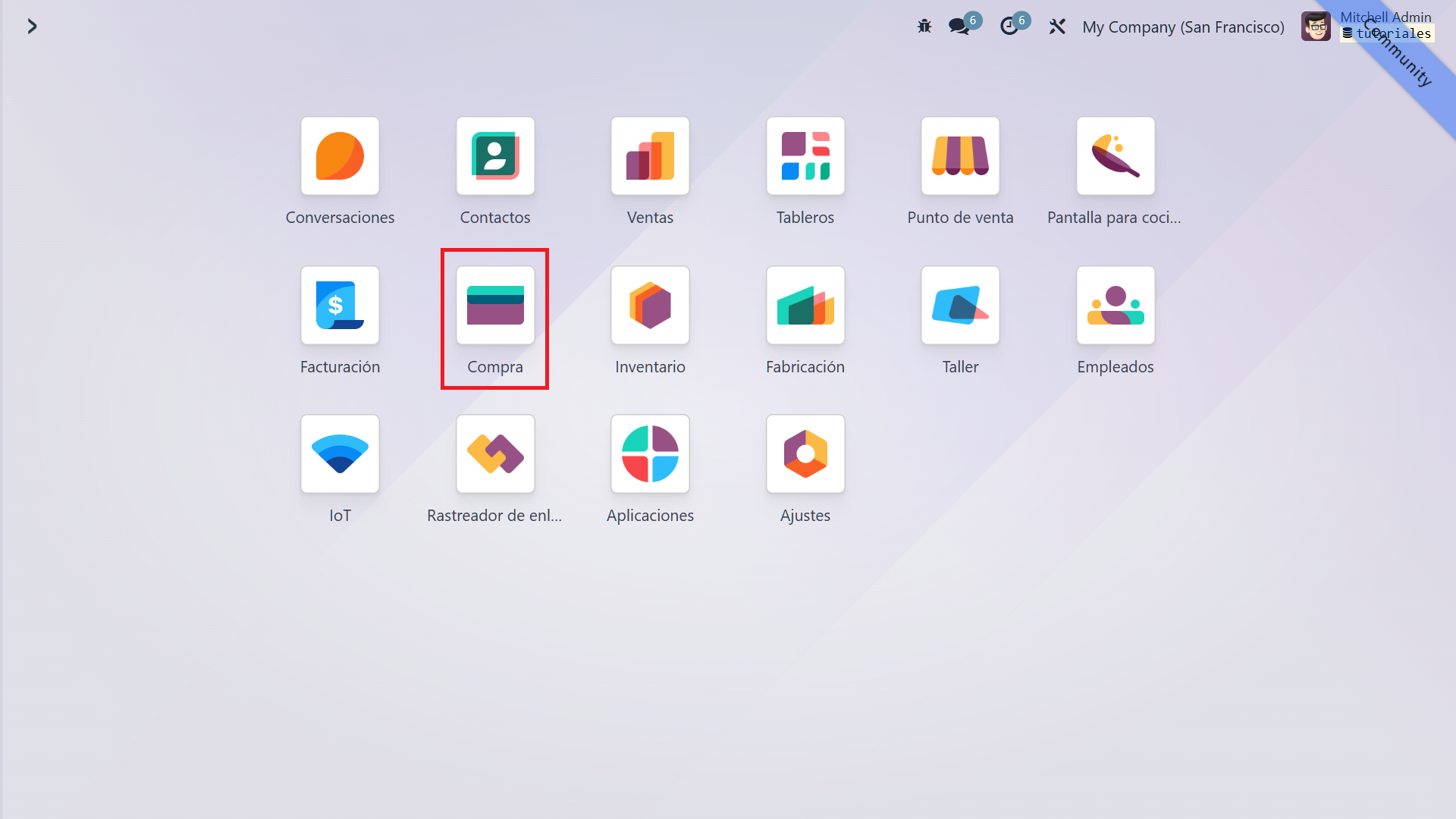
    1. Purchase module in the main menu 

    In the Odoo main menu, select "Purchase". This module lets you manage all activities involved in purchasing goods and services for your company.
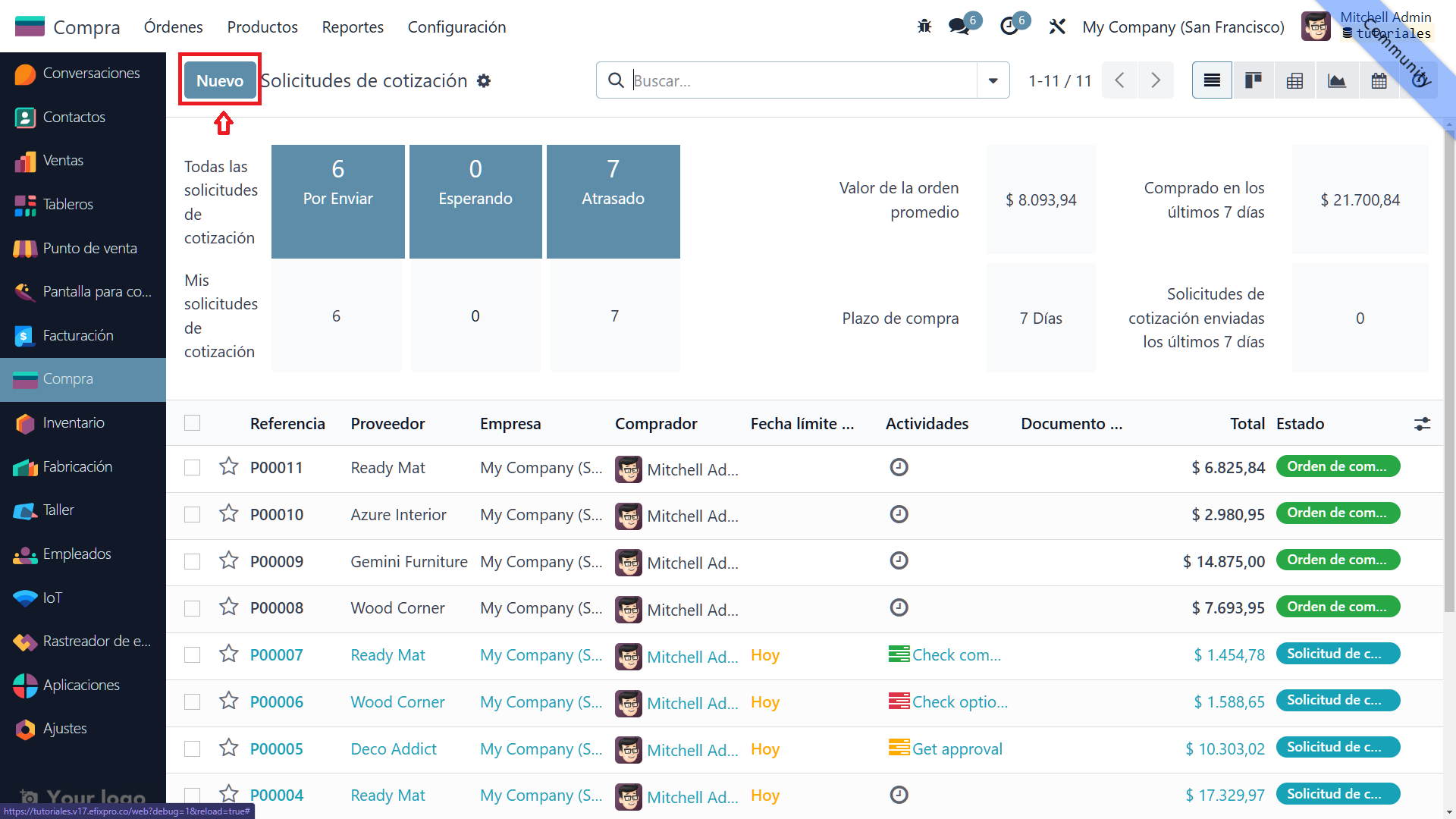
    2. The "New" button 

    To create a purchase quotation, click "New" at the top of the screen. A form opens where you can enter the new quotation details.
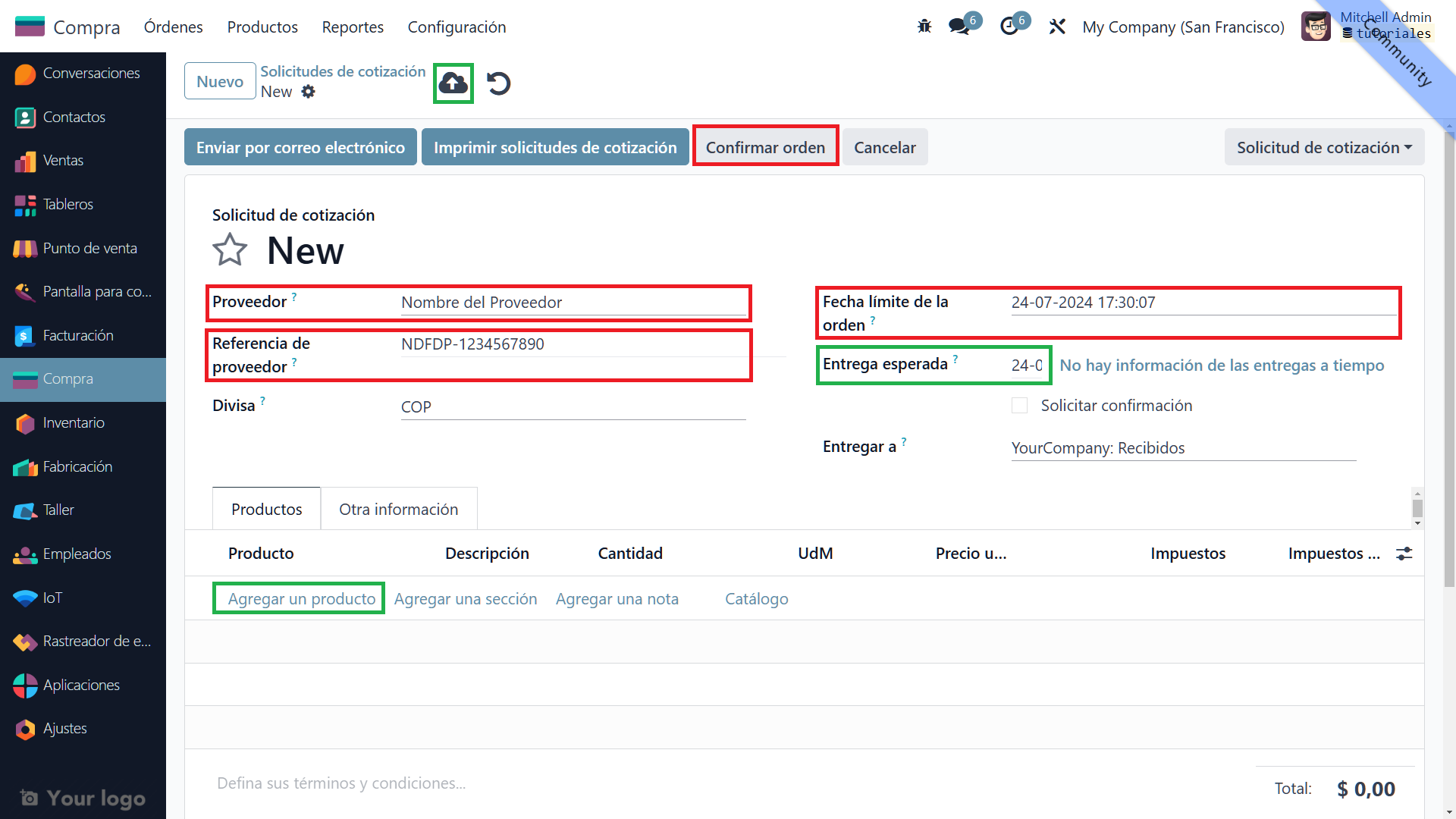
    3. Complete the initial details 

    Complete the initial details in the form: 

    • Vendor: Select a vendor from the list, for example "Proveedor XYZ".
    • Order deadline: Enter the deadline for accepting the quotation.
    • Vendor reference: Enter any reference provided by the vendor.
    • Expected arrival: Specify the expected product delivery date.

    4. Add a line/Add a product 

    Click "Add a line" or "Add a product" to specify the products you want to purchase.
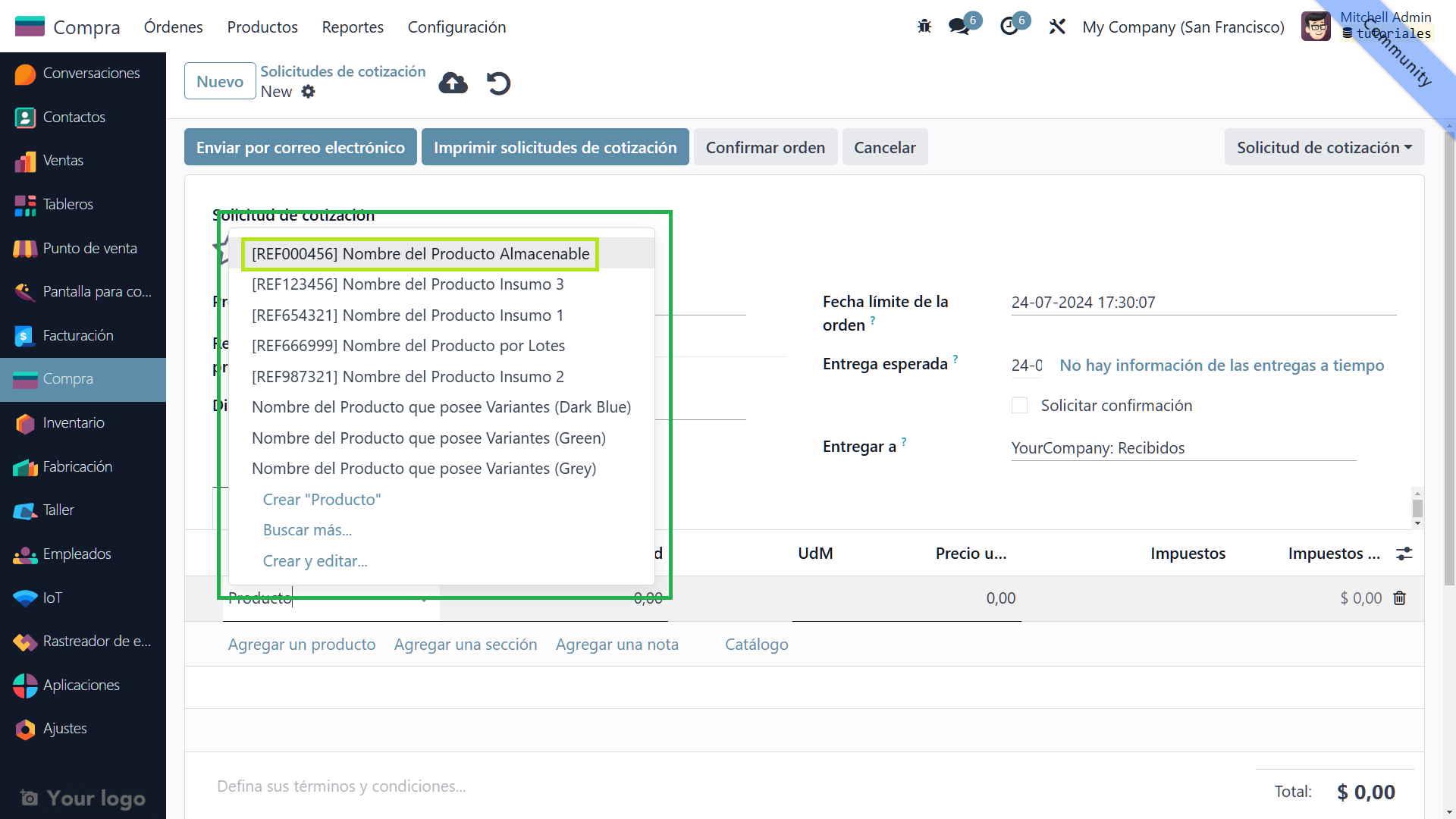


    5. Specify products on each line 


    For each product, enter these details: 

    • Product: Select the product, for example "A4 printing paper".
    • Description: Add a short description if necessary.
    • Quantity: Specify the required quantity.
    • Unit of measure: Select the appropriate unit of measure.
    • Unit price: Enter the product's unit price.
    • Taxes: Select applicable taxes, if any.
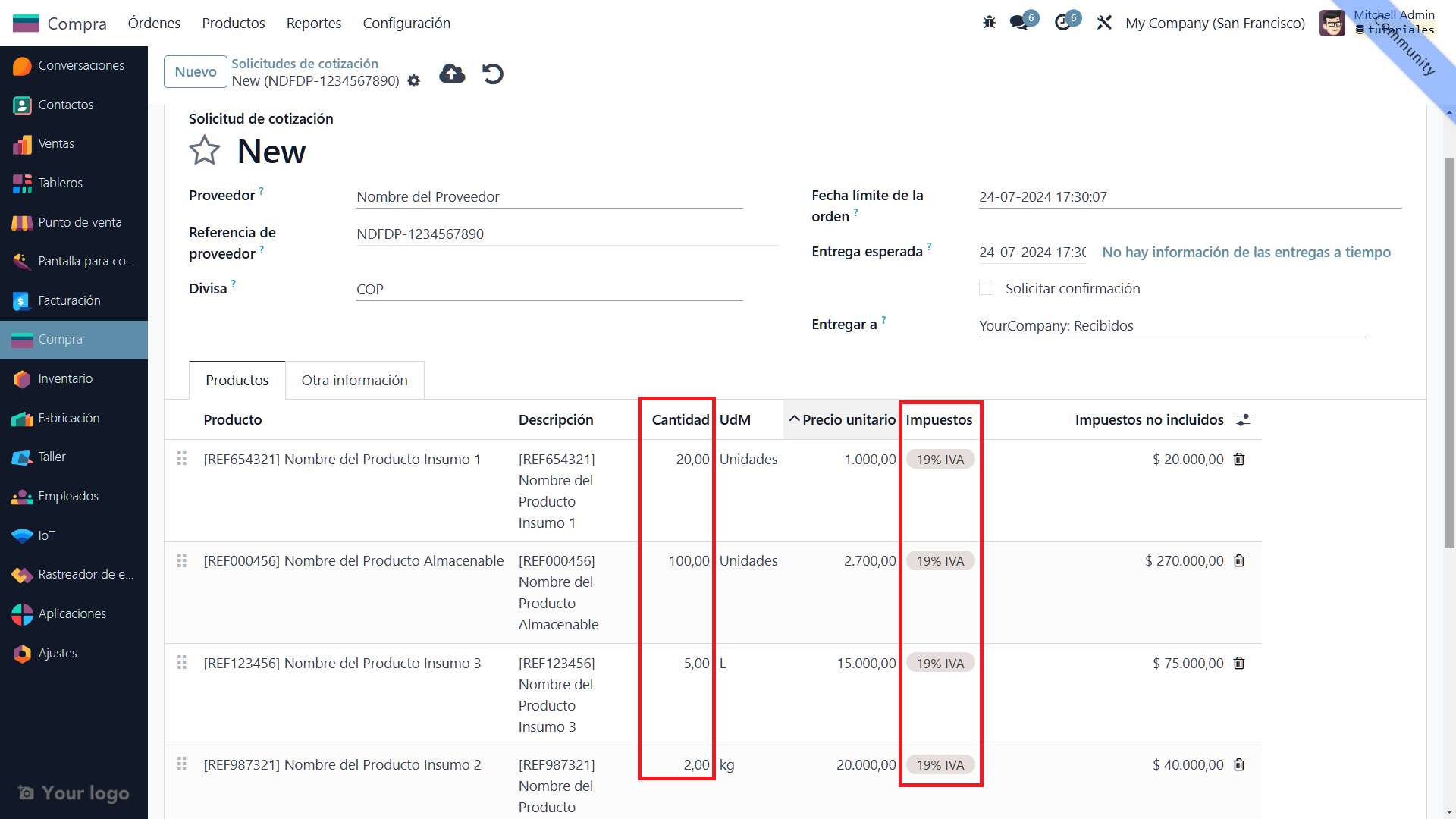

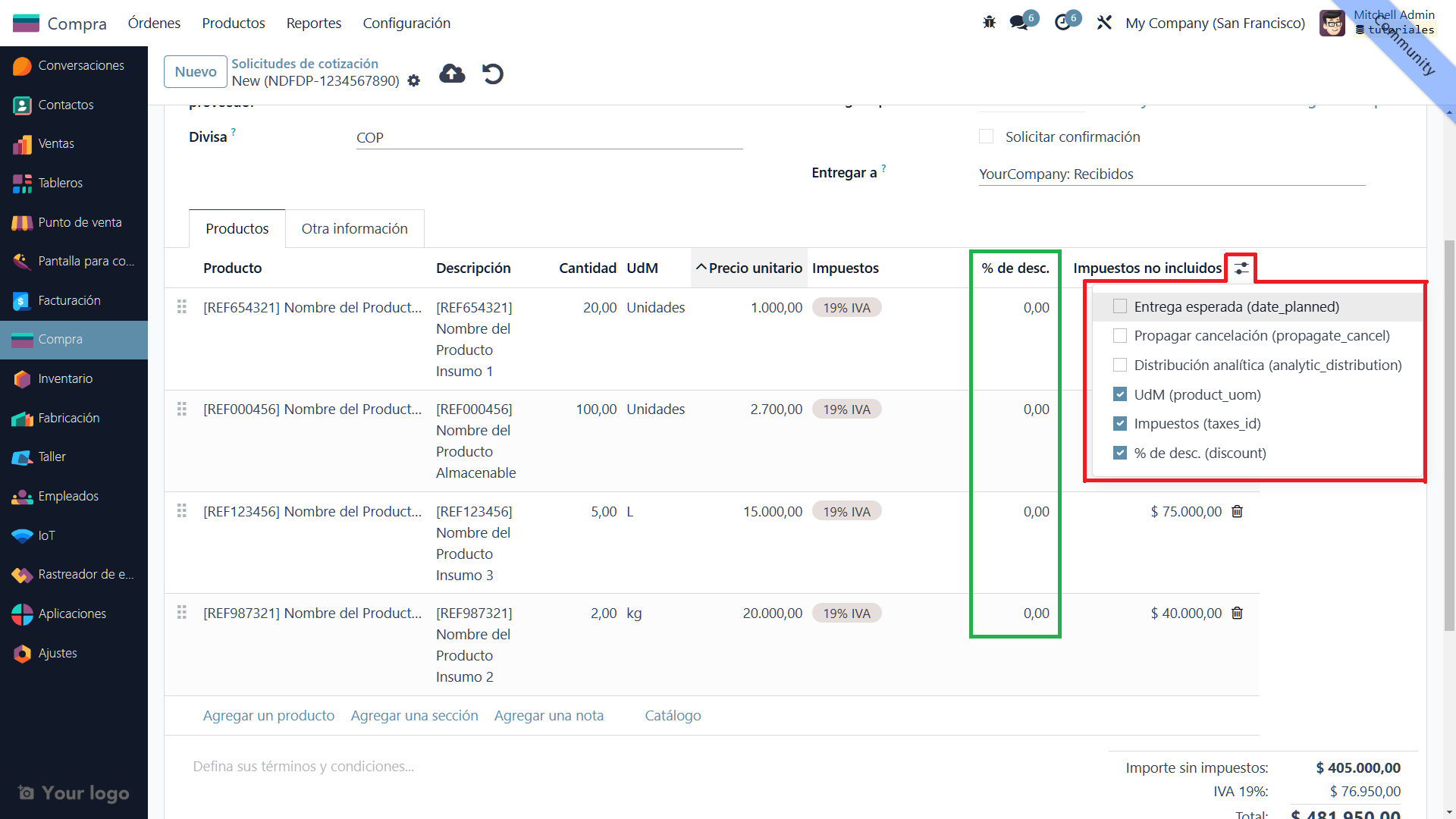
    6. Display the additional "Discount %" column using the additional fields button 

    To apply a discount, click "Add additional fields" to display the "Discount %" column. 

    Enter the applicable discount percentage for each product in the "Discount %" column.


    7. View the untaxed amount, total taxes and quotation total 

    At the bottom of the form, you can see the untaxed amount, total tax amount and quotation total, giving you a clear view of the associated costs.
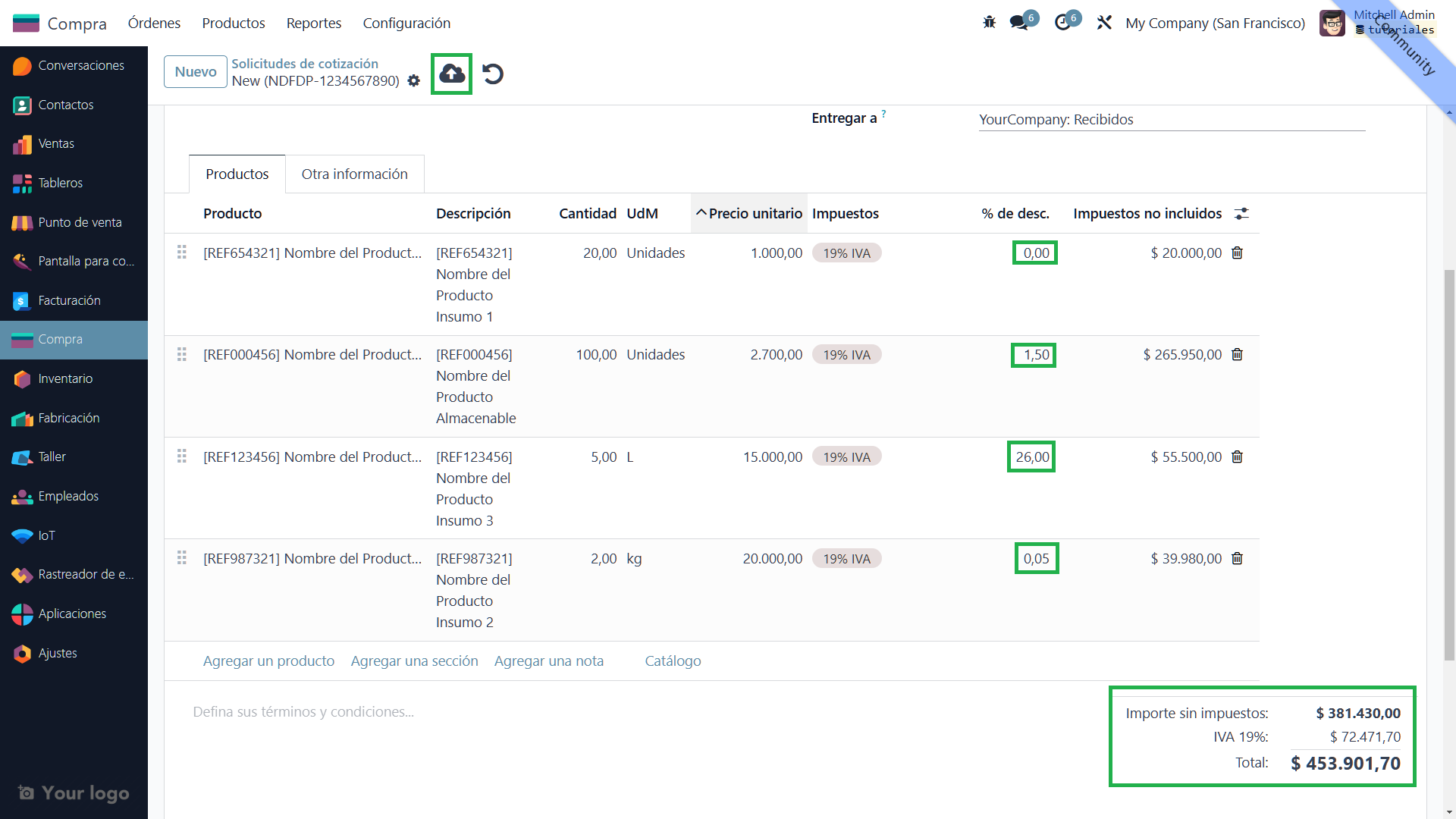


    8. Save, return to the previous view using the breadcrumb, and view the quotation 

    Click "Save" to record the quotation. Then use the breadcrumb to return to the previous view and see it. If this "Purchase Order" is not confirmed, it appears in the purchase orders table as a light-blue quotation showing the basic details.
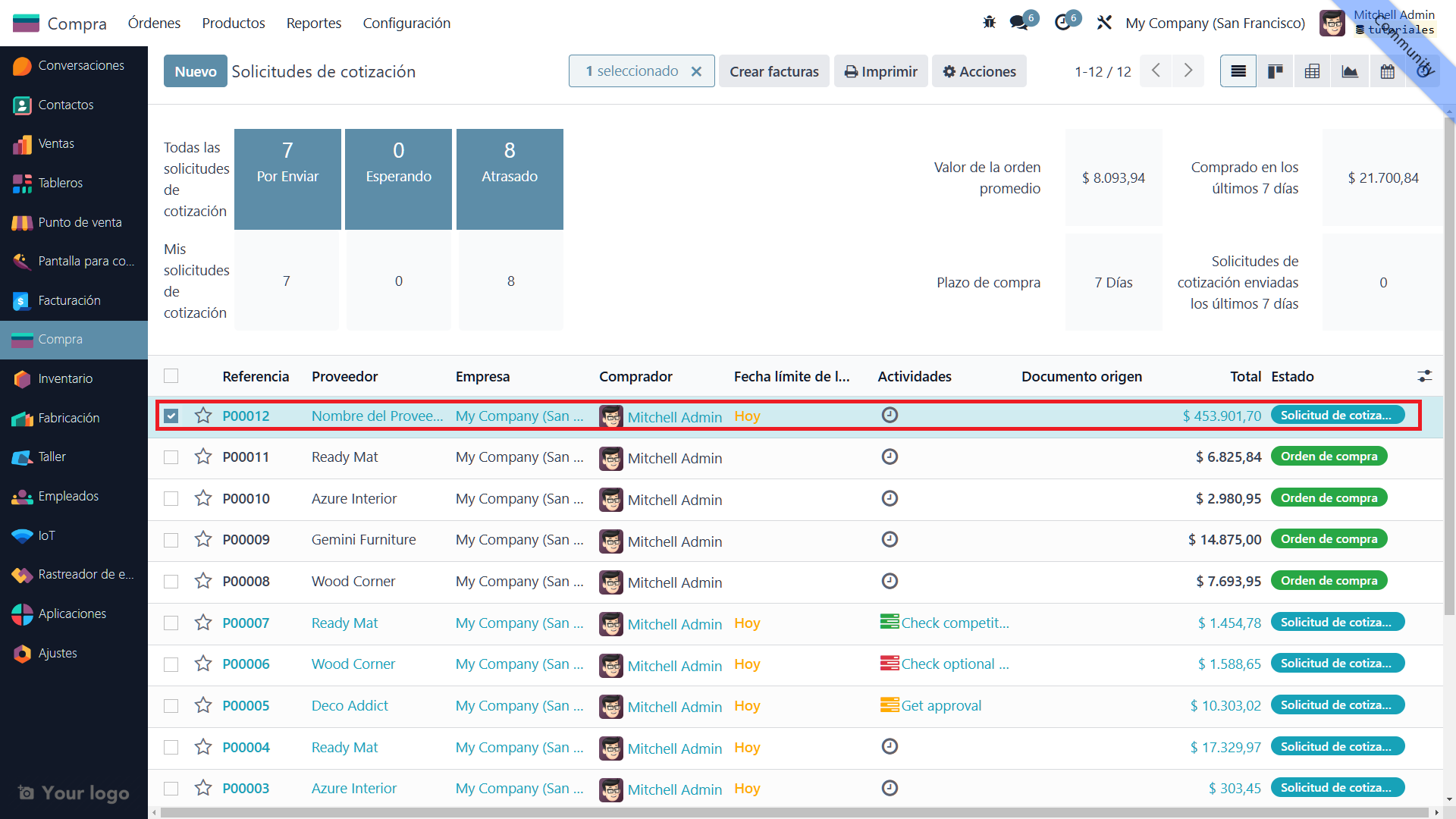


    Purchase order statuses in Odoo 

    Purchase orders in Odoo can have several statuses: 

    1. Request for quotation: The initial stage, when vendors are asked for a quotation.
    2. Confirmed quotation: Once accepted, the quotation is confirmed as a purchase order.
    3. Purchase order: After confirmation, it becomes an active purchase order.
    4. Partial receipt: Only part of the order has been received.
    5. Full receipt: All products have been received.
    6. Bill received: The bill corresponding to the purchase order has been received.
    7. Cancelled order: The purchase order was cancelled at some point in the process.

    You have successfully created your first purchase quotation in Odoo 17!


    in V17 tutorials
    How to create a purchase quotation
    TORRES PARRA DAVID FERNANDO September 24, 2024
    Share this post
    Tags
    Our blogs
    • Tutorials
    • V15 tutorials
    • News
    • Success stories
    • V17 tutorials
    Archive
    How to confirm and receive products from a purchase order
    Learn to confirm and receive products from a purchase order in Odoo 17 with our step-by-step guide. Manage procurement efficiently and ensure products are received correctly into inventory.

    Odoo V15

    At eFixPro, we are pleased to offer a series of detailed Odoo v15 tutorials designed to help you get the most out of this powerful business management tool. Our blog is packed with useful resources covering a wide range of topics, from initial setup to advanced features.

    View tutorials

    Odoo V17

    We are excited to introduce our blog dedicated to Odoo v17 tutorials, the latest version of this outstanding business management platform. At eFixPro, we have created resources designed to help you discover and master the new features and improvements in Odoo v17.

    View tutorials
    EFixPro

    We transform businesses with Odoo ERP.

    Services
    • View all
    • Sales
    • Accounting
    • Inventory
    Company
    • About us
    • Success stories
    • Contact us
    Contact

    Calle 49 #49-11

    +57 604 2010998

    [email protected]

    Mon - Fri: 8:00 to 18:00

    © 2026 EFixPro S.A.S. — All rights reserved.
    Terms and conditions Privacy policy
    Powered by Odoo — The best open source eCommerce.