
Skip to Content
EFixPro
  • ERP modules
    • Commerce
    • POS Retail Retail POS
    • CRM CRM
    • sales Sales
    • Subscriptions Subscriptions
    • View all
    • Supply chain
    • Inventory Inventory
    • Purchasing Purchases
    • Manufacturing Manufacturing
    • Products Products
    • Repairs Repairs
    • View all
    • Finance
    • Accounting Accounting
    • Electronic Payroll Electronic payroll
    • electronic invoicing Electronic invoicing
    • Expenses Expenses
    • Documents Documents
    • View all
    • HR
    • Calendar Calendar
    • Employees Employees
    • Projects Projects
    • Helpdesk Helpdesk
    • Contacts Contacts
    • View all
    • Marketing
    • Website Websites
    • Email Marketing Email marketing
    • Events Events
    • Live Chat Live chat
    • Blog Builder Blog builder
    • View all
    • Industries
    • Restaurants and cafés
    • Retail and specialty stores
    • Technical services
    • Construction and maintenance
    • Hospitality and tourism
    • Bakeries and pastry shops
    • View all
    Commerce
    • restaurant-pos Restaurant POS
    • POS Retail Retail POS
    • CRM CRM
    • sales Sales
    • Subscriptions Subscriptions
    • View all
    Supply chain
    • Inventory Inventory
    • Purchasing Purchases
    • Manufacturing Manufacturing
    • Products Products
    • Repairs Repairs
    • View all
    Finance
    • Accounting Accounting
    • Electronic Payroll Electronic payroll
    • electronic invoicing Electronic invoicing
    • Expenses Expenses
    • Documents Documents
    • View all
    HR
    • Calendar Calendar
    • Employees Employees
    • Projects Projects
    • Helpdesk Helpdesk
    • Contacts Contacts
    • View all
    Marketing
    • Website Websites
    • Email Marketing Email marketing
    • Events Events
    • Live Chat Live chat
    • Blog Builder Blog builder
    • View all
    Industries
    • Restaurants and cafés
    • Retail and specialty stores
    • Technical services
    • Construction and maintenance
    • Hospitality and tourism
    • Bakeries and pastry shops
    • View all

    • Contact us
    • ​ Book a sales consultation
    • Live chat
  • EDUCATION
  • Industries
    • Restaurants and cafés
    • Retail and distribution
    • Technical services
  • ABOUT US
    • OUR COMPANY
    • SUCCESS STORIES
  • CONTACT US
    • Support

    • Service appointments
    • Group training (level 1)
    • Personalized session (non-accounting)
    • Accounting consultation
  • 0
  • 0
  • English (US) Español (CO)
  • Sign in
  • Book a sales consultation
EFixPro
  • 0
  • 0
    • ERP modules
    • EDUCATION
    • Industries
      • Restaurants and cafés
      • Retail and distribution
      • Technical services
    • ABOUT US
      • OUR COMPANY
      • SUCCESS STORIES
    • CONTACT US
      • Support
      • Service appointments
      • Group training (level 1)
      • Personalized session (non-accounting)
      • Accounting consultation
  • Book a sales consultation
  • English (US) Español (CO)
  • Sign in

How to view an inventory report as of a specific date

Learn to generate an inventory report as of a specific date, compare the inventory or product with product movements, and trace a particular movement or action accurately in quantities and stock counts.
  • All Blogs
  • V15 tutorials
  • How to view an inventory report as of a specific date
  • September 24, 2024 by
    How to view an inventory report as of a specific date
    TORRES PARRA DAVID FERNANDO

    Have you ever needed to create a purchase order to update product quantities in the Odoo Inventory module? Even when the order is created and the products are received correctly, the quantity actually available may sometimes seem inconsistent.


    This article addresses that issue, as many of our customers report that inventory is not updated in real time or simply assume the system's information is inaccurate.


    To resolve this, perform a series of specific checks in the Odoo Inventory module. From reviewing a product's movement history to examining inventory updates or adjustments by date, these actions are crucial for ensuring inventory accuracy.


    In our step-by-step tutorial, we will learn to generate an inventory report as of a specific date in Odoo. This is fundamental for detailed analyses or comparisons of incoming and outgoing products, refunds and returns within our Odoo ERP system.


    By optimizing inventory management, we provide a practical solution and strengthen your company's efficiency. Keep up with the latest news and tips about the Odoo 15 Inventory module at Efixpro.co, your trusted resource for enhancing your Odoo experience and improving your online presence.

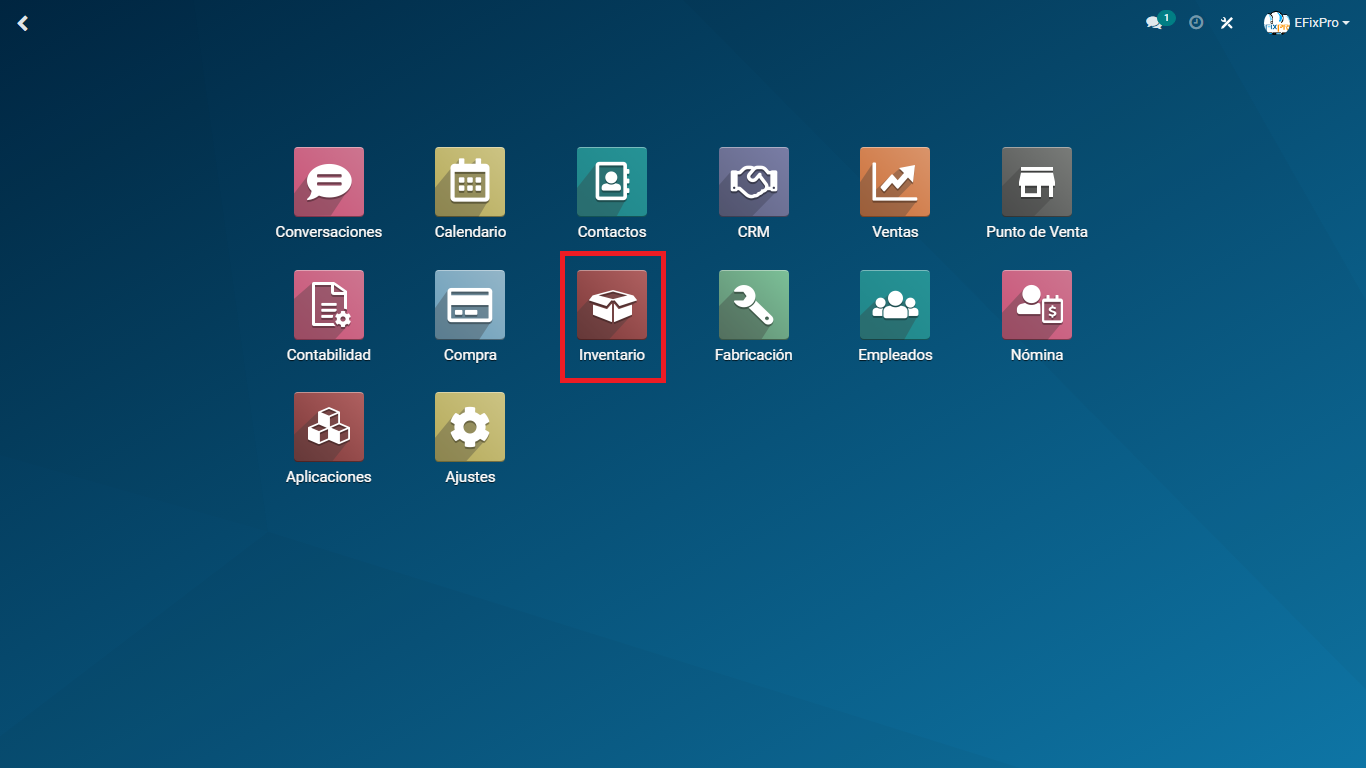
    First, go to the main menu of the Odoo platform and find the Inventory option


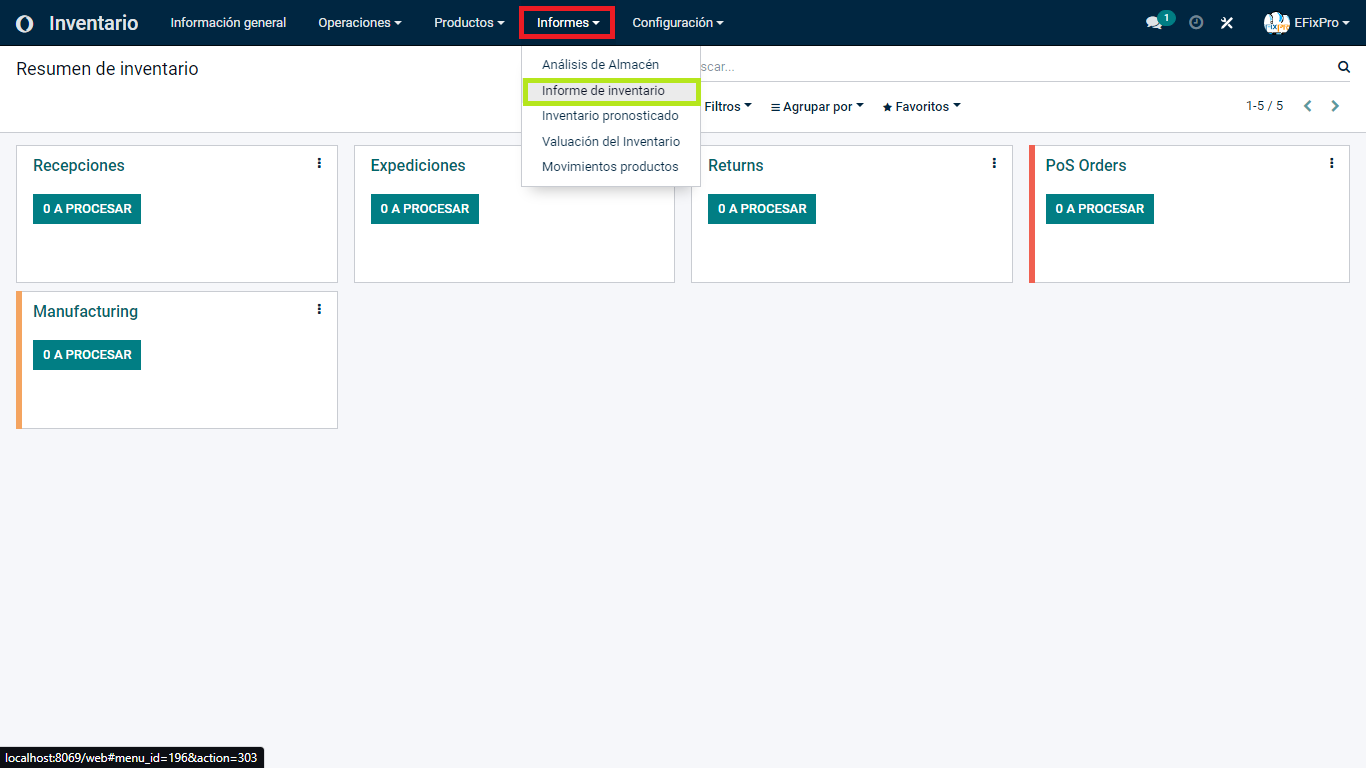
    In the Inventory module top menu, select "Reporting", then choose "Inventory Report" from the drop-down menu.


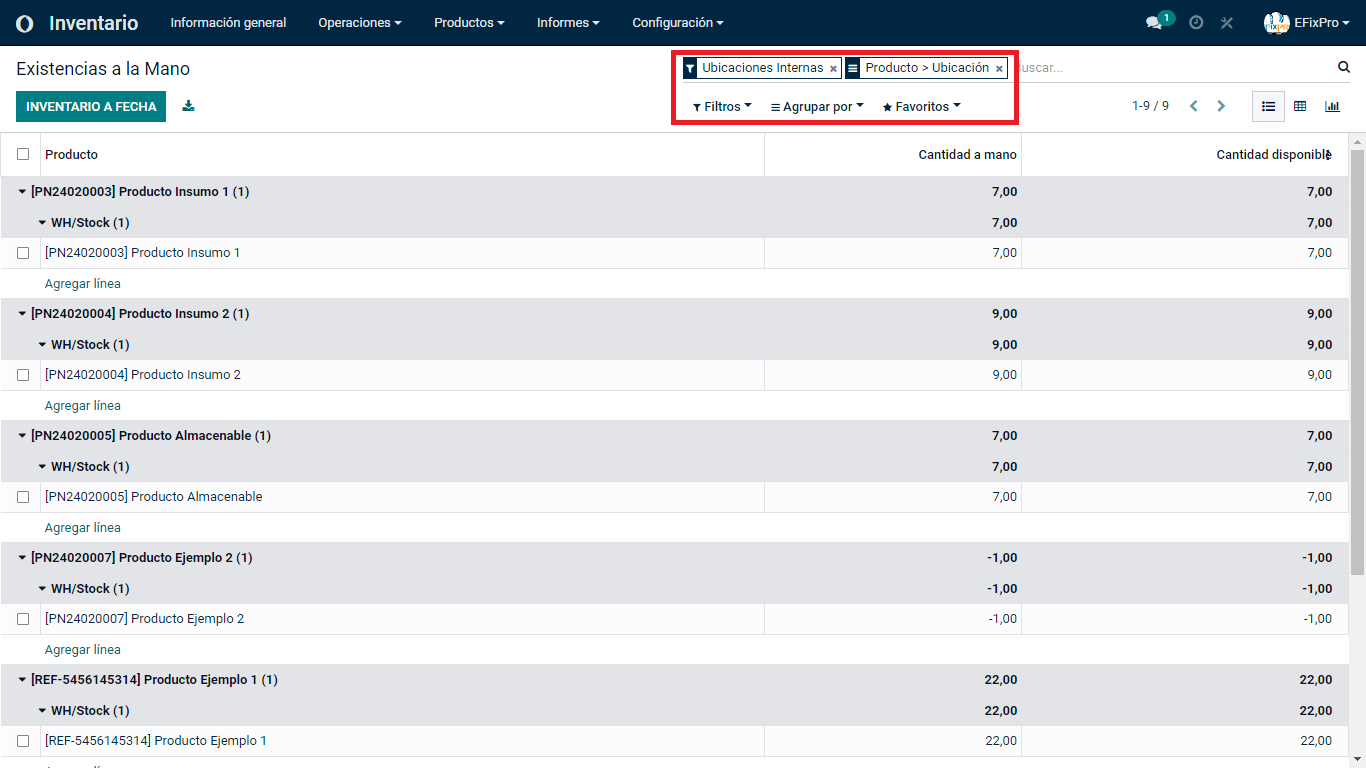
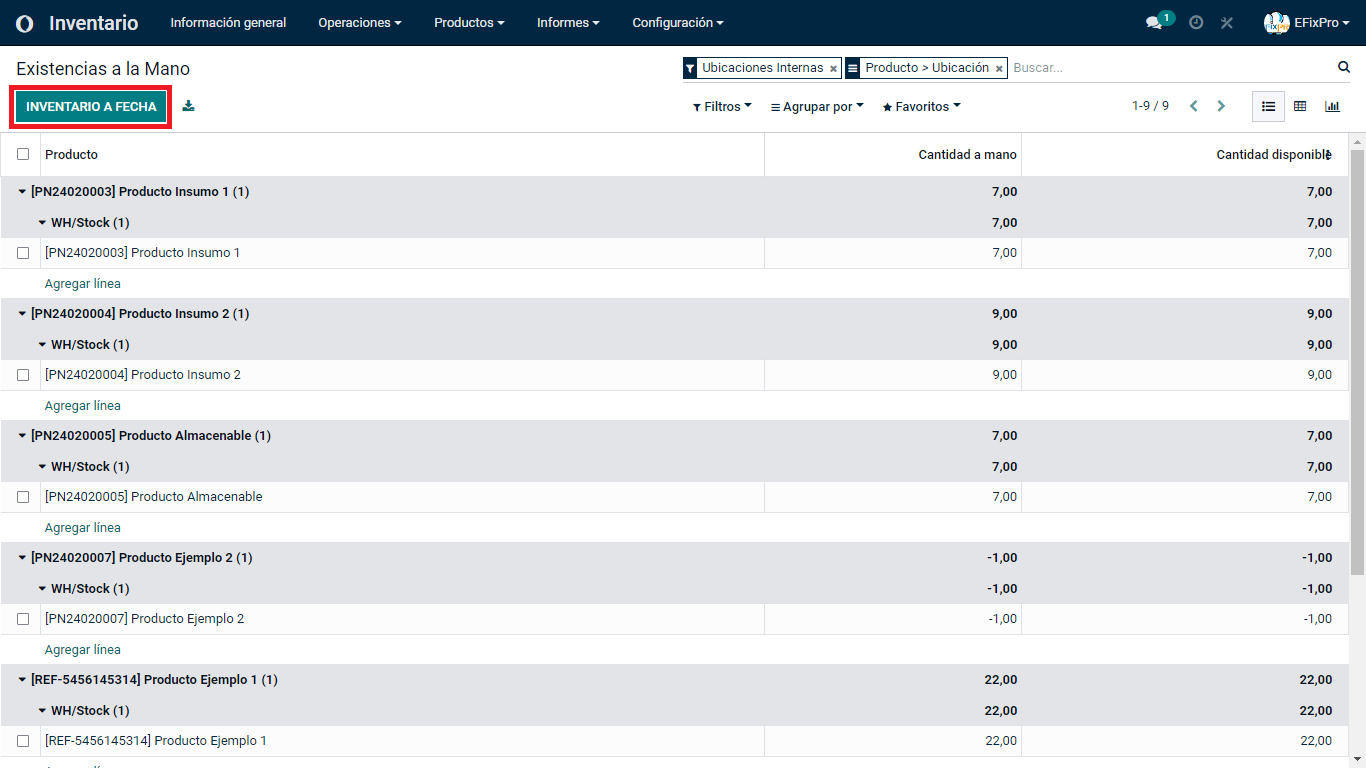
    This view displays inventory as of a date. Remember that the system always applies a default filter.


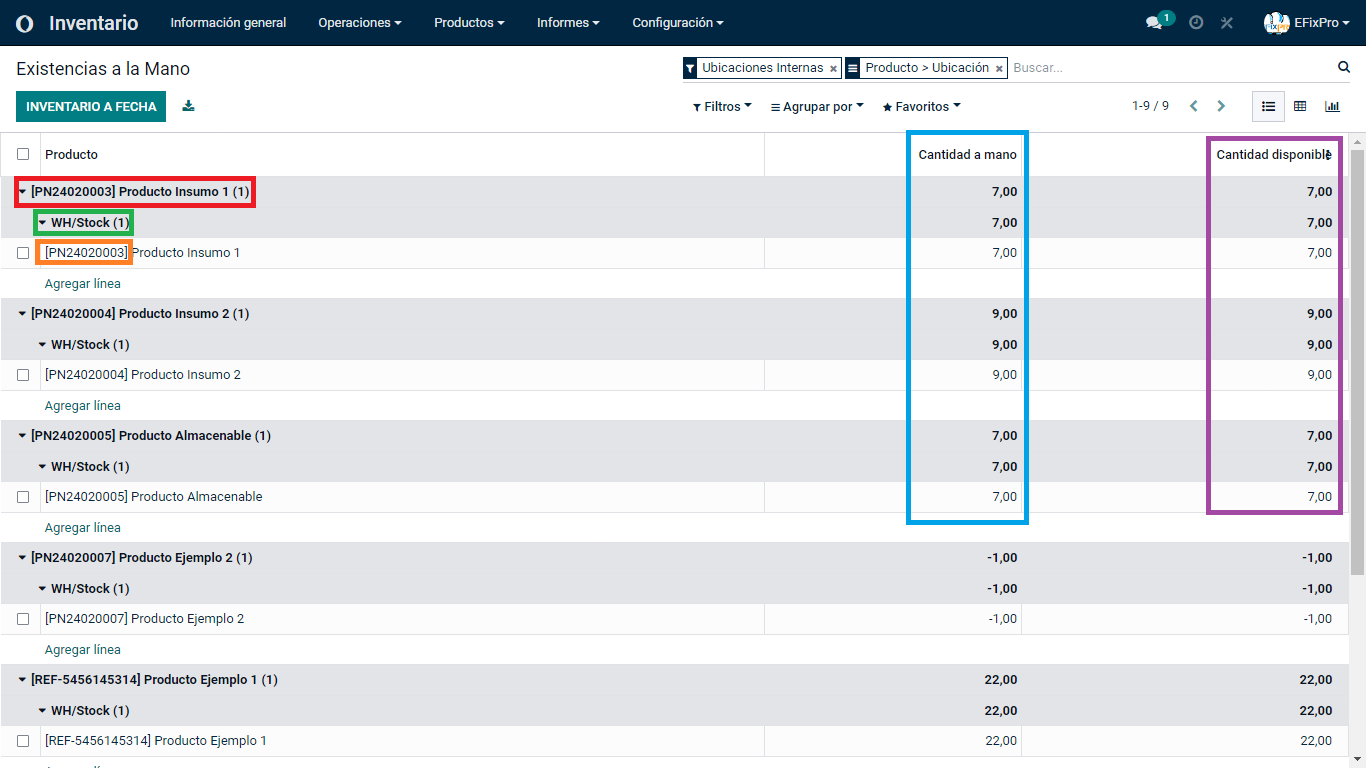
    In this same view, you can see all your products. The current view therefore shows products as of today's date with the following information:


        - Product name

        - Location

        - Reference

        - Quantity on hand

        - Available quantity


    (If you are unfamiliar with any of the following terms, visit our Odoo glossary here.)


    In this window, click the "INVENTORY AT DATE" button at the top left.


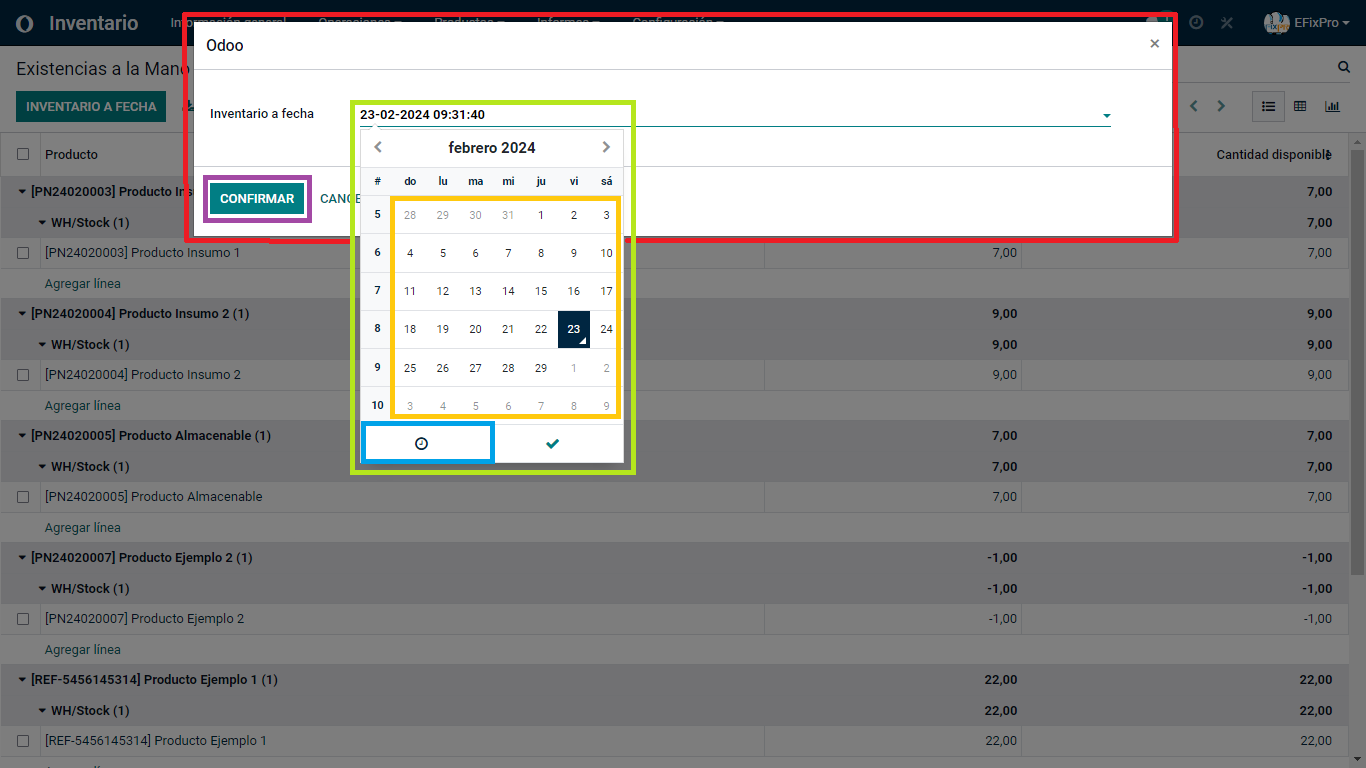
    The system opens a modal or pop-up window where you can specify:


        - Exact date: Select it in the calendar.

        - Exact time: Use the clock icon at the bottom left.

        - Apply: Apply the selection using the check mark.


    Finally, confirm the selected details.


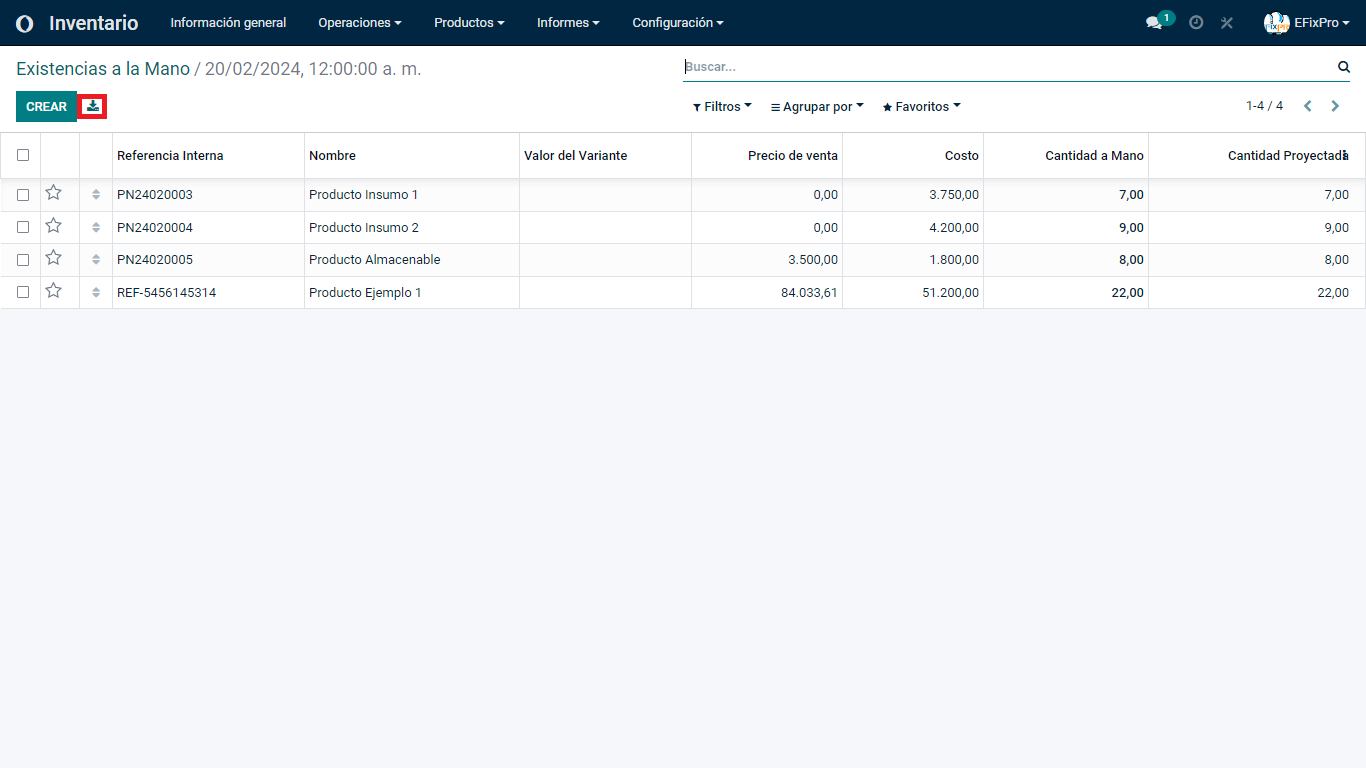
    The system then displays a pivot table with information such as:


        - Internal reference

        - Product name

        - Variant values, if any

        - Sales price on that date

        - Cost on that date

        - Quantity on hand

        - Forecast quantity


    You can export all this information to an Excel pivot table by selecting the required items, or all items, and clicking the download button at the top left.


    in V15 tutorials
    How to view an inventory report as of a specific date
    TORRES PARRA DAVID FERNANDO September 24, 2024
    Share this post
    Tags
    Our blogs
    • Tutorials
    • V15 tutorials
    • News
    • Success stories
    • V17 tutorials
    Archive
    Exploring the Glossary of Terms in Odoo 15
    Discover the glossary of terms in Odoo 15 and understand the language of the software. Learn to navigate the platform confidently and improve your experience with this useful resource.

    Odoo V15

    At eFixPro, we are pleased to offer a series of detailed Odoo v15 tutorials designed to help you get the most out of this powerful business management tool. Our blog is packed with useful resources covering a wide range of topics, from initial setup to advanced features.

    View tutorials

    Odoo V17

    We are excited to introduce our blog dedicated to Odoo v17 tutorials, the latest version of this outstanding business management platform. At eFixPro, we have created resources designed to help you discover and master the new features and improvements in Odoo v17.

    View tutorials
    EFixPro

    We transform businesses with Odoo ERP.

    Services
    • View all
    • Sales
    • Accounting
    • Inventory
    Company
    • About us
    • Success stories
    • Contact us
    Contact

    Calle 49 #49-11

    +57 604 2010998

    [email protected]

    Mon - Fri: 8:00 to 18:00

    © 2026 EFixPro S.A.S. — All rights reserved.
    Terms and conditions Privacy policy
    Powered by Odoo — The best open source eCommerce.