
Skip to Content
EFixPro
  • ERP modules
    • Commerce
    • POS Retail Retail POS
    • CRM CRM
    • sales Sales
    • Subscriptions Subscriptions
    • View all
    • Supply chain
    • Inventory Inventory
    • Purchasing Purchases
    • Manufacturing Manufacturing
    • Products Products
    • Repairs Repairs
    • View all
    • Finance
    • Accounting Accounting
    • Electronic Payroll Electronic payroll
    • electronic invoicing Electronic invoicing
    • Expenses Expenses
    • Documents Documents
    • View all
    • HR
    • Calendar Calendar
    • Employees Employees
    • Projects Projects
    • Helpdesk Helpdesk
    • Contacts Contacts
    • View all
    • Marketing
    • Website Websites
    • Email Marketing Email marketing
    • Events Events
    • Live Chat Live chat
    • Blog Builder Blog builder
    • View all
    • Industries
    • Restaurants and cafés
    • Retail and specialty stores
    • Technical services
    • Construction and maintenance
    • Hospitality and tourism
    • Bakeries and pastry shops
    • View all
    Commerce
    • restaurant-pos Restaurant POS
    • POS Retail Retail POS
    • CRM CRM
    • sales Sales
    • Subscriptions Subscriptions
    • View all
    Supply chain
    • Inventory Inventory
    • Purchasing Purchases
    • Manufacturing Manufacturing
    • Products Products
    • Repairs Repairs
    • View all
    Finance
    • Accounting Accounting
    • Electronic Payroll Electronic payroll
    • electronic invoicing Electronic invoicing
    • Expenses Expenses
    • Documents Documents
    • View all
    HR
    • Calendar Calendar
    • Employees Employees
    • Projects Projects
    • Helpdesk Helpdesk
    • Contacts Contacts
    • View all
    Marketing
    • Website Websites
    • Email Marketing Email marketing
    • Events Events
    • Live Chat Live chat
    • Blog Builder Blog builder
    • View all
    Industries
    • Restaurants and cafés
    • Retail and specialty stores
    • Technical services
    • Construction and maintenance
    • Hospitality and tourism
    • Bakeries and pastry shops
    • View all

    • Contact us
    • ​ Book a sales consultation
    • Live chat
  • EDUCATION
  • Industries
    • Restaurants and cafés
    • Retail and distribution
    • Technical services
  • ABOUT US
    • OUR COMPANY
    • SUCCESS STORIES
  • CONTACT US
    • Support

    • Service appointments
    • Group training (level 1)
    • Personalized session (non-accounting)
    • Accounting consultation
  • 0
  • 0
  • English (US) Español (CO)
  • Sign in
  • Book a sales consultation
EFixPro
  • 0
  • 0
    • ERP modules
    • EDUCATION
    • Industries
      • Restaurants and cafés
      • Retail and distribution
      • Technical services
    • ABOUT US
      • OUR COMPANY
      • SUCCESS STORIES
    • CONTACT US
      • Support
      • Service appointments
      • Group training (level 1)
      • Personalized session (non-accounting)
      • Accounting consultation
  • Book a sales consultation
  • English (US) Español (CO)
  • Sign in

How to Make Payments Towards Customer Credit Accounts in Point of Sale

Discover how to make payments towards customer credit accounts in Point of Sale in Odoo 15. Improve payment and credit management in your business with this tutorial.
  • All Blogs
  • V15 tutorials
  • How to Make Payments Towards Customer Credit Accounts in Point of Sale
  • September 24, 2024 by
    How to Make Payments Towards Customer Credit Accounts in Point of Sale
    TORRES PARRA DAVID FERNANDO

    Making payments towards customer credit accounts in Odoo 15 Point of Sale (POS) is crucial for businesses offering credit payment options, such as appliance stores, hardware stores or furniture shops. Imagine running a store where customers can buy on credit: you need to record their partial payments to keep proper control of their debts. This process makes financial management easier and improves the customer experience by showing how payments affect outstanding balances. In this article, we show you how to record these payments in Odoo 15 for effective accounts receivable management.

    Go to the main Point of Sale view


    Click the "Customer" button on the left-hand panel.


    For this process, no customer should have been selected beforehand.
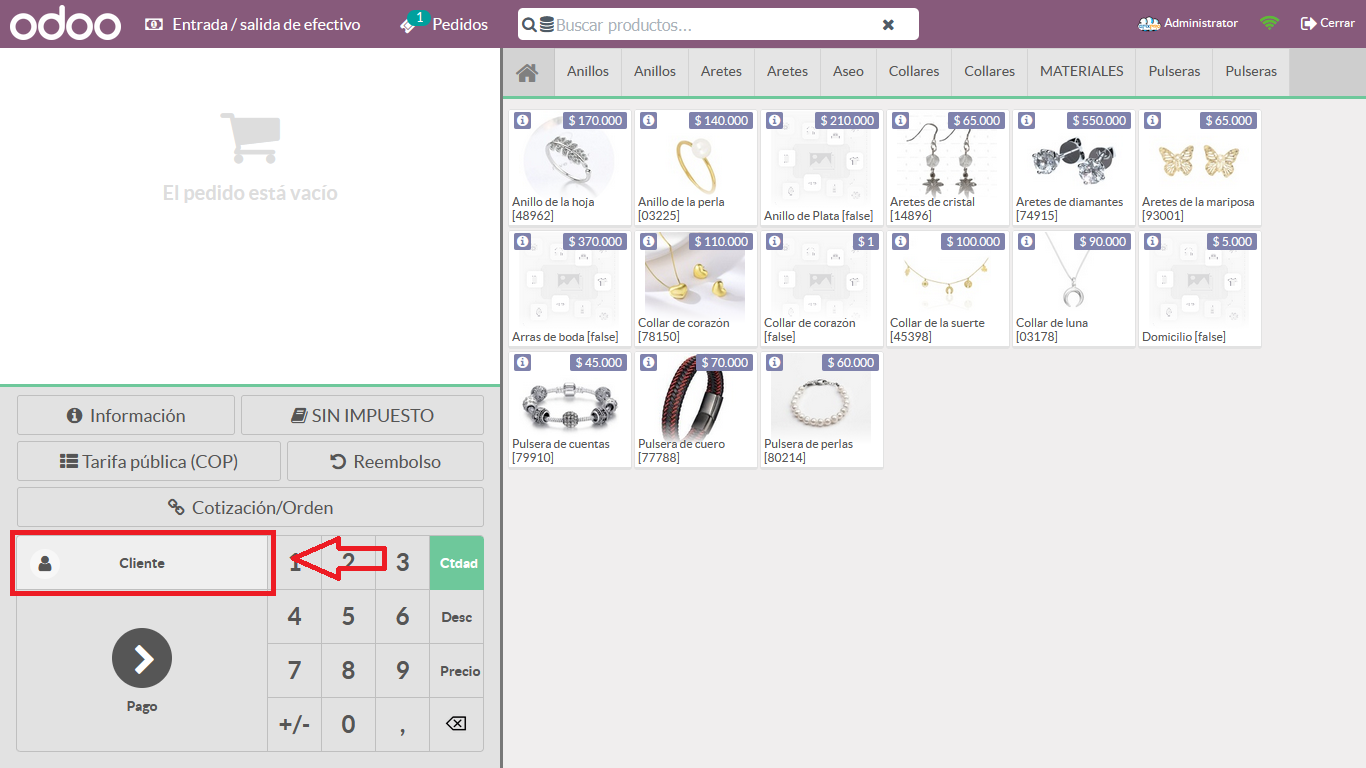


    The system displays a list of all customers served and registered through Point of Sale (POS)
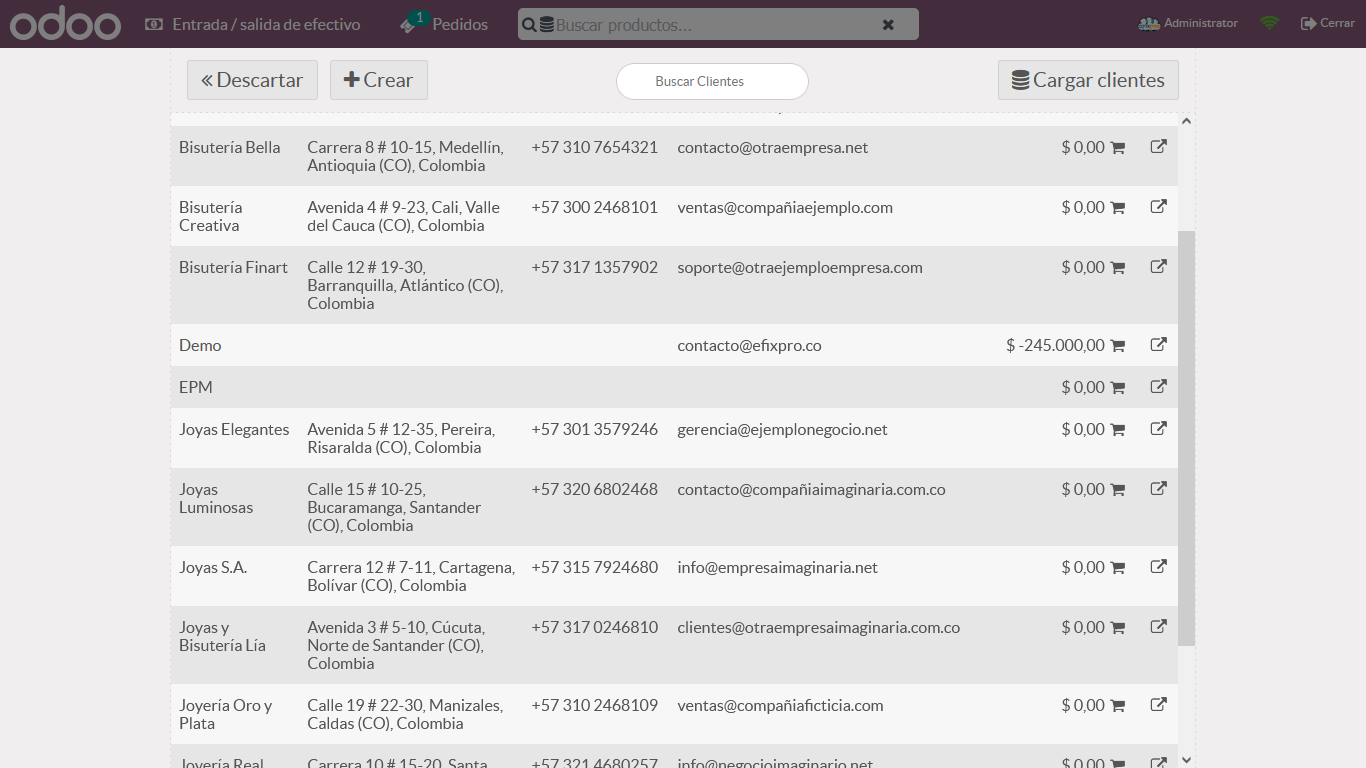


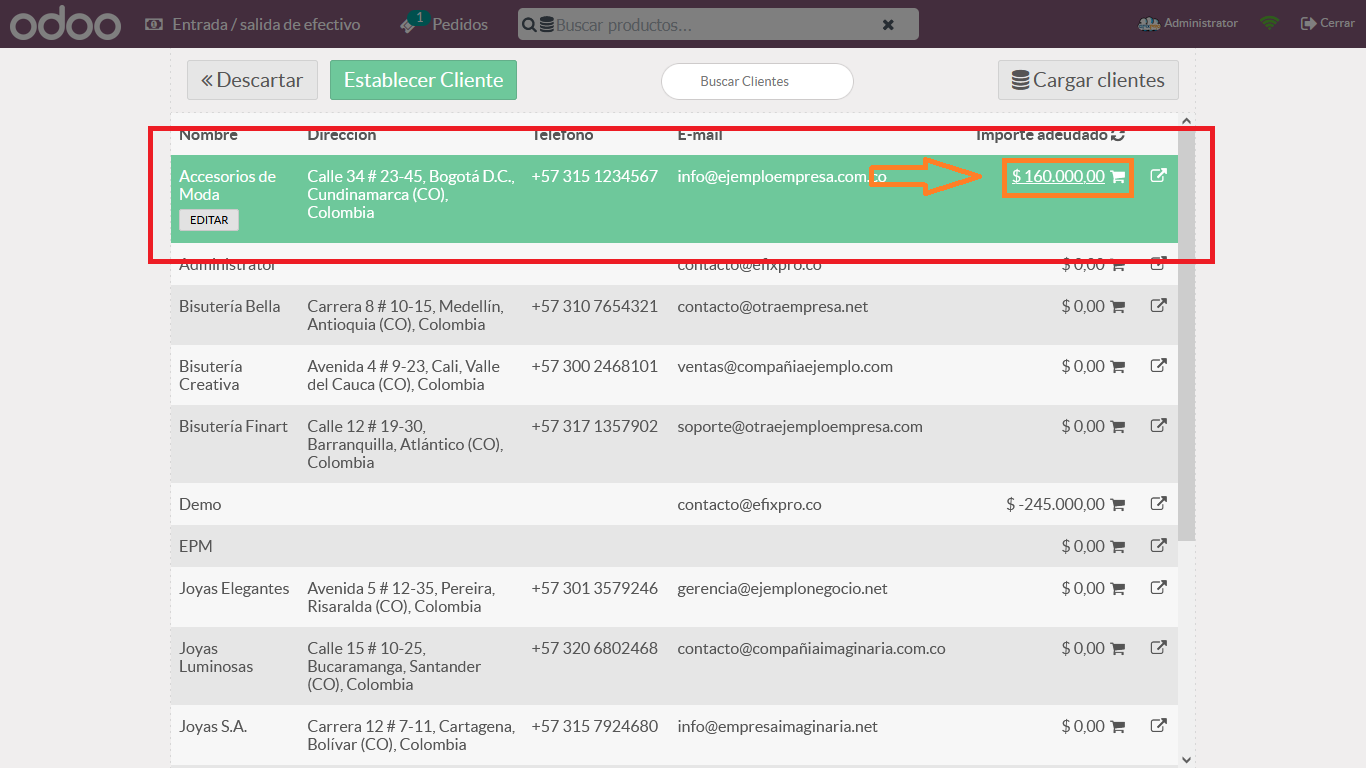
    Find the customer whose account you want to settle or make a payment towards.


    Go to the "Shopping Cart" icon beside the total debt amount.


    The system displays a pop-up asking you to select the payment method. In this case, two methods are available: "Cash" and "Bank", covering transfers, bank deposits and similar payments.


    For this example, select a Cash payment
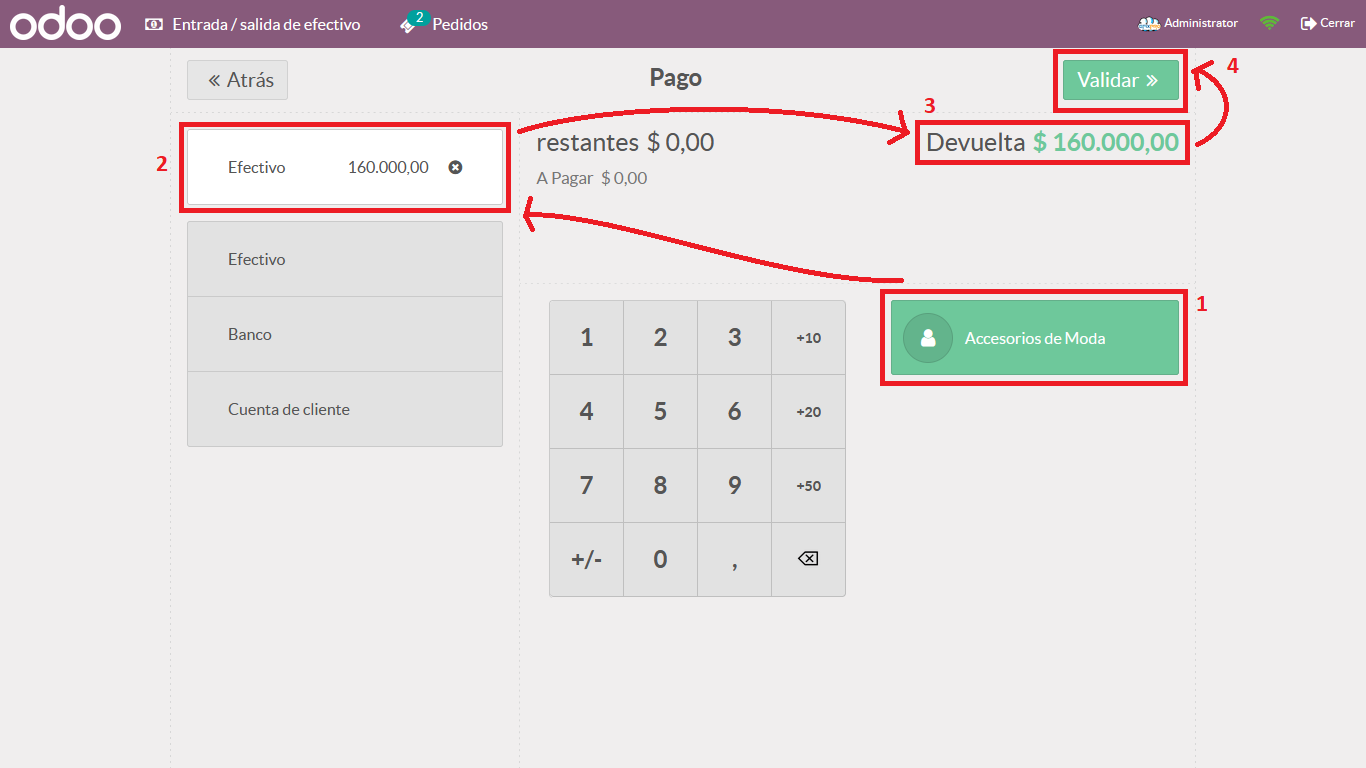


    After selecting the payment method, the system takes you to a view where you can check the supplied details and change them if necessary.


    By default, the payment amount is the customer's total debt. You can change it if the customer wants to make a partial payment rather than settle the full balance.


    1. Check that the customer is selected before entering or changing any monetary amount


    2. To change the amount, click "Cash" and proceed.


    3. Check the remaining balance and change, if applicable


    4. Finally, after confirming all details, validate the transaction.
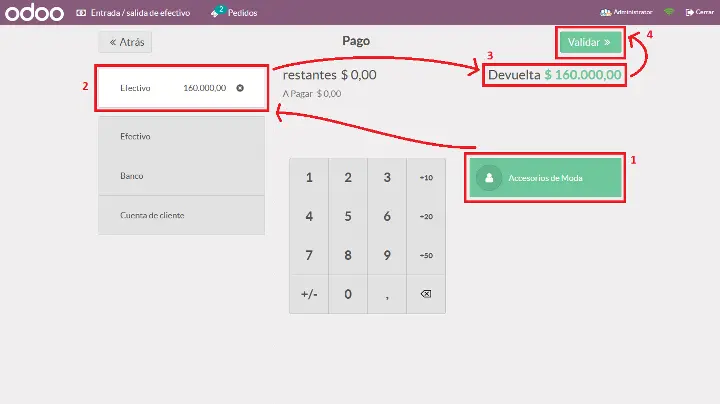


    In this example, the customer wants to make a payment of $ 100.000 pesos towards the debt, rather than pay the full amount.


    Remember to select the customer first so the change in the payment amount takes effect correctly.


    Validate the information.
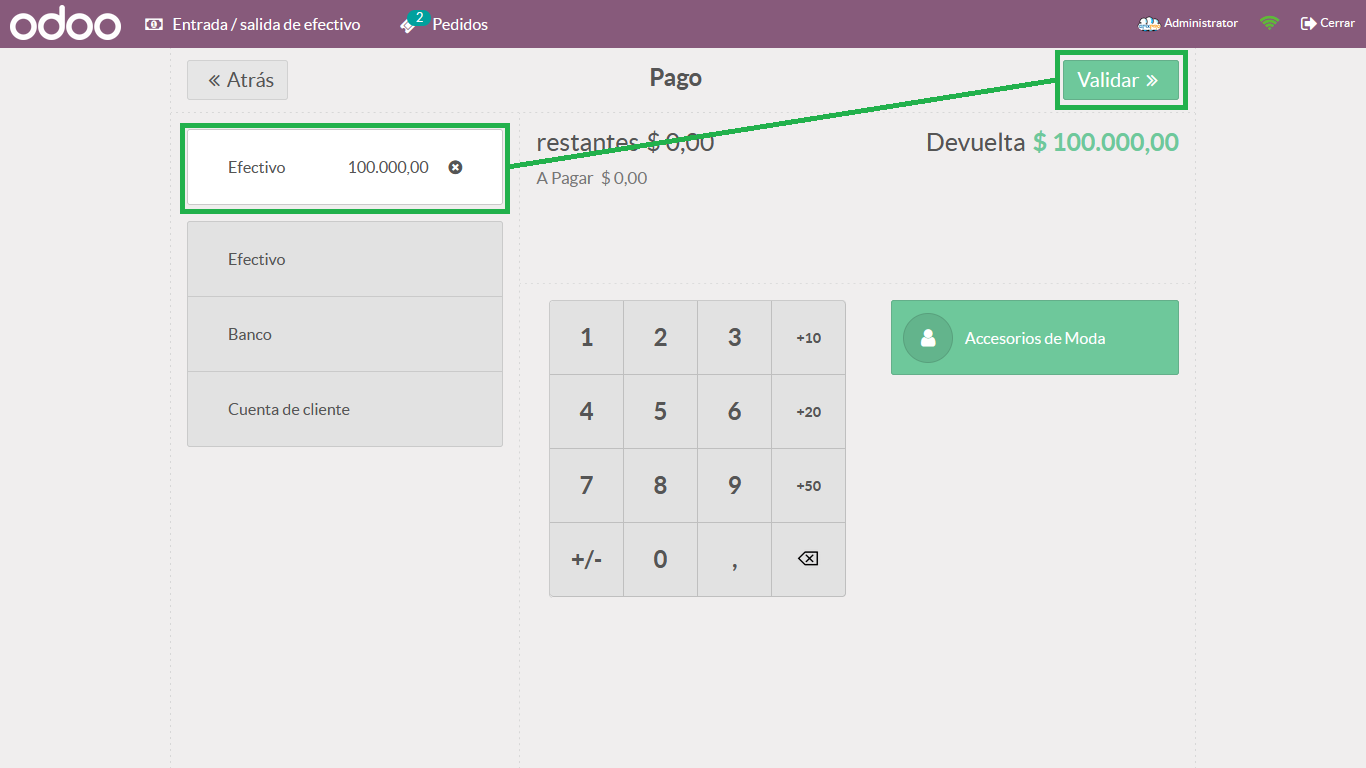


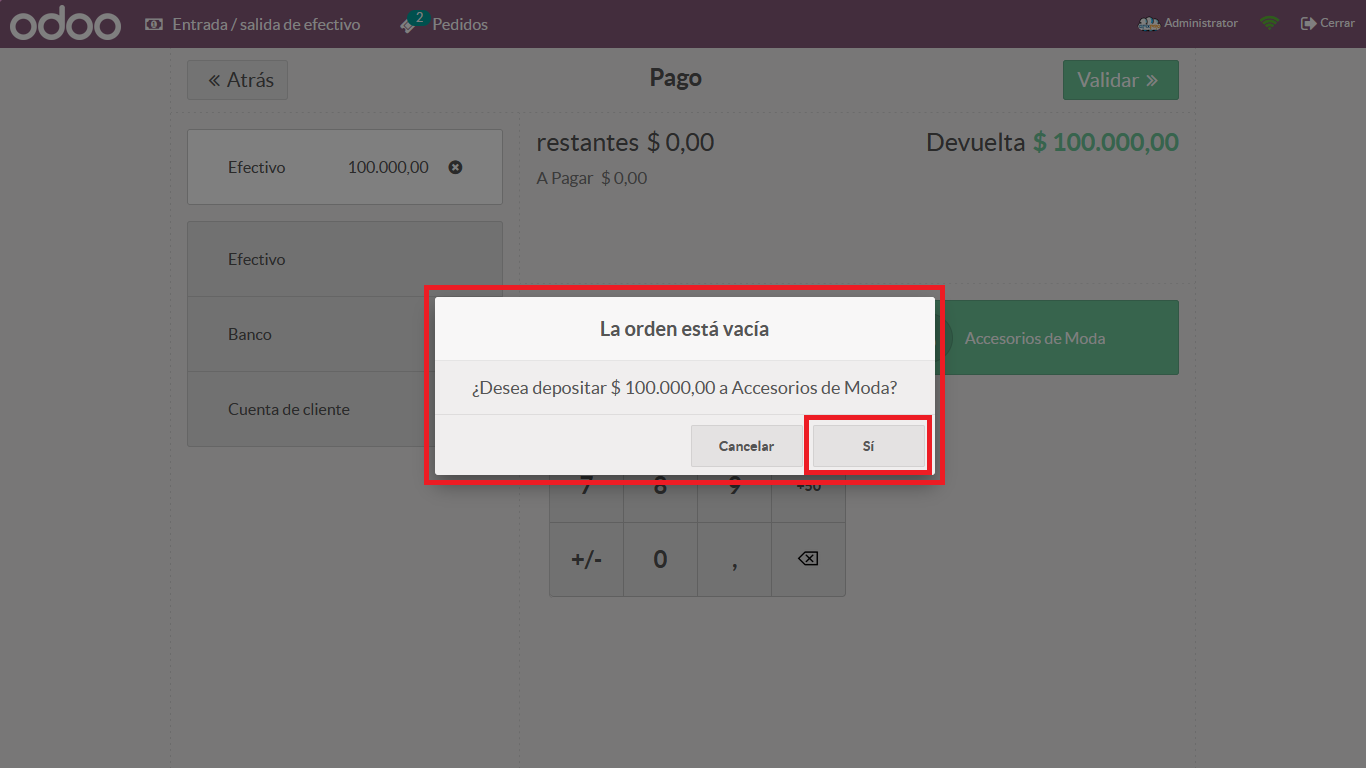
    The system automatically displays an empty-order alert asking whether you want to make a payment towards the debt for the amount entered. If it is correct, confirm the information.


    The system then displays the invoice or payment receipt. You can print it, or it will print automatically on systems configured for automatic printing
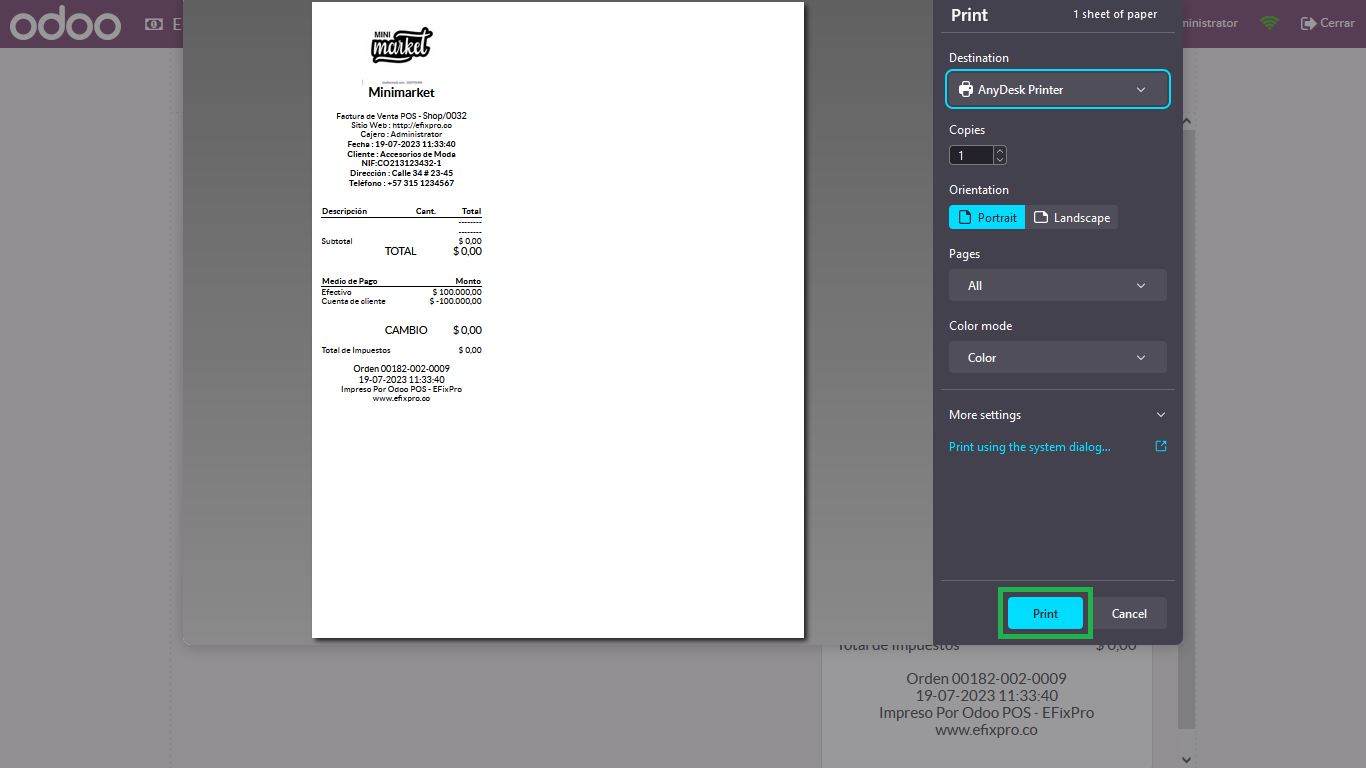


    The receipt shows two amounts: the first is the payment made, and the second is the amount deducted from the debt.
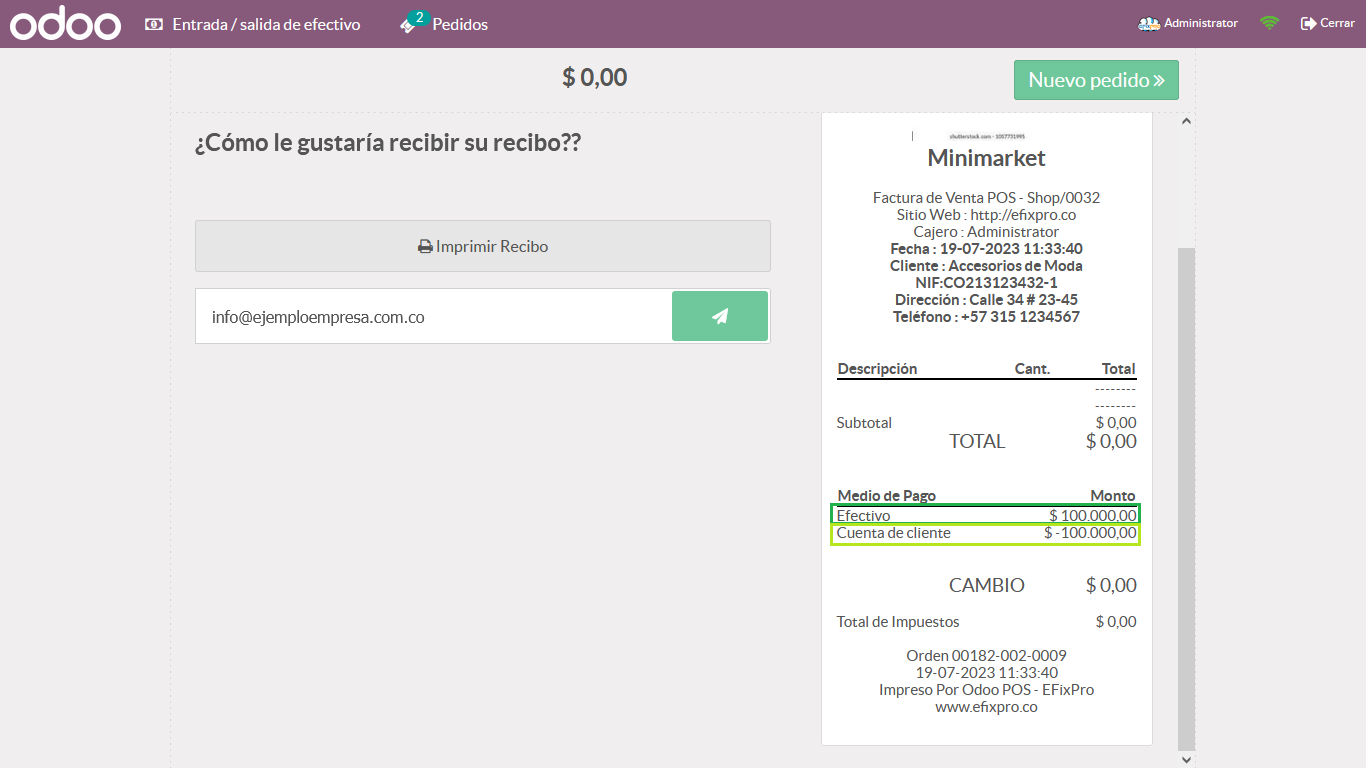


    To see the payment reflected in the balance, you must close the register. After closing the register and reopening Point of Sale, you can see the change, reflecting the partial payment or full settlement of the debt.

    Making payments towards customer credit accounts in Odoo 15 helps your business maintain a clear, organized record of customer payments. If you manage a hardware store that offers credit, you can ensure each payment is recorded correctly, helping you accurately track accounts receivable and avoid confusion. This feature also builds customer trust by showing a clear payment history. Implementing this system improves credit management and operations. Learn to record payments easily in Odoo 15 and strengthen your customer relationships!

    in V15 tutorials
    How to Make Payments Towards Customer Credit Accounts in Point of Sale
    TORRES PARRA DAVID FERNANDO September 24, 2024
    Share this post
    Tags
    Our blogs
    • Tutorials
    • V15 tutorials
    • News
    • Success stories
    • V17 tutorials
    Archive
    How to Easily Delete Point of Sale Orders in "New" or "Draft" Status
    Learn how to easily delete Point of Sale orders in "New" or "Draft" status in Odoo 15. Simplify transaction management with this practical tutorial.

    Odoo V15

    At eFixPro, we are pleased to offer a series of detailed Odoo v15 tutorials designed to help you get the most out of this powerful business management tool. Our blog is packed with useful resources covering a wide range of topics, from initial setup to advanced features.

    View tutorials

    Odoo V17

    We are excited to introduce our blog dedicated to Odoo v17 tutorials, the latest version of this outstanding business management platform. At eFixPro, we have created resources designed to help you discover and master the new features and improvements in Odoo v17.

    View tutorials
    EFixPro

    We transform businesses with Odoo ERP.

    Services
    • View all
    • Sales
    • Accounting
    • Inventory
    Company
    • About us
    • Success stories
    • Contact us
    Contact

    Calle 49 #49-11

    +57 604 2010998

    [email protected]

    Mon - Fri: 8:00 to 18:00

    © 2026 EFixPro S.A.S. — All rights reserved.
    Terms and conditions Privacy policy
    Powered by Odoo — The best open source eCommerce.