
Skip to Content
EFixPro
  • ERP modules
    • Commerce
    • POS Retail Retail POS
    • CRM CRM
    • sales Sales
    • Subscriptions Subscriptions
    • View all
    • Supply chain
    • Inventory Inventory
    • Purchasing Purchases
    • Manufacturing Manufacturing
    • Products Products
    • Repairs Repairs
    • View all
    • Finance
    • Accounting Accounting
    • Electronic Payroll Electronic payroll
    • electronic invoicing Electronic invoicing
    • Expenses Expenses
    • Documents Documents
    • View all
    • HR
    • Calendar Calendar
    • Employees Employees
    • Projects Projects
    • Helpdesk Helpdesk
    • Contacts Contacts
    • View all
    • Marketing
    • Website Websites
    • Email Marketing Email marketing
    • Events Events
    • Live Chat Live chat
    • Blog Builder Blog builder
    • View all
    • Industries
    • Restaurants and cafés
    • Retail and specialty stores
    • Technical services
    • Construction and maintenance
    • Hospitality and tourism
    • Bakeries and pastry shops
    • View all
    Commerce
    • restaurant-pos Restaurant POS
    • POS Retail Retail POS
    • CRM CRM
    • sales Sales
    • Subscriptions Subscriptions
    • View all
    Supply chain
    • Inventory Inventory
    • Purchasing Purchases
    • Manufacturing Manufacturing
    • Products Products
    • Repairs Repairs
    • View all
    Finance
    • Accounting Accounting
    • Electronic Payroll Electronic payroll
    • electronic invoicing Electronic invoicing
    • Expenses Expenses
    • Documents Documents
    • View all
    HR
    • Calendar Calendar
    • Employees Employees
    • Projects Projects
    • Helpdesk Helpdesk
    • Contacts Contacts
    • View all
    Marketing
    • Website Websites
    • Email Marketing Email marketing
    • Events Events
    • Live Chat Live chat
    • Blog Builder Blog builder
    • View all
    Industries
    • Restaurants and cafés
    • Retail and specialty stores
    • Technical services
    • Construction and maintenance
    • Hospitality and tourism
    • Bakeries and pastry shops
    • View all

    • Contact us
    • ​ Book a sales consultation
    • Live chat
  • EDUCATION
  • Industries
    • Restaurants and cafés
    • Retail and distribution
    • Technical services
  • ABOUT US
    • OUR COMPANY
    • SUCCESS STORIES
  • CONTACT US
    • Support

    • Service appointments
    • Group training (level 1)
    • Personalized session (non-accounting)
    • Accounting consultation
  • 0
  • 0
  • English (US) Español (CO)
  • Sign in
  • Book a sales consultation
EFixPro
  • 0
  • 0
    • ERP modules
    • EDUCATION
    • Industries
      • Restaurants and cafés
      • Retail and distribution
      • Technical services
    • ABOUT US
      • OUR COMPANY
      • SUCCESS STORIES
    • CONTACT US
      • Support
      • Service appointments
      • Group training (level 1)
      • Personalized session (non-accounting)
      • Accounting consultation
  • Book a sales consultation
  • English (US) Español (CO)
  • Sign in

How to Close the Cash Register in Point of Sale

Learn how to close the cash register in Odoo 15 Point of Sale quickly and efficiently. Ensure proper financial management with this tutorial.
  • All Blogs
  • V15 tutorials
  • How to Close the Cash Register in Point of Sale
  • September 24, 2024 by
    How to Close the Cash Register in Point of Sale
    TORRES PARRA DAVID FERNANDO

    Closing the cash register in Point of Sale (POS) is a fundamental procedure for properly tracking your business finances. In Odoo 15, this straightforward process lets you check the day's transactions and confirm that all sales have been recorded correctly. In this article, we will guide you through the steps for an effective cash register closing, helping ensure transparent and accurate financial operations.

    To close the cash register, you must work directly in the "Point of Sale" view.


    Locate 3 important items in this view.


    1. The order count should always display a label marked "1", and no sales process should be active (the field should be empty or show zeros).


    2. The WIFI icon in the upper right corner should always be green. This indicates that the database is operational and that the data generated during the sales session has been uploaded to the system.


    3. After checking these buttons (items), close the cash register by clicking "Close" in the upper right corner.
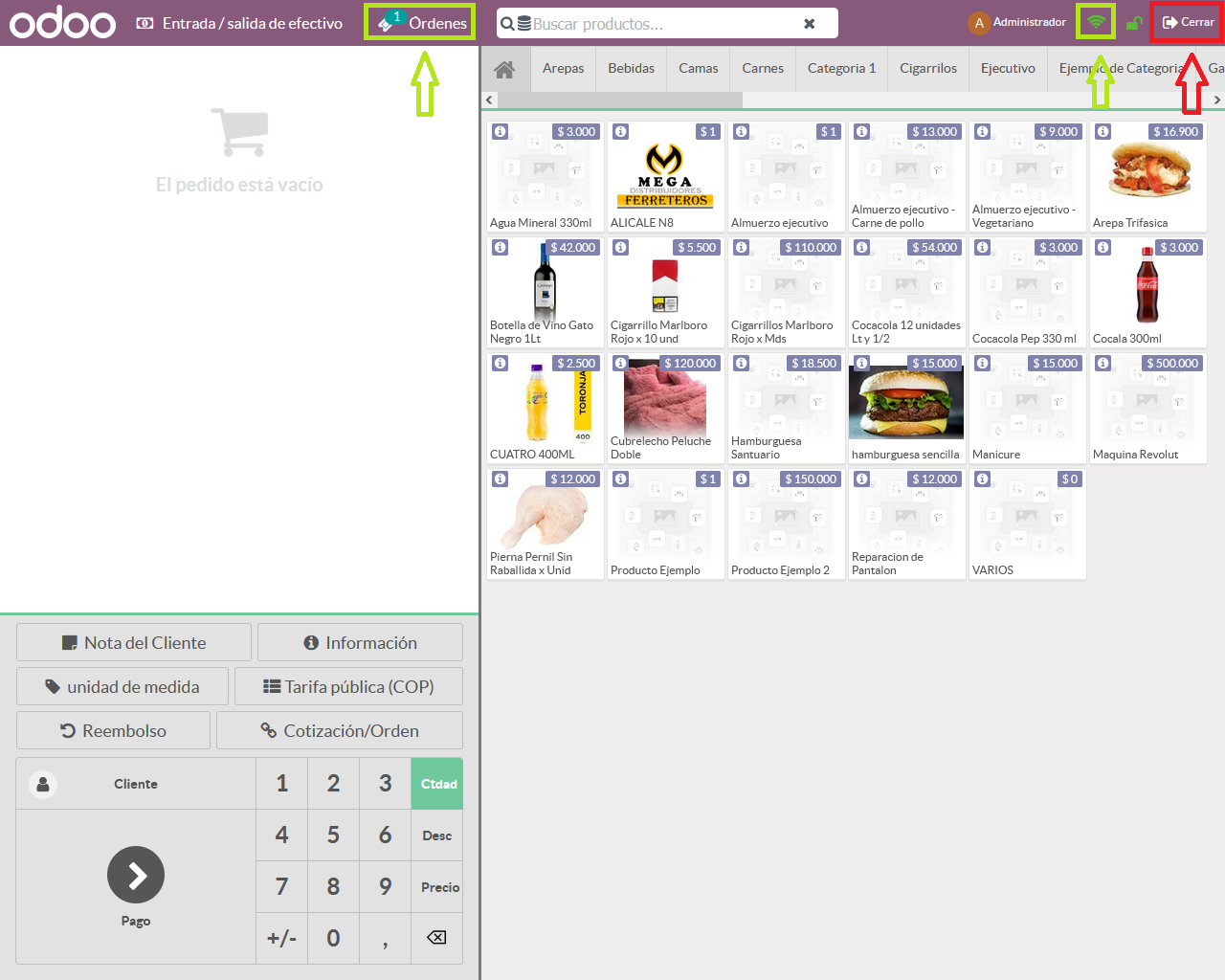


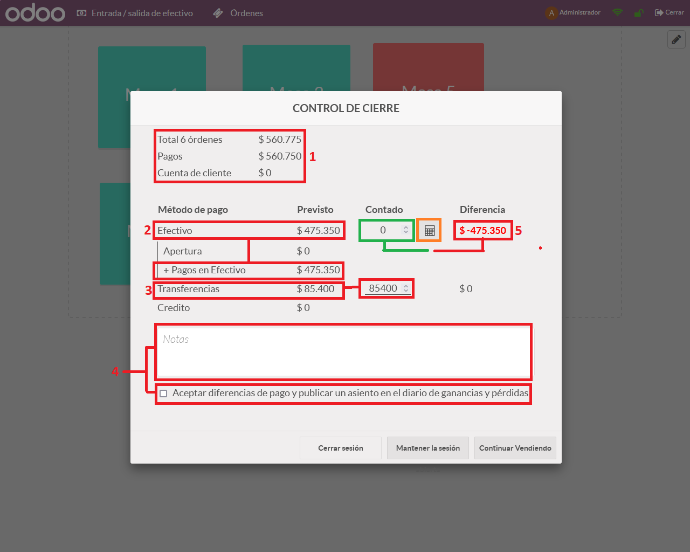
    Clicking the close button opens a pop-up with the closing information for this session.


    1. This section shows the sum of all transactions during the sales session.


    2. This section shows the transactions paid in cash.


    3. This section shows transactions paid by bank transfer or other bank payments. Check the company's bank transactions in the banking platform you use.


    4. If you cannot meet the requirement in item # 5, add details here explaining the difference. If this applies, select the "Accept differences..." checkbox.


    5. Enter the total cash in the register in the field outlined in green. It should match the expected amount and leave the difference shown in red at zero.


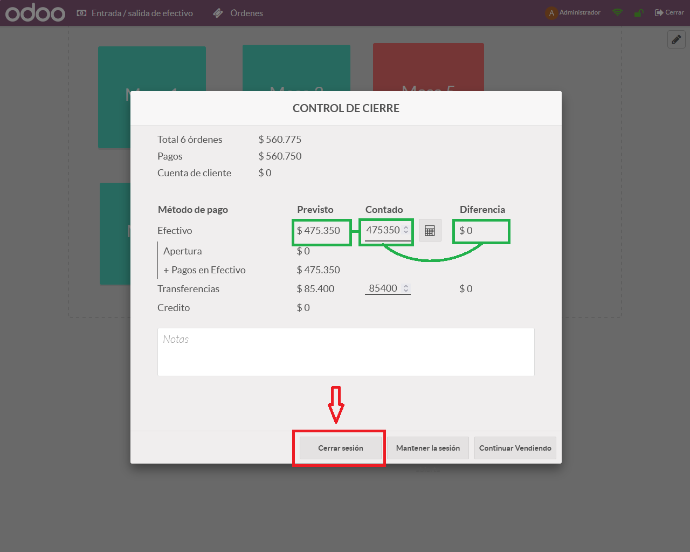
    After checking and completing the corresponding field, the closing control should look like this.


    Click the "Close Session" button.


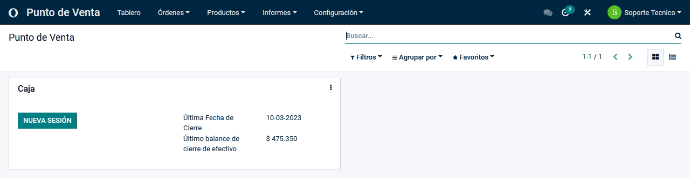
    If everything went correctly, the system will finish on this screen and the register button should say "NEW SESSION".


    Closing the cash register in Odoo 15 Point of Sale is essential for maintaining accurate financial control. Following these steps helps ensure that sales and revenue are reflected correctly, identify discrepancies and improve financial management. A regular closing routine keeps your accounts organized and contributes to your business's overall success. Put this practice into use and improve your Point of Sale management!

    in V15 tutorials
    How to Close the Cash Register in Point of Sale
    TORRES PARRA DAVID FERNANDO September 24, 2024
    Share this post
    Tags
    Our blogs
    • Tutorials
    • V15 tutorials
    • News
    • Success stories
    • V17 tutorials
    Archive
    How to Apply View Filters
    Learn how to apply view filters in Odoo 15 to manage your data more effectively. Improve your workflow with this simple tutorial.

    Odoo V15

    At eFixPro, we are pleased to offer a series of detailed Odoo v15 tutorials designed to help you get the most out of this powerful business management tool. Our blog is packed with useful resources covering a wide range of topics, from initial setup to advanced features.

    View tutorials

    Odoo V17

    We are excited to introduce our blog dedicated to Odoo v17 tutorials, the latest version of this outstanding business management platform. At eFixPro, we have created resources designed to help you discover and master the new features and improvements in Odoo v17.

    View tutorials
    EFixPro

    We transform businesses with Odoo ERP.

    Services
    • View all
    • Sales
    • Accounting
    • Inventory
    Company
    • About us
    • Success stories
    • Contact us
    Contact

    Calle 49 #49-11

    +57 604 2010998

    [email protected]

    Mon - Fri: 8:00 to 18:00

    © 2026 EFixPro S.A.S. — All rights reserved.
    Terms and conditions Privacy policy
    Powered by Odoo — The best open source eCommerce.