
Skip to Content
EFixPro
  • ERP modules
    • Commerce
    • POS Retail Retail POS
    • CRM CRM
    • sales Sales
    • Subscriptions Subscriptions
    • View all
    • Supply chain
    • Inventory Inventory
    • Purchasing Purchases
    • Manufacturing Manufacturing
    • Products Products
    • Repairs Repairs
    • View all
    • Finance
    • Accounting Accounting
    • Electronic Payroll Electronic payroll
    • electronic invoicing Electronic invoicing
    • Expenses Expenses
    • Documents Documents
    • View all
    • HR
    • Calendar Calendar
    • Employees Employees
    • Projects Projects
    • Helpdesk Helpdesk
    • Contacts Contacts
    • View all
    • Marketing
    • Website Websites
    • Email Marketing Email marketing
    • Events Events
    • Live Chat Live chat
    • Blog Builder Blog builder
    • View all
    • Industries
    • Restaurants and cafés
    • Retail and specialty stores
    • Technical services
    • Construction and maintenance
    • Hospitality and tourism
    • Bakeries and pastry shops
    • View all
    Commerce
    • restaurant-pos Restaurant POS
    • POS Retail Retail POS
    • CRM CRM
    • sales Sales
    • Subscriptions Subscriptions
    • View all
    Supply chain
    • Inventory Inventory
    • Purchasing Purchases
    • Manufacturing Manufacturing
    • Products Products
    • Repairs Repairs
    • View all
    Finance
    • Accounting Accounting
    • Electronic Payroll Electronic payroll
    • electronic invoicing Electronic invoicing
    • Expenses Expenses
    • Documents Documents
    • View all
    HR
    • Calendar Calendar
    • Employees Employees
    • Projects Projects
    • Helpdesk Helpdesk
    • Contacts Contacts
    • View all
    Marketing
    • Website Websites
    • Email Marketing Email marketing
    • Events Events
    • Live Chat Live chat
    • Blog Builder Blog builder
    • View all
    Industries
    • Restaurants and cafés
    • Retail and specialty stores
    • Technical services
    • Construction and maintenance
    • Hospitality and tourism
    • Bakeries and pastry shops
    • View all

    • Contact us
    • ​ Book a sales consultation
    • Live chat
  • EDUCATION
  • Industries
    • Restaurants and cafés
    • Retail and distribution
    • Technical services
  • ABOUT US
    • OUR COMPANY
    • SUCCESS STORIES
  • CONTACT US
    • Support

    • Service appointments
    • Group training (level 1)
    • Personalized session (non-accounting)
    • Accounting consultation
  • 0
  • 0
  • English (US) Español (CO)
  • Sign in
  • Book a sales consultation
EFixPro
  • 0
  • 0
    • ERP modules
    • EDUCATION
    • Industries
      • Restaurants and cafés
      • Retail and distribution
      • Technical services
    • ABOUT US
      • OUR COMPANY
      • SUCCESS STORIES
    • CONTACT US
      • Support
      • Service appointments
      • Group training (level 1)
      • Personalized session (non-accounting)
      • Accounting consultation
  • Book a sales consultation
  • English (US) Español (CO)
  • Sign in

How to Apply Units of Measure to a Product

Discover how to apply units of measure to a product in Odoo 15 to improve inventory and sales management. A simple, practical tutorial for all kinds of business.
  • All Blogs
  • V15 tutorials
  • How to Apply Units of Measure to a Product
  • September 24, 2024 by
    How to Apply Units of Measure to a Product
    TORRES PARRA DAVID FERNANDO

    Applying units of measure to a product in Odoo 15 is useful for many businesses, especially those selling products in different formats. In a building materials store, for example, some customers may buy cement by the bag while others buy it by the kilo. A grocery store may sell sugar in bulk, allowing customers to choose a kilo or half a kilo. In this article, we will show you how to apply units of measure to products in Odoo 15 so you can adapt sales to customer needs while keeping inventory organized.

    The product must already exist before you apply units of measure.

    When applying a unit of measure to a product in Odoo, the product must have been created in the system beforehand. The steps below explain how to add a unit of measure to an existing product.


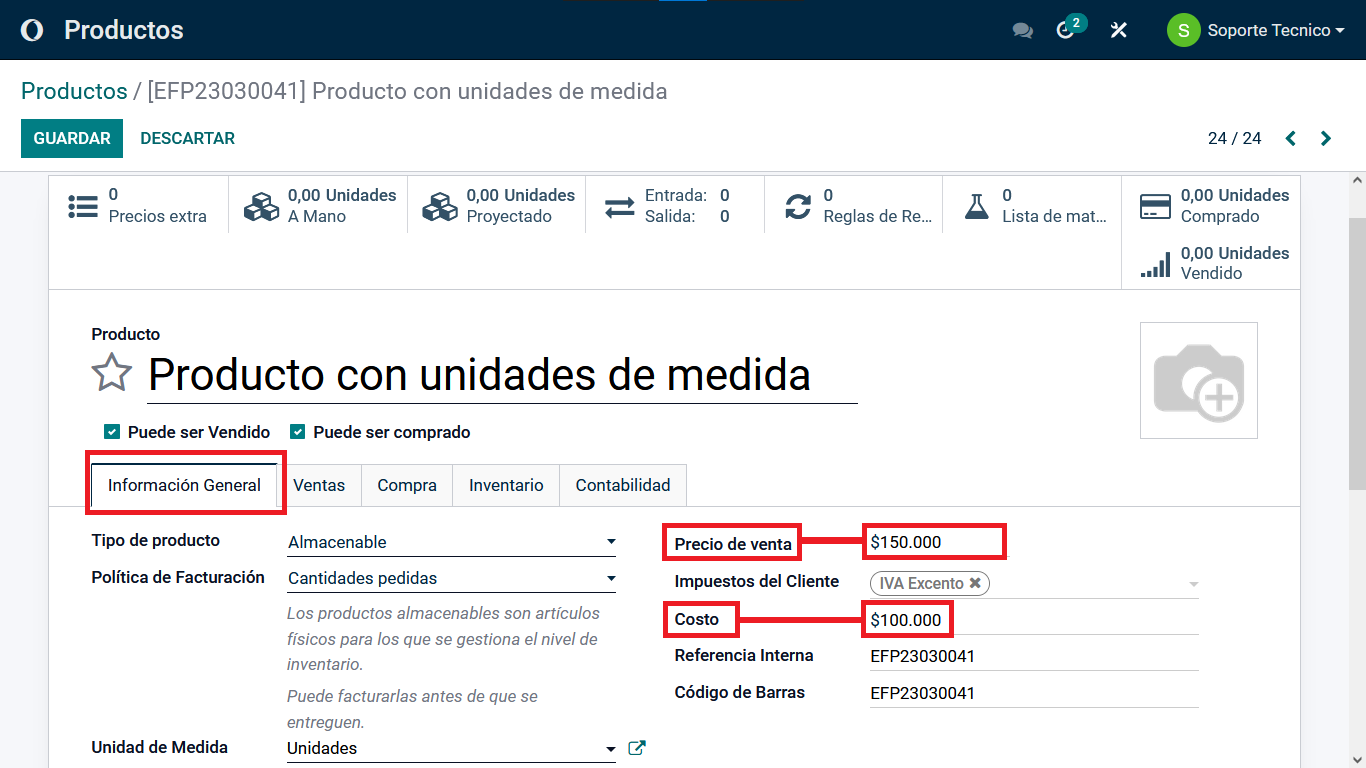
    1. First, locate the product to which you want to apply the unit of measure. Open the product list from Odoo's main menu.


    2. Open the product's "General Information" tab. It contains the fields needed to configure the unit of measure.


    3. In "Sales Price", enter the total sales value of the 100 units of this product. If each unit sells for $10, enter $1000 as the total sales price.


    4. In "Cost", enter the total amount the supplier charged for the box of 100 units. If each unit costs $8, the total cost is $800.


    This example uses a product consisting of a box of 100 separate units. Adjust the sales price and cost to the specific characteristics of your product.


    After configuring the units of measure, sales price and cost in the product's "General Information" tab, additional steps are needed to make the product available in Odoo POS. The following steps explain this configuration.


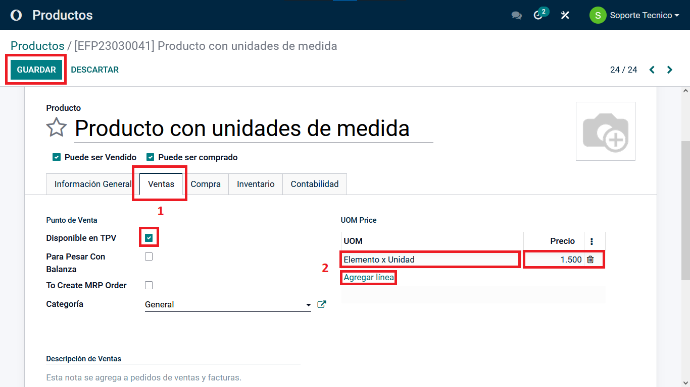
    1. Open the "Sales" tab on the product form. It is at the top of the page next to "General Information".


    2. In the "Sales" tab, find the "UOM Price" column on the right side of the screen. It represents the units of measure and their associated prices.


    3. Click "Add a Line" in the "UOM Price" column. A pop-up opens where you can specify the unit of measure and its price for this product.


    4. Select the unit of measure to apply in the pop-up. It can be the one configured in "General Information", or a different unit of measure according to your needs.


    5. Enter the price per unit in the corresponding field. For this example, assume each unit costs $1500.


    6. Save your changes by clicking "Save" or "Save and Close" at the bottom of the pop-up.


    After completing these steps, you will have made the product available in Odoo Point of Sale. You can now use it with its unit of measure in POS transactions.


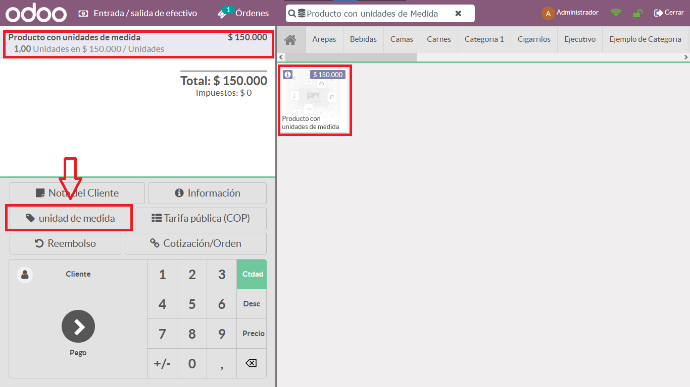
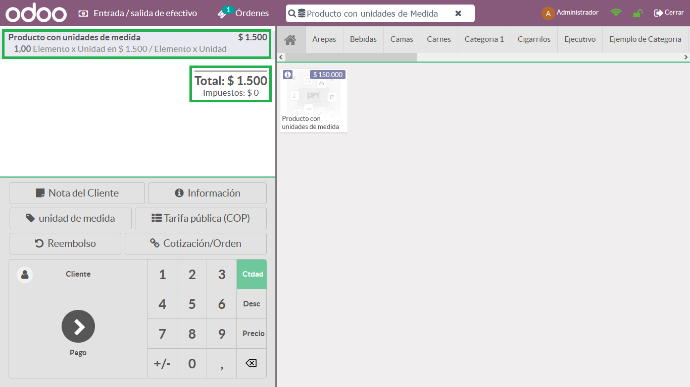
    After creating the unit of measure and assigning it to the product, select the product you want to sell individually in Point of Sale.


    The image shows the price of the entire box of 100 units.


    To change the price according to the selected unit of measure, click "UNIT OF MEASURE".


    Select the unit of measure again.
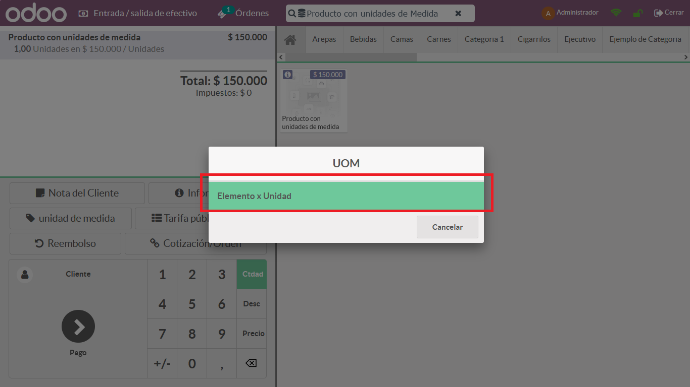


    After you select the unit, the system displays the price per individual product: 1500, the amount specified earlier.


    Complete the sale.


    Applying units of measure to a product in Odoo 15 provides flexible inventory control. Whether you sell by weight, volume or individual units, this feature helps manage sales efficiently. In a bulk food store, for example, you can record the sale of 250 grams of rice instead of a kilo; in a hardware store, you can sell nails by the box or individually. This improves the customer experience and inventory management. Start using units of measure in Odoo and transform the way you handle your products!

    in V15 tutorials
    How to Apply Units of Measure to a Product
    TORRES PARRA DAVID FERNANDO September 24, 2024
    Share this post
    Tags
    Our blogs
    • Tutorials
    • V15 tutorials
    • News
    • Success stories
    • V17 tutorials
    Archive
    How to Create Custom Units of Measure
    Discover how to create custom units of measure in Odoo 15. Improve inventory management and sales processes with this tutorial for different types of business.

    Odoo V15

    At eFixPro, we are pleased to offer a series of detailed Odoo v15 tutorials designed to help you get the most out of this powerful business management tool. Our blog is packed with useful resources covering a wide range of topics, from initial setup to advanced features.

    View tutorials

    Odoo V17

    We are excited to introduce our blog dedicated to Odoo v17 tutorials, the latest version of this outstanding business management platform. At eFixPro, we have created resources designed to help you discover and master the new features and improvements in Odoo v17.

    View tutorials
    EFixPro

    We transform businesses with Odoo ERP.

    Services
    • View all
    • Sales
    • Accounting
    • Inventory
    Company
    • About us
    • Success stories
    • Contact us
    Contact

    Calle 49 #49-11

    +57 604 2010998

    [email protected]

    Mon - Fri: 8:00 to 18:00

    © 2026 EFixPro S.A.S. — All rights reserved.
    Terms and conditions Privacy policy
    Powered by Odoo — The best open source eCommerce.